Google Task Sync: Coming Soon to CompanionLink

As some of you may already know, we currently handle the synchronization of tasks via Google by converting tasks to Google Calendar events. When moved to the Calendar, tasks are dated by the due date in Outlook or Palm Desktop. Past Due tasks are moved to a special entry on “Today” so they are on the date of the last sync. This will remain an option in CompanionLink, but soon we’ll be adding an alternative option.

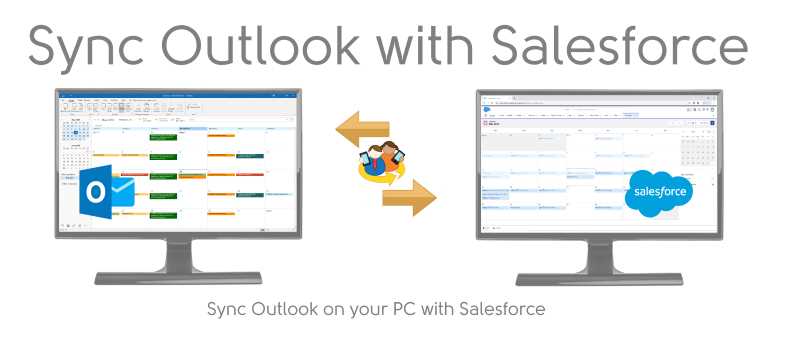
Recently, Google released an API for Google Tasks. This means that we can more closely interact with Google Tasks data. Within the next month or so, we plan to add the ability to sync tasks from programs like Outlook and Palm Desktop to Google. For people looking to sync their CRM database to the Google cloud, this will be a great option. However, for those looking to sync tasks from their database to their mobile device, this is not yet an option. Google Tasks doesn’t sync natively to any phone (not even Android!).

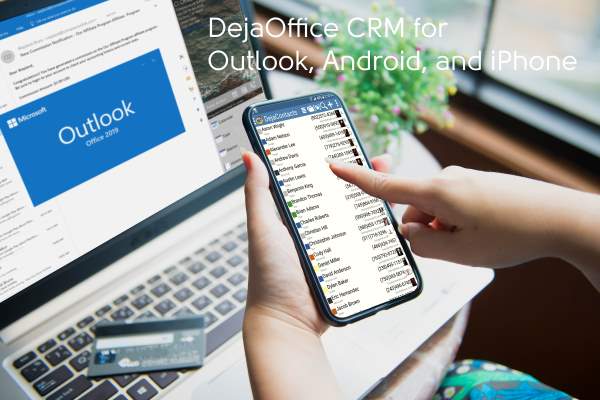
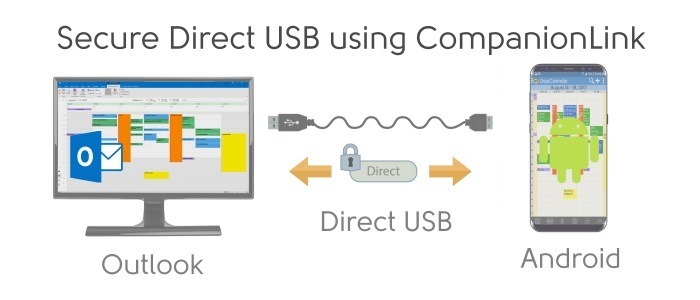
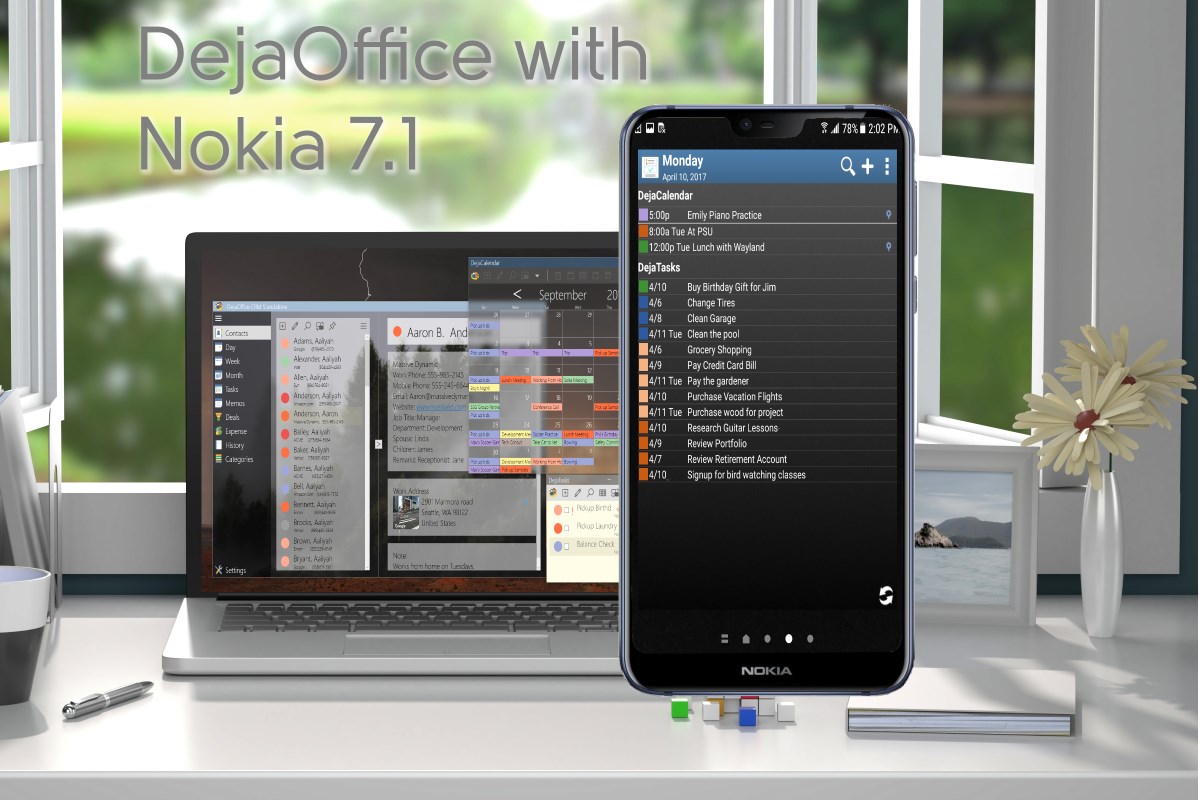
If you’re looking to sync tasks to your phone, your best choice is to use CompanionLink to synchronize via Wi-Fi or USB, directly to your Android or iOS device. With these sync solutions we are able to provide Outlook-like tasks on your mobile device and are not limited by Google’s Task limitations. For example, Google Tasks don’t have Priority and Reminders.  DejaOffice, on the other hand, provides a full set of features including priority, recurring tasks, reminders, categories, status, and more.

To learn more about DejaOffice, head over to www.dejaoffice.com.

Android Fragmentation: A Real Problem or A Hyped Non-Issue?

If there’s one topic surrounding the Android OS that comes up time and time again, it’s the issue of fragmentation. With so many devices and variations of the OS, developing for Android can be difficult. Before deciding if this is a real problem or simply a non-issue, let’s take a step back and define what we’re talking about.

Put simply, Google developed the core code for Android and has allowed device manufacturers such as Motorola, Samsung, and HTC to create custom variations of this code. Google likes this because it gets their OS on a wide variety of handsets. The device manufacturers like this because the bulk of the software work is done for them and they can focus on customizing the OS. End users like this because they have a plethora of choices, all with the same basic features that they’re looking for. Developers, on the other hand, aren’t as keen about the whole situation.

Back in October, the popular Twitter client, TweetDeck, shared some information regarding the variety of devices and OS’s that their app was currently running on.

At first glance, there are quite a few OS versions to support. That said, looking at it differently you could conclude that a good 80% of users are on Android 2.1 and above. If you write an app to support OS 2.1 and higher, you can expect it to work on the majority of Android handsets with very little issue, right? Well, maybe. For some applications, this is entirely true.

For others, however, writing an application that works is far different than writing one that works properly. With all the custom variations of the OS, an application may not behave as expected. If you’re a developer writing for Android, guaranteeing that your app works on all Android device means buying dozens of devices to test it on. For most developers, this simply isn’t feasible.

I think we can all agree that fragmentation on the Android platform exists. So the question becomes “is it a problem?” In my opinion, almost. What I mean by this is that unless it’s addressed, it could spiral out of control to the point that it simply isn’t manageable. It may get to the point that certain apps only work on certain devices. Want to play Angry Birds? Get a Samsung phone.

That said, I don’t think it will get that far. In fact, Google has already released a tool to help curtail the issue, and they recently partnered with manufacturers to help ensure devices are kept up to date. Is it enough? Maybe for now, but it’s not a complete solution. So how does Google minimize the imminent fragmentation problem while maintaining the openness that many of us love about the Android platform? Well, that’s the big question, now isn’t it?

New CompanionLink Review and Giveaway by Windows Guides

The team over at Windows Guides has posted a review of CompanionLink 4. The review highlights the some of the changes and benefits that CompanionLink 4 introduced, including the new interface and auto-sync. In addition to the review, Windows Guides is running a giveaway where 3 winners will get a copy of CompanionLink Professional with our RunStart installation service completely free!

Read the full Windows Guides review here and be sure to check out the giveaway here too. You can download a 14-day free trial of CompanionLink for Outlook or CompanionLink Professional at www.companionlink.com/outlook.

Choosing the Right Android Phone and Carrier Combination

Choosing the phone that’s right for you involves many things: camera quality, speed, screen size, keyboard features, and much more. What carrier the phone is on is not usually something people give as much thought to. In fact, many people simply limit their options to the network they’re currently on and pick a phone from there. When it comes to Android, however, choosing your carrier is an important step in choosing your phone. The question then becomes, “What carrier has the best selection of Android phones?”

The fine folks over at the popular Android blog, Phandroid, have taken it upon themselves to help answer that question! They write:

“It’s been three and a half years since Google introduced the very operating system we write about everyday – Android – and every major (and many minor) United States carrier has phones running it. Some more than others, of course, but who has the best lineup? I take a gander at offerings from Verizon, AT&T, T-Mobile, Sprint, US Cellular, MetroPCS and more and at the end I’ll let you know who I think has the best Android lineup.”

Curious to know what carrier has the best selection? Need some information on the best phones for each carrier? Hit the “Read” link below and head over to Phandroid to get all the details! An be sure to let us know who you think has the best Android phones in the comments!

Read…

Support Update: BlackBerry Sync Issue

CompanionLink is aware of an issue with certain BlackBerry devices where the device’s address book will show only one contact, duplicated several times, after synchronizing. All other contacts do not display on the device even though they may be present in the device’s internal database.

Update:

We have found this is associated with the December 2010 update to Blackberry 5.0 OS in from various carriers. This includes, but is not necessarily limited to, Blackberry OS 5.0.0.1015, 5.0.0.1030, and 5.0.0.1067.

Other updates do not appear to have this problem. Blackberry OS 4.0 and 6.0 work fine, as do prior Blackberry OS 5.0 releases. The problem is not unique to CompanionLink. It is reported with other sync products including products from RIM.

Please note your Blackberry OS version carefully. Check your carrier’s website or BlackBerry for an OS update that is PRIOR to December 2010. Please install the older OS. This will likely fix the display problem.

NOTE: If you are unable to downgrade your Blackberry OS, the following steps appear to usually resolve the issue:

1) Perform a full backup of your Blackberry.
2) Perform a security wipe of your Blackberry.
3) Restore the backup you created in step 1).

If you are still in need of assistance, contact technical support at www.companionlink.com/support/contact.html

RIM Introduces BlackBerry Balance

Just the other day, Research In Motion (RIM) announced a new feature coming to BlackBerry smartphones: Balance. Balance is a technology that allows companies to define what’s work and what’s personal, then act on that information. For example, Balance can be setup to restrict a user from copying text from a business email into a social networking app. The ultimate goal, of course is to give the company more control over secure data while allowing employees to use one device for both work and personal needs.

At CompanionLink, we’re big fans of keeping your business data separated from your personal data. We’ve written recently talking about how you can use CompanionLink and DejaOffice to do just that, making it much easier for you to use your phone at work and at home. Balance does not appear to offer the same types of features as we discuss, but rather focuses on making a personal device more secure. Initially, the direct benefit to the employee may seem low. However, it is important to remember that, for many, Balance will be the key that finally allows them to carry just one device!

How do you keep your business and personal data separated? Will Balance change things for the better for you? Let us know in the comments!

Prices Are Changing On June 1

Beginning June 1, 2011 we are increasing the price of the following products by $10. The new prices will be as follows:

  • CompanionLink for Outlook: $49.95
  • CompanionLink for Palm Desktop: $49.95
  • CompanionLink for Google: $49.95
  • CompanionLink for Time & Chaos: $49.95
  • CompanionLink Express: $79.95

This nominal increase will allow us to continue providing free US-based phone support to our customers. Providing world-class support is important to us. In fact, we offer free support even before you buy. We stand behind our software and want to ensure your experience with it is a great one!

If you are still determining whether or not to buy our software, we recommend you do so before the price change. We offer a no-questions-asked, 90-day money-back guarantee in case you decide to return our software.

Support Update: How to Sync the DROID Incredible 2 With Your PC

HTC recently released their follow-up to last year’s very popular DROID Incredible. Aptly named the DROID Incredible 2, this Android-powered handheld is a solid update from last year’s model. The HTC DROID Incredible 2 features a 4” display, a 1GHz processor, 768MB of RAM, and an 8-megapixel camera. The phone ships running Android 2.2 with HTC Sense. All in all it’s a great device and a worthy competitor among today’s top mobile phones. For early reactions to the device, as well as some detailed photos, check out Android Central’s initial review.

Such a great device is bound to be quite popular. As such, we’re happy to inform all you prospective buyers and new owners that CompanionLink fully supports syncing contacts, calendar, tasks and notes between the Incredible 2 and PC software such as Microsoft Outlook, ACT! by Sage, Palm Desktop, Lotus Notes and more. You can sync direct via USB, over your local Wi-Fi network, via our Secure Hosted Wireless service, or wirelessly through Google. To learn more, as well as download a 14-day free trial, visit https://www.companionlink.com/phones/htc-incredible.html

ASUS: Transforming the Way We Think About Tablets

If I had to guess, I’d be willing to be that the number one complaint about tablets today is that they’re just not that easy to type on, at least for longer periods of time. Sure, you can use a Bluetooth keyboard on many, but that feels like more of an afterthought than anything. In fact, I would argue that it’s one of the biggest reasons business users might favor a laptop over a tablet as a secondary, mobile device. The ASUS Eee Pad Transformer aims to change that.

As its name suggests, the Transformer starts out as a competitive, yet standard tablet. When paired with the optional laptop dock, however, it becomes an entirely new machine. Not only does the laptop dock provide a keyboard and multi-touch trackpad, it actually adds additional usage time with its built in battery.  The ability to transform from a lightweight tablet to a highly productive laptop gives this unique device a lot of potential.

As we’ve stated before, we believe devices like the Motorola Atrix are signaling a shift in mobile computing. The Eee Pad Transformer is helping lead this charge!

Note: Are you looking to sync the ASUS Eee Pad Transformer with Outlook or another popular personal information manager? We have you covered: check out CompanionLink for PC and DejaOffice for Android!

How To Keep Your Personal Data Separated From Your Work Life

The short answer is this: Categories.

Creating a category called “Personal” allows you to keep your home life organized in its own section of your database. Your complete database is on your device, but it’s easily sorted so that you only see the data that is relevant to your current situation.

Unfortunately, not all devices have category functionality, and those that do are often limited. To remedy this, DejaOffice allows you to create and manage categories, as well as assign colors to them to further differentiate your data.  This exponentially boosts productivity, especially once you begin to use colors to cue yourself for the urgency or types of tasks.  Red means must-do and urgent.  Yellow means phone calls.  Orange means it’s not the end of the world if you miss this appointment or meeting.  And so on.  At a glance, you will be able to know how many urgent meetings, calls, etc., you have on any given day.

Taking this a step further, you can then use CompanionLink’s sync software to sync your phone to your PC. CompanionLink gives you the option to ignore your personal contacts during sync. This allows you to keep your work data up to date in programs like Outlook, ACT, and more without mixing in personal data on a work computer.

So, with a little help from DejaOffice and CompanionLink, you’ll be down to just one phone all while keeping your work data synced and personal data separated!

An Update On Syncing The BlackBerry PlayBook

If you’re one of the many who got their hands on a PlayBook this past week, I’m sure you’re well aware of its current lake of contacts, calendars, etc. While these thing should be coming via software updates, they aren’t here yet. So, in the meantime, what do you do if you want to sync Outlook to the BlackBerry PlayBook? We currently have a few options for you:

1. If you own a BlackBerry phone, you can sync Outlook to your BlackBerry via CompanionLink for Outlook. Then, simply launch the BlackBerry Bridge app and pair it up with the PlayBook. All the contacts, calendars, tasks, & memos you synced to your BlackBerry phone will now be available on the PlayBook for as long as the connection remains open. We realize that this is not the most direct route, but it’s the most integrated option available to us at the moment.

2. If you do not own a BlackBerry phone, or want to be able to access your contacts and calendars without having to use the Bridge app, you can use CompanionLink for Outlook to sync Outlook to Google. Once the sync is complete, you can use the browser on the PlayBook to navigate to Google’s web apps. This, of course, requires a data connection to load.

Future software updates for the PlayBook are expected to bring integrated contacts, calendars, tasks, and memos to the device. At that point, we anticipate users will be able to sync via CompanionLink and the BlackBerry Desktop software as is currently done with BlackBerry phones. Additionally, Research In Motion (RIM) has stated that the PlayBook will ultimately be able to run Android apps. When this functionality becomes available, we are expecting that DejaOffice will be able to run natively on the PlayBook, further expanding the sync options available.

If you have any questions on your current sync options or our anticipated future sync options, leave a comment below or get in touch on Twitter or Facebook!

The Sidekick 4G: Now With More Android!

Historically, the Sidekick was always a fairly popular phone. Of course, since the Danger debacle and recent shutdown notice, we’ve seen this popularity fade away to some degree. Don’t expect the slump to last, however. The Sidekick is back and it features some solid specs, including 4G data.

The biggest news, however, is that the Sidekick 4G will be running Android. This opens the door for a lot of potential. Business users who want to move away from BlackBerries, but still want a solid physical keyboard will want to take a look at the Sidekick and its great keyboard design. Those who know a little about the previous Sidekicks might balk at this suggestion, claiming that the Sidekick is not designed to be a business device. Admittedly, it is marketed more towards a younger crowd. However, the Sidekick 4G features a few nice additions, such as WiFi calling and “cloud-based” texting that serve to extend the phone’s functionality and maximize productivity when you’re away from cell signal or at the computer. And, of course, after downloading a few business-focused Android apps, like DejaOffice, the Sidekick can be just as productive as any other Android available today!

Looking for information on how to sync the Sidekick 4G with Outlook and other popular databases. Click here!