Study Shows Computers Are Here To Stay – But Are They Really?

Tablets won’t be replacing computers any time soon.

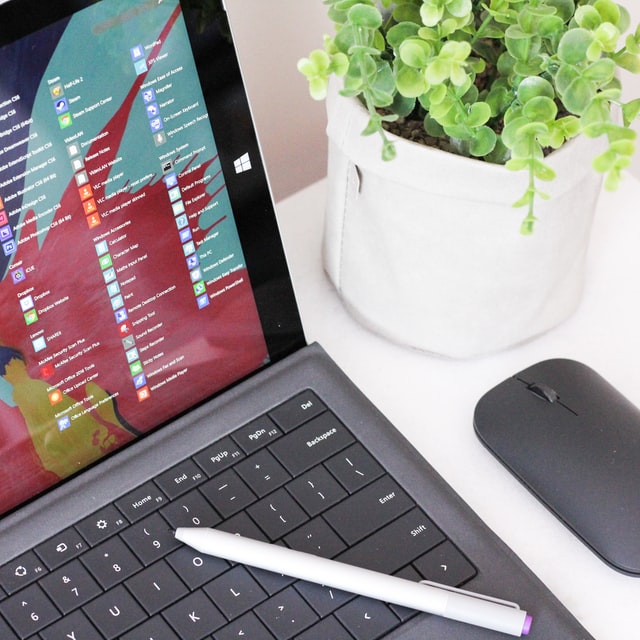
At least according to a recent study by Robert W. Baird & Co. 83% of consumers surveyed said that they could not do without a computer for the foreseeable future. According to consumers, tablets are cool. They’re fun. They’re wildly popular. But, for the majority of users, they simply cannot replace a computer. Not in their current form, anyways.

When compared to a tablet or smartphone, what is it that makes the PC so indispensable to the vast majority of the population? It’s not a keyboard or mouse – tablets can accommodate traditional input devices such as these already. It’s not power. Well, not for most users anyways. Today’s tablets and smartphones can easily handle the average users’ needs. For those that need more, it’s only a matter of time before mobile devices catch up to traditional PCs in terms of processing power, RAM, graphics, and storage. So if it isn’t these things, what is it?

In my opinion, it comes down to the form factor and operating system. Tablets and smartphones are great on the go, but it’s hard to beat a 24” screen with a “desktop-optimized” operating system when you’re at the office or at home. If that’s the case, why can’t tablets and smartphones offer these features as well? They can.

We’ve said it before – computers as we know them are going extinct. Devices like the Motorola Atrix and the Asus Transformer already offer tools for attaining the “desktop experience” from your mobile. Soon, many more mobile devices will offer the ability to dock to the traditional monitor, keyboard, and mouse setup. Your “computer” will actually be just a shell powered by your mobile device.

So 83% of consumers are in luck – they won’t have to go without a computer in the foreseeable future. What they may not realize, however, is that their computer will, in fact, be a tablet or smartphone.

Copy and Paste Events With DejaOffice 1.12 for Android

DejaOffice 1.12 beta brought a big new feature to our Android app: time zone support. That’s not the only big news, however. We’ve also introduced a feature that many of you have been asking for recently: the ability to copy and paste events in DejaCalendar.

Copying and pasting events works just like you’d expect. In the day view or week view, just tap and hold (long press) on an event to bring up the context menu. Then, select “Copy” or “Cut.” Next, navigate to the day/week you want to move it to, tap and hold in a blank calendar space near the time you want, and select “Paste” from the context menu. It’s that easy!

Can’t wait to try this out? Head over to the DejaOffice website to download the latest Android beta. Have any other ideas for us on how to make DejaOffice better? Let us know!

CompanionLink 4048, DejaOffice 1.12 (beta) for Android, and Time Zones

It’s been a busy week at CompanionLink! We have two new updates available today: CompanionLink 4048 and DejaOffice 1.12 (beta) for Android. They both bring a number of new features, bug fixes, and improvements, but the biggest new feature is time zone support. More on that in a minute.

CompanionLink 4048 addresses a number of bugs and offers some overall improvements, especially for Salesforce and Goldmine users. Build 4048 also adds improved support for syncing across time zones – a feature we’ve added to the latest Android beta of DejaOffice. Take a look at the full release notes at the end of this post to learn more about all the changes in build 4048.

DejaOffice 1.12 (beta) for Android is a significant update. We’ve improved quite a few features and fixed a number of bugs. Of course, as mentioned above, the feature we’re most excited to share with you today is time zone support. DejaOffice now offers you a choice in how to handle your events when changing time zones. Once you enter a new time zone, you’ll be asked if you’d like your events to shift. You can choose one of three options: “Not Decided,” “No,” and “Yes.”

Not Decided asks when changing time zones if you want event times to shift. This is the default behavior. You’ll have the option to select “Yes” or “No” each time you enter a new time zone. Alternatively, you can tell DejaOffice to always select one option.

Selecting “No” ignores the time zone at your current location. This prevents event display times from shifting when you travel to a different time zone. With this setting, an event set for 1pm Pacific Time will show up as 1pm when you enter Eastern Time.

Choosing “Yes” has the opposite effect. It adjusts the event display times using the time zone at your current location. This means an event set for 1pm Pacific Time will display as 4pm when you enter Eastern Time.

You can find these options under Settings > General Settings within DejaOffice. If you’d like to try out this new feature, as well as take advantage of the numerous other improvements we’ve made, download the latest Android beta here.

Read on for the release notes… Continue reading

Infographic: A History of Mobile Productivity

From the pager to the iPad, mobile devices have been enhancing our mobile productivity in one way or another for decades. In their early days, mobile devices were largely business-focused. Since then, they have become sleeker, more powerful, and even more appealing to consumers and business users alike.  On today’s mobile devices, you can run your business, use your phone camera for professional photoshoots or play Angry Birds – or all of them!

Read through the infographic below and take a walk through a history of mobile productivity. Discover the first portable handset. Learn how the groundwork for today’s app stores was laid in the 1990s. Reminisce over the earliest smartphones and tablets. Then, share with us where you think mobile productivity is headed next!

A History of Mobile Productivity

The United States of Mobile

Image Credit: JumptapWe regularly see reports that show Android is leading the mobile market, but this is the first time I’ve seen a state-by-state breakdown of popularity. Jumptap, a mobile ad network, released a report today showing Android, iOS, and BlackBerry popularity at the U.S. state level. The data is based on activity on Jumptap’s network, a network that reaches 83 million users.

Check out the image above to see where your state’s allegiance lies. Most interesting to us – in our home state of Oregon, BlackBerry reigns supreme. At least according to Jumptap’s data…

[via TechCrunch]

Resolving A Google Calendar Error [Tech Tip]

Some users have reported seeing the following error message display in CompanionLink when attempting to sync with Google:

“Unable to access Google Calendar. Please create a record in Google Calendar first, then try again.”

If you are seeing this message, and have already created at least one event in your Google Calendar, please do the following to resolve the issue:

For Google hosted domain users:

1. Visit the following webpage in your browser:
https://www.google.com/a/<your domain name>/UnlockCaptcha

2. Enter your Google username and password (the same as the email and password you entered in CompanionLink), then solve the captcha and unlock.

3. Reattempt a sync.

For non-hosted domain users:

1. Visit the following webpage in your browser:
https://www.google.com/accounts/DisplayUnlockCaptcha

2. Enter your Google email address and password (the same as the email and password you entered in CompanionLink), then solve the captcha and unlock.

3. Reattempt a sync.

DejaOffice 1.11.9 Update Brings “File As” to Android

DejaOffice has supported sorting contacts by the “File As” field for some time. Until now, however, that field was not viewable or editable within DejaOffice – it was something you had to deal with in Outlook. With the release of DejaOffice 1.11.9, we’re bringing the File As feature to Android. You can now view, edit, and sort by the File As field on your Android phones and tablets. I’m sure there are quite a few Outlook users who will appreciate this!

In addition to File As, we’ve added and improved a number of features, as well as elimtinated a handful of bugs. Full release notes are included after the break.

Continue reading

How To Sync The myTouch 4G Slide With Outlook

T-Mobile unleashed the latest iteration of the myTouch smartphone to the public today: the myTouch 4G Slide. The myTouch 4G Slide improves upon the myTouch model in many ways. It features a 1.2GHz dual-core processor, slide out QWERTY keyboard, 4G speeds, and HTC Sense 3.0 on Android 2.3. Additionally, the myTouch 4G Slide’s 8MP camera is said to be one of the best currently on the market. Selling for $199 with a new contract, the myTouch 4G Slide should prove to be a very popular device this summer.

Of course, at CompanionLink we’re always testing the latest devices. We’re happy to report that you can use CompanionLink to successfully sync contacts, calendar, tasks and notes between the myTouch 4G Slide and CRM databases such as Microsoft Outlook, Sage ACT!, Lotus Notes, Salesforce, Zoho, and more. The myTouch 4G Slide supports all four of our sync methods: direct via USB, via WiFi, via Secured Hosted Wireless sync, or via Google. To find more info, as well as download a 14-day free trial, visit www.companionlink.com/android/.

Want to sync the myTouch 4G Slide with Outlook?
Download a free trial of CompanionLink for Outlook today!

Try CompanionLink for Outlook free!Buy CompanionLink today for $49.95!

Google Sync vs Secure Hosted Wireless Sync

When it comes to syncing your mobile phone, some of the options available can be confusing. To help you navigate through the various options, I wanted to answer a common question we get from users trying our software:

“What’s the difference between Google Sync and your Secure Hosted Wireless Sync?”

While they accomplish similar tasks, there are actually quite a few differences. Google Sync allows you to keep your Gmail, contacts, and calendars synced wirelessly and instantly between your mobile device and Google’s servers. When used with CompanionLink, it is possible to sync data from Outlook, ACT!, and more to Google. Google Sync can then sync contacts & calendars to you mobile devices. Google Sync is free to use, and it works well for users who want a simple sync.

Secure Hosted Wireless, on the other hand, allows you to sync contacts and calendars, as well as tasks and memos, directly between your mobile device and your PC. One unique advantage to Secure Hosted Wireless is that we do not actually host your data online like Google. Additionally, we protect your data with AES-256 bit encryption. This alleviates potential security issues, which can be a big concern for business users. Since Secure Hosted Wireless sync is built to work directly with CompanionLink and DejaOffice on your mobile device, we are able to provide you with more advanced control over your data, as well as end-to-end support. Secure Hosted Wireless is $9.95/month and it works well for users who need a more secure, advanced wireless sync.

If you have any questions about the differences between these two sync options, let us know in the comments!

How To Remove Duplicates With CompanionLink

We’ve talked about dealing with duplicates before on the blog, but today I wanted to share with you a video we just published on the topic. In this quick video, we’ll show you step-by-step how to remove duplicates using CompanionLink – and how to avoid them in the first place!

[youtube https://www.youtube.com/watch?v=d2ma4IMcrJc]

Keep an eye on our YouTube channel for more great videos coming soon, like Sync 101 and How DejaOffice Interacts With Native Databases!

CompanionLink Build 4047 Now Available

Today we released CompanionLink Build 4047. The most notable change comes in the form of a fix surrounding syncing with Google Tasks.

Build 4047 has fixed an issue where some users who sync Tasks to Google Tasks would see a “503 Daily limit exceeded” error. This error was caused by a daily request limit imposed by Google on their Tasks API. We’ve been able to increase this request limit, so users should not encounter this error again.

The full release notes for CompanionLink Build 4047 are included below and you can download the update now by visiting https://www.companionlink.com/downloads/updates.html.


CompanionLink 4047 Release Notes:
* Fixed issue where Google would sometimes throw a “503 Daily limit exceeded” error. This error was caused by a daily request limit imposed by Google on their Tasks API.
* Fixed issue syncing Salesforce contacts with Android via USB.
* Made stability improvements for Android WiFi sync.
* Fixed issue where Outlook BCM communication histories could sync with an incorrect date.
* Made stability improvements for sync with Zoho.
* Fixed issue syncing Franklin-style task priorities from Android to PC.
* Fixed issue syncing recurring events with Google using Alaska time zone.
* Fixed issue where cleared recurring events in Outlook could sometimes sync as active.

Sync Outlook (& More) To Google+

Google+ is still very new, but it’s shaping up to be quite popular among early adopters. Invites are beginning to flow more freely, and more and more users are getting to try out the hyped new network.

That said, many users receive a Google+ invite only to find an empty site because all their contacts are stored in Outlook, not Google. Currently, Google does not provide an import tool for Google+ (though they are working on it). So how can you populate your Google+ network and maximize its potential? It’s simple: use CompanionLink.

CompanionLink allows you to sync contacts from Outlook, Palm Desktop, and other PC software into your Google Contacts. From there, you can simply log into Google+ and connect with (or invite) your contacts. It’s that easy! Before you know it, you’ll be experiencing Google+ as it was designed to be used.