JetOctopus has emerged as a powerful SEO crawling and auditing solution, specifically designed to help website owners and SEO professionals analyze and optimize their sites’ performance. This cloud-based tool combines advanced crawling capabilities with comprehensive analytics to provide actionable insights for technical SEO improvements.
At its core, JetOctopus offers high-speed crawling technology that can process up to 250 pages per second, making it particularly valuable for large websites with thousands or even millions of pages. The tool’s efficiency stems from its distributed cloud infrastructure, which allows it to handle extensive crawling tasks without putting strain on the target website’s servers.
One of JetOctopus’s standout features is its ability to conduct real-time log file analysis. This capability helps users understand how search engines interact with their websites by processing server logs and identifying patterns in bot behavior. The insights gained from this analysis can be crucial for optimizing crawl budget and ensuring important pages receive adequate attention from search engine bots.
The platform offers a comprehensive suite of diagnostic tools that help identify common technical SEO issues such as broken links, duplicate content, missing meta tags, and problematic redirects. Users can access detailed reports that highlight these issues and provide recommendations for fixing them. The tool also includes specific features for JavaScript SEO analysis, which is increasingly important as websites become more dynamic and interactive.
For e-commerce websites, JetOctopus provides specialized functionality to analyze product pages, categories, and navigation structures. This includes monitoring for out-of-stock products, checking price consistency, and ensuring proper implementation of schema markup.
The tool’s dashboard presents data in an intuitive format, using visualizations and graphs to make complex technical information more accessible. Users can customize their reports and export data in various formats for further analysis or presentation to stakeholders.
JetOctopus also offers integration capabilities with popular analytics platforms and content management systems. This allows users to combine crawl data with other metrics for a more complete picture of their website’s performance.
Recent updates to the platform have introduced advanced features such as JavaScript rendering analysis, mobile-first crawling, and enhanced API access. These additions help users stay ahead of evolving SEO requirements and technical web standards.
The pricing structure of JetOctopus is based on the number of pages crawled per month, making it scalable for both small websites and large enterprises. This model allows businesses to choose a plan that matches their specific needs and budget.
Security is another key aspect of the platform, with JetOctopus implementing robust measures to protect user data and ensure compliant crawling practices. The tool respects robots.txt directives and allows users to set custom crawl rates to prevent server overload.
For teams working on SEO projects, JetOctopus offers collaboration features that enable multiple users to share access to crawl data and reports. This makes it easier for teams to coordinate their optimization efforts and track progress over time.
Whether used for routine technical SEO audits or detailed site analysis, JetOctopus has established itself as a valuable tool in the digital marketer’s arsenal. Its combination of speed, comprehensive features, and user-friendly interface makes it a notable option for professionals seeking to improve their website’s technical SEO performance.
JetOctopus: The All-in-One SEO Crawler and Site Audit Tool was last modified: April 11th, 2025 by Colleen Borator
In today’s increasingly globalized world, cross-language communication has become an essential part of academic research, business cooperation, and daily life. PDF (Portable Document Format), as one of the most widely used document formats, carries a large amount of important information that needs to be shared across languages. However, PDF document translation has long faced unique technical challenges, with traditional translation methods often struggling to balance translation quality and complete preservation of document formatting.
In recent years, breakthroughs in artificial intelligence technology, especially Neural Machine Translation (NMT), have completely changed the technical landscape of PDF document translation. Compared to traditional Statistical Machine Translation (SMT), deep learning-based NMT models can better understand context and semantics, producing more natural and fluent translation results. The latest Large Language Model (LLM) technology has further improved translation accuracy to a level approaching that of human professional translators, particularly excelling in handling professional terminology and complex sentence structures.
According to the latest research data, the accuracy rate of AI translation technology for professional field documents in 2024 has reached 92.7%, an increase of nearly 15 percentage points compared to 2020. This technological leap has transformed AI PDF translation tools from simple auxiliary tools to efficient solutions capable of replacing most manual translation work.
The core challenges of PDF document translation lie in its inherent complex structural characteristics:
Format Preservation Issues: PDF documents often contain complex typographic elements such as tables, charts, multi-column layouts, and special fonts. Traditional translation tools can often only extract plain text content for translation, resulting in loss of original formatting.
Image Text Recognition: Many PDF documents contain embedded images or scanned content, requiring advanced OCR (Optical Character Recognition) technology to extract text for translation.
Professional Terminology Processing: Academic papers, legal documents, and technical manuals contain a large number of domain-specific terms that require high accuracy in translation.
Context Understanding: Content in PDF documents often has tight logical connections, and the translation process needs to maintain contextual consistency.
Large File Processing Capability: Academic papers and technical reports are often lengthy, placing higher demands on the processing capabilities of translation tools.
Market Demand and User Pain Points
The current global PDF translation market size has exceeded $2 billion, with an annual growth rate of over 25%. User groups mainly include academic researchers, international business professionals, international students, and professionals who need to process multilingual documents. According to the latest user research, the primary needs of PDF translation users include: translation accuracy (87%), format preservation integrity (76%), operational convenience (68%), and multilingual support (62%).
In this rapidly developing market, various AI PDF translation tools are emerging, and users often find it difficult to make the most suitable choice for their needs. This article will comprehensively compare 7 top AI PDF translators in 2025, helping readers understand the advantages, limitations, and applicable scenarios of each product, thereby choosing the solution that best meets individual or organizational needs.
We will evaluate each product from the following dimensions: translation quality, format preservation, language support, user experience, technical features, pricing strategy, and integration capabilities. Among these evaluation dimensions, we will pay special attention to Monica AI PDF Translator, an emerging market leader, and deeply analyze how it stands out in the fierce market competition through technological innovation and user experience optimization.
User Feedback: 4.9/5.0 on Chrome Web Store, 10,000,000+ active users.
Integration Capabilities: Browser extension, desktop apps, mobile apps.
Additional Features: Preserves original formatting, AI-powered translation.
My Take: Monica’s AI PDF Translator is a reliable choice for quick and accurate translations, especially for users who need to preserve document formatting.
Ideal For: Students, professionals, casual users.
Rating: ★★★★★ (5/5)
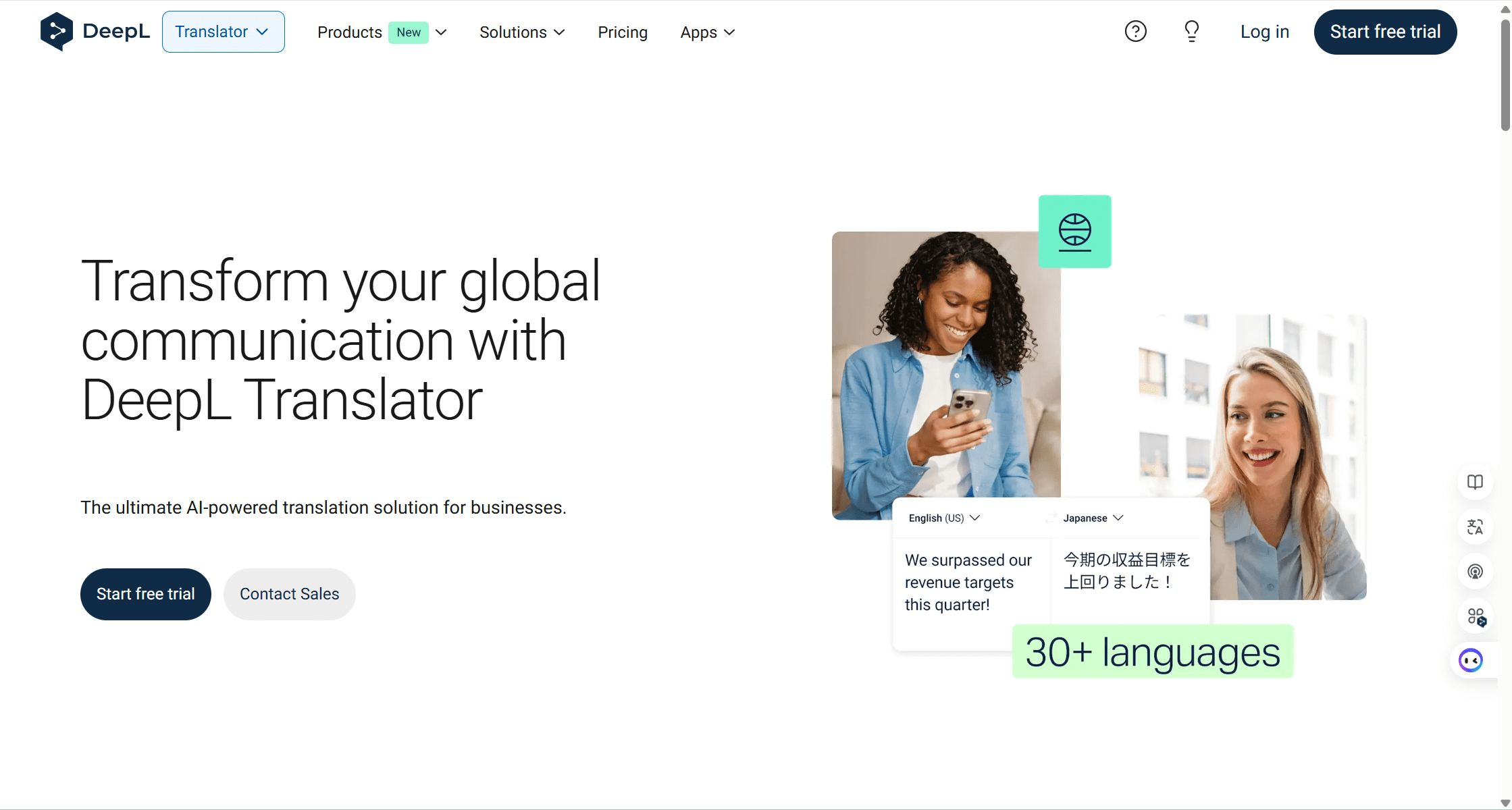
2. DeepL Translator
Key Advantages: High-quality translations, supports multiple file formats, trusted by businesses and governments
DeepL Translator is a professional-grade tool known for its accuracy and support for over 30 languages. It is widely trusted by businesses and governments worldwide.
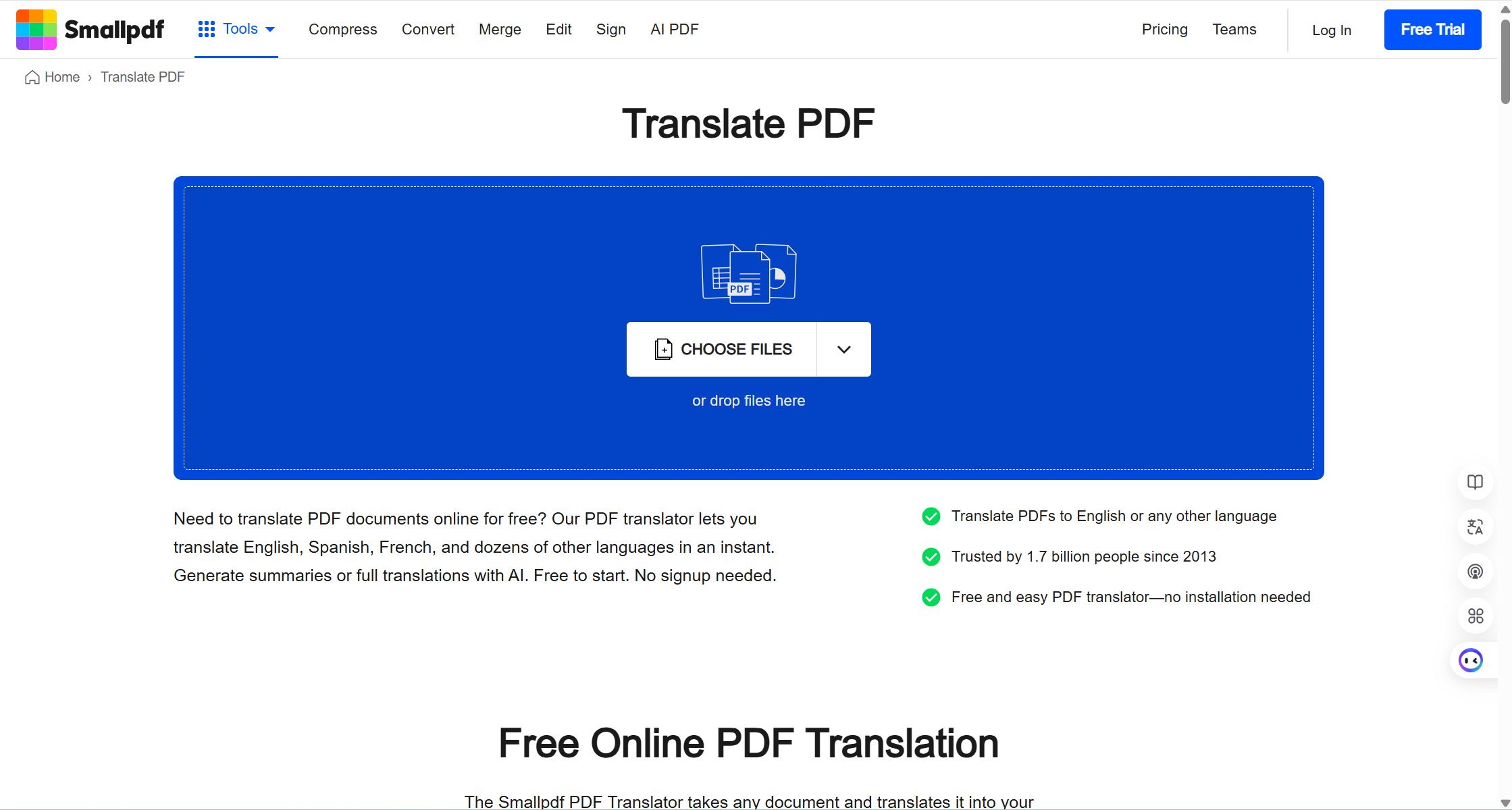
Key Advantages: Easy-to-use, supports multiple file formats, built-in AI chat for insights
Smallpdf’s Online PDF Translator is a user-friendly tool that supports PDF, DOCX, PPT, and image formats. It also includes a built-in AI chat for deeper insights.
Features: AI-powered translation, built-in AI chat, preserves original formatting.
Target Audience: Casual users.
Implementation Steps:
Import or drag & drop your PDF document.
Choose “Summary” or “Entire Document” and click “Translate.”
Change the language as needed.
Use the built-in AI chat for deeper insights.
Format Compatibility: PDF, DOCX, PPT, JPG, PNG, GIF, TIFF.
Technical Specifications: Supports large files.
Language Support: Over 20 languages, including English, Spanish, French, German, Arabic, and Chinese.
Pricing: Free to use with limitations.
Security Features: GDPR compliant, data protection measures.
User Feedback: Trusted by 1.7 billion people since 2013.
Additional Features: Built-in AI chat, preserves original formatting.
My Take: Smallpdf is a great option for casual users who need quick translations and additional insights from their documents.
Ideal For: Casual users, students.
Rating: ★★★★☆ (4.5/5)
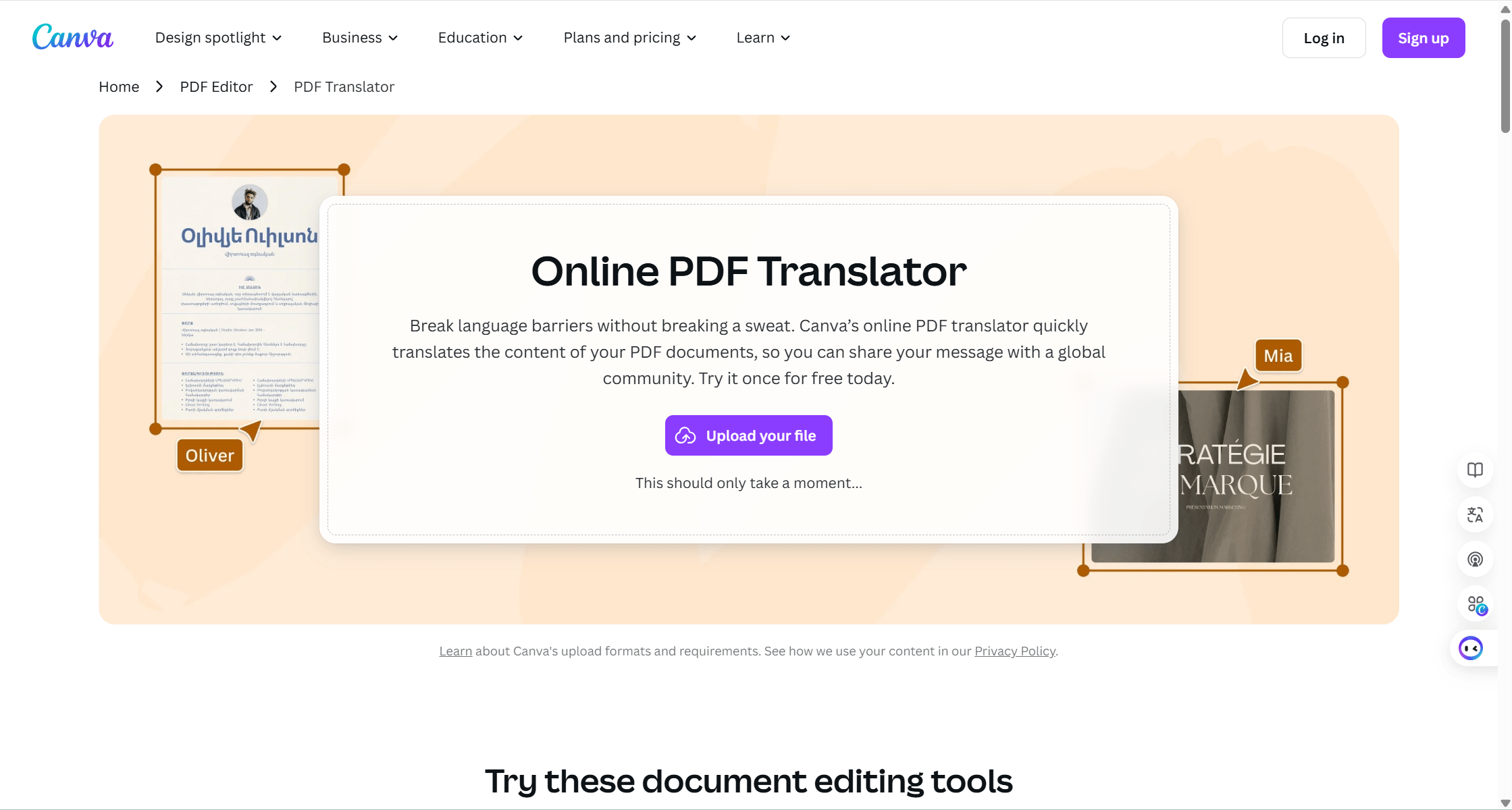
4. Canva Online PDF Translator
Key Advantages: Real-time collaboration, supports over 100 languages, ability to edit translated PDFs
Canva’s Online PDF Translator is a versatile tool that not only translates PDFs but also allows users to edit and collaborate on translated documents in real time.
Features: AI-powered translation, real-time collaboration, ability to edit translated PDFs.
Target Audience: General users, professionals.
Implementation Steps:
Upload your PDF document.
Click “Translate” and choose from over 100 languages.
Edit and collaborate on the translated document in real time.
Format Compatibility: PDF.
Technical Specifications: Canva’s Translate app uses advanced machine learning technology (NMT) to generate translations that are accurate and natural-sounding.
Language Support: Support 134 languages.
Pricing Model: Free trial available; full access with Canva Pro subscription.
Security Features: No specific details provided.
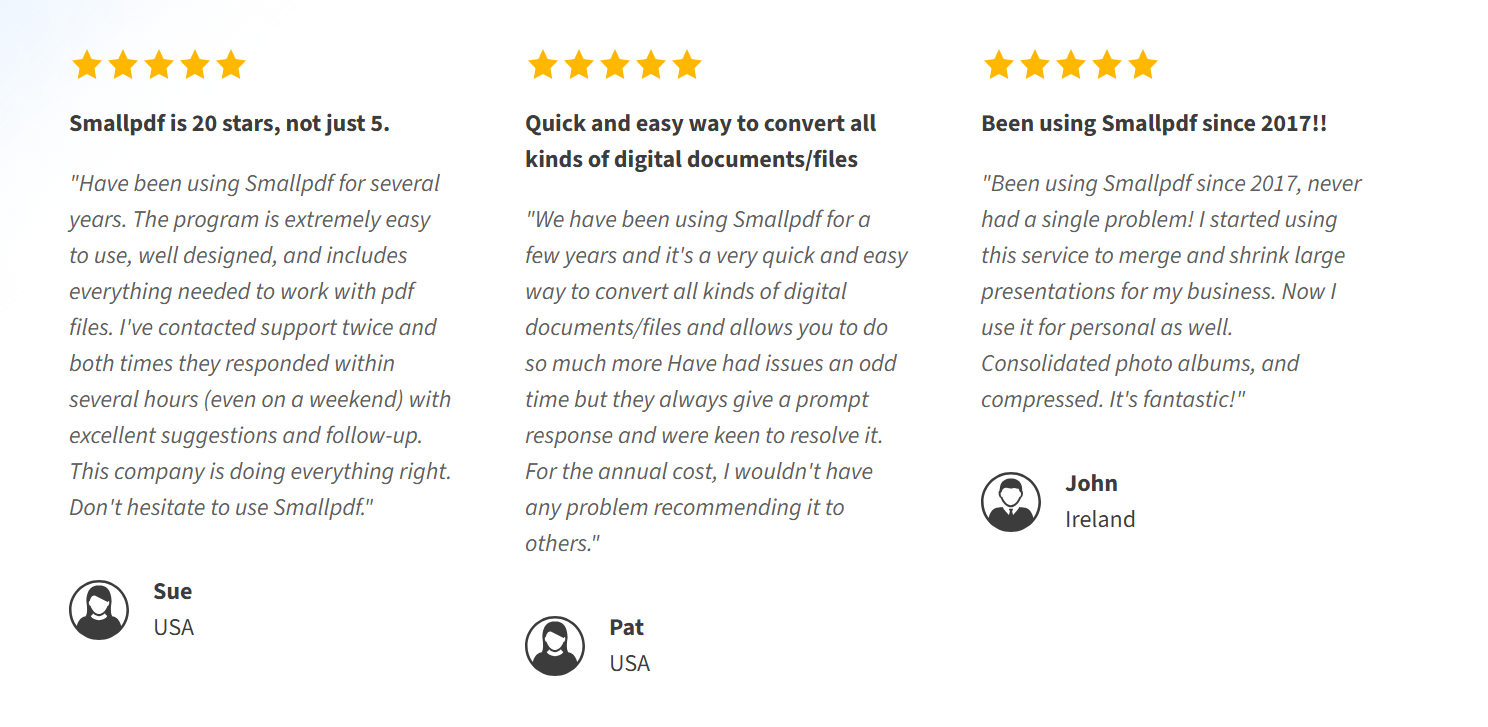
User Feedback: Positive user testimonials included.
Additional Features: Real-time collaboration, ability to edit translated PDFs.
My Take: Canva’s PDF Translator is a great choice for users who need to edit and collaborate on translated documents.
Ideal For: General users, professionals.
Rating: ★★★★☆ (4/5)
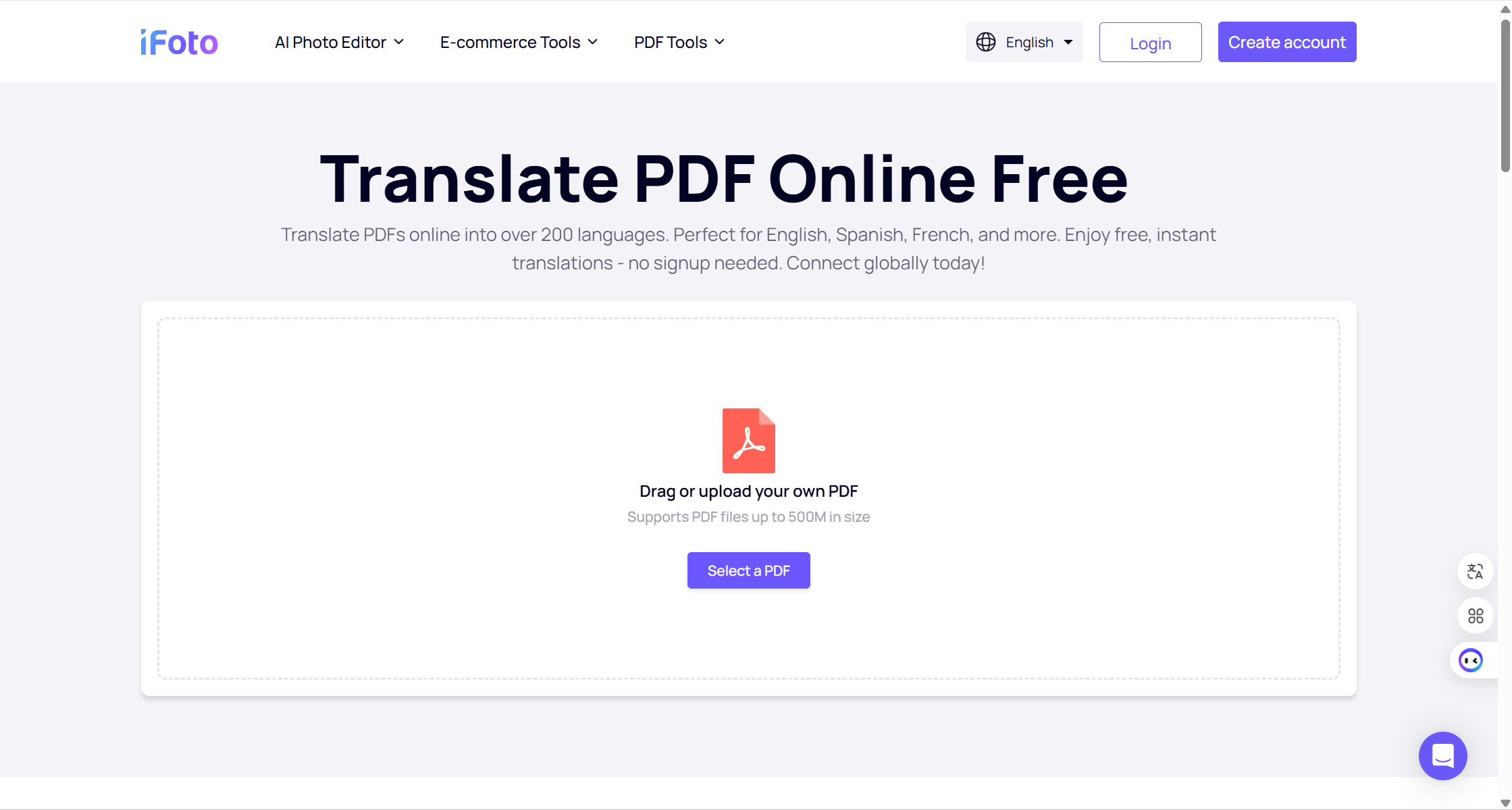
5. iFoto PDF Translator
Key Advantages: Supports 200+ languages, OCR for scanned PDFs, supports large files up to 500MB
iFoto PDF Translator is a versatile tool designed for professionals, students, and travelers, offering support for over 200 languages and OCR capabilities for scanned PDFs.
Features: AI-powered translation, OCR for scanned PDFs.
Technical Specifications: Supports large files up to 500MB, OCR for scanned PDFs.
Language Support: 200+ languages, including English, Spanish, French, and more.
Pricing Model: Free to use with limitations.
Security Features: GDPR compliant, data protection measures.
My Take: iFoto PDF Translator is an excellent choice for users who need to translate documents in a wide range of languages, including scanned PDFs.
Ideal For: Professionals, students, travelers.
Rating: ★★★★☆ (4.5/5)
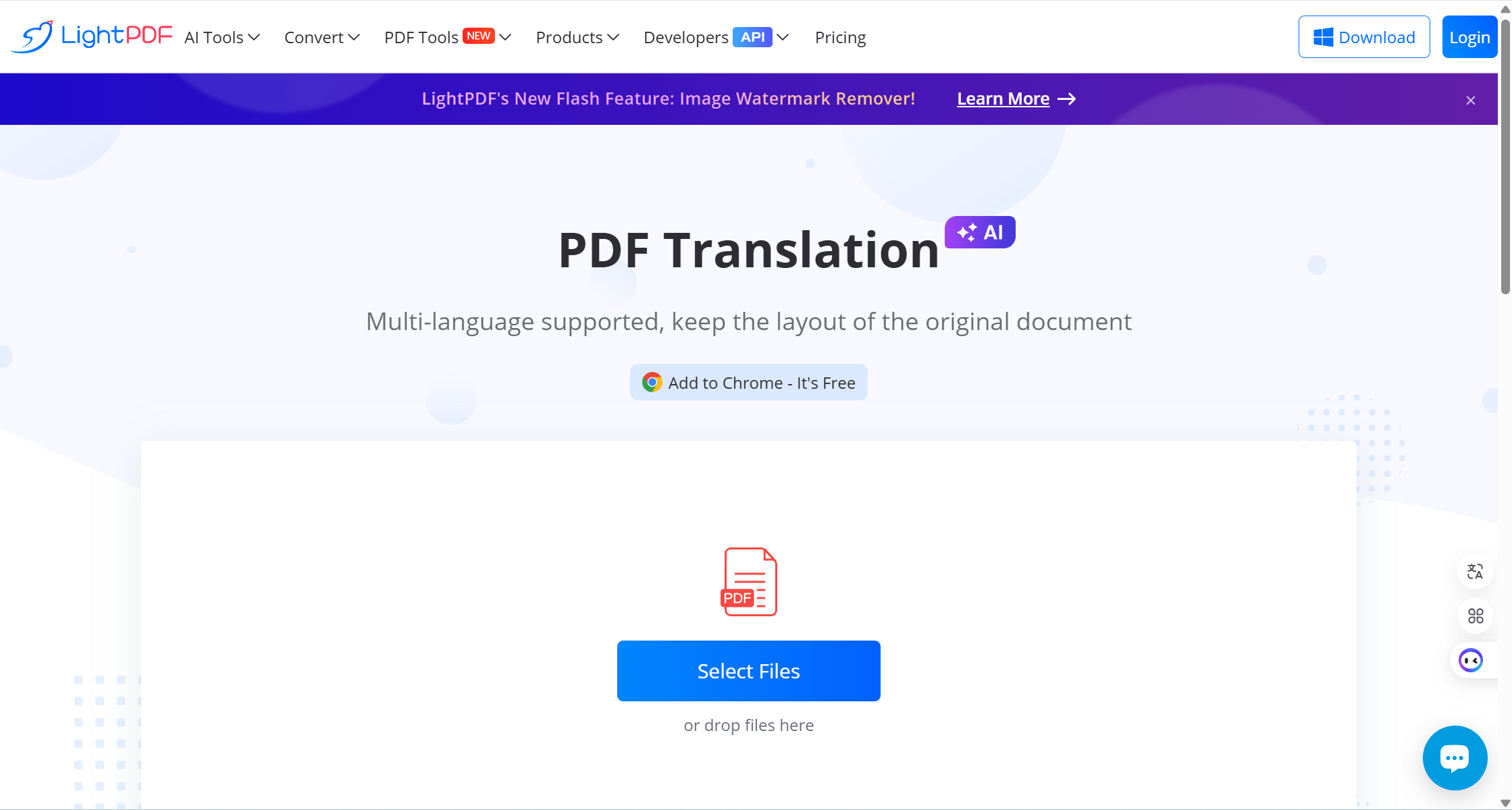
6. LightPDF Free AI PDF Translator
Key Advantages: AI-powered translation, preserves original formatting, browser extension
LightPDF Free AI PDF Translator is a simple yet effective tool for quick translations, with support for multiple languages and preservation of original formatting.
Features: AI-powered translation, preserves original formatting.
Target Audience: General users.
Language Support: Support 25 languages.
Implementation Steps:
Upload your PDF document.
Choose the target language.
Click “Translate” to generate results.
Format Compatibility: PDF.
Language Support: Multi-language supported.
Pricing Model: Free with limitations – 5 files
Integration Capabilities: Browser extension.
Additional Features: Preserves original formatting, AI-powered translation, Bulk file translation.
My Take: LightPDF is a straightforward tool for users who need quick translations without losing the original formatting.
Ideal For: General users, students.
Rating: ★★★★☆ (4/5)
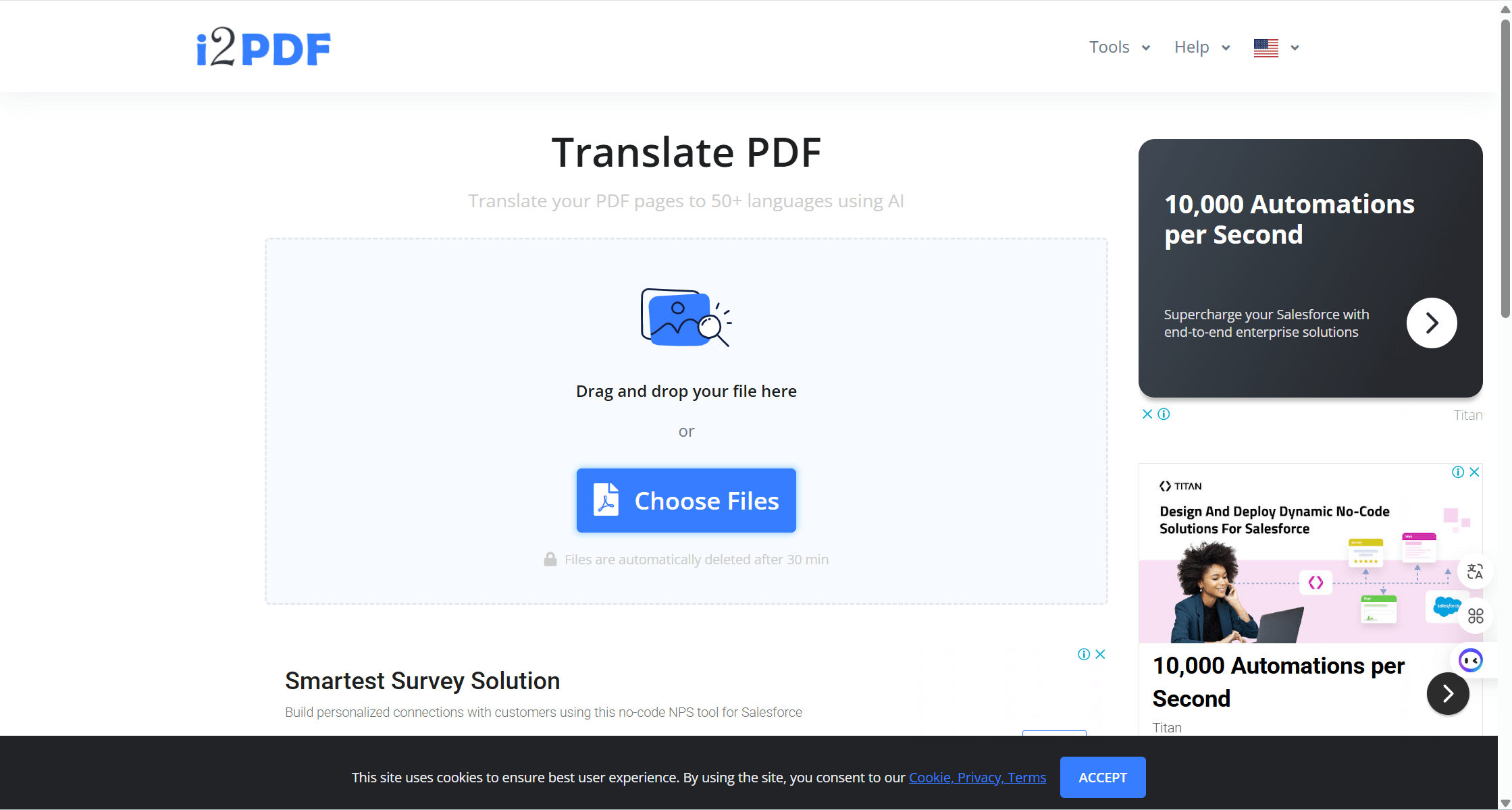
7. Translate PDF by i2PDF
Key Advantages: AI-powered translation, OCR for scanned PDFs, supports 50+ languages
Translate PDF by i2PDF is a straightforward tool designed for quick and accurate translations, with support for over 50 languages and OCR capabilities for scanned PDFs.
Features: AI-powered translation, OCR for scanned PDFs.
Target Audience: General users.
Implementation Steps:
Upload your PDF document.
Choose the target language.
Click “Translate” to generate results.
Format Compatibility: PDF.
Technical Specifications: Max file size: 50MB.
Language Support: 50+ languages, including English, Spanish, French, German, and Arabic.
Pricing: Free to use with limitations – one page at a time.
Additional Features: OCR for scanned PDFs, AI-powered translation.
My Take: Translate PDF by i2PDF is a simple and effective tool for users who need quick translations, especially for scanned documents.
Ideal For: General users, students.
Rating: ★★★★☆ (4/5)
Practical Application Scenarios: Demonstrating AI PDF Translators’ Multi-Domain Value
To more intuitively demonstrate the application value of AI PDF translators in actual work and life, this section presents how these advanced tools solve the practical needs of different user groups through detailed case studies of four typical scenarios.
Academic Research Scenario: Bridge for Cross-Language Academic Exchange
Academic Research Scenario: Efficient Translation for International Publication
User Profile: Dr. Emily Carter, a researcher in the astrophysics department of a prestigious university in Germany, needs to translate her latest research paper from German to English for submission to an international journal.
Challenges:
The paper contains numerous complex astrophysics formulas and highly specialized terminology.
Multi-layered nested tables and precise charts must be accurately preserved.
Reference formatting must adhere to international standards.
The quality of the translation directly impacts the paper’s acceptance.
Solution:
Dr. Carter installed a professional AI PDF translator on her computer and selected a subscription plan tailored to academic researchers. Before initiating the translation, she used the terminology table function to upload a German-English comparison table containing over 300 astrophysics terms, ensuring precise translation.
The translation process was straightforward:
Drag and drop her 50-page PDF paper into the software interface.
Select source language “German” and target language “English.”
Enable “Academic Paper” mode and activate the “Preserve Mathematical Formulas” option.
Click the “Translate” button, and the system completed the initial translation within minutes.
After the translation, Dr. Carter used the built-in proofreading tool to verify the accuracy of technical terms. The system flagged terms requiring manual confirmation, and she made minor adjustments. The final English version retained all mathematical formulas, tables, and charts, with accurate terminology and natural, fluent language.
Dr. Carter commented:
“Previously, I had to collaborate with professional translation agencies, which took weeks and cost thousands of euros. Now, with AI translation tools, I can produce a high-quality draft in minutes and finalize it within 1-2 hours. This has significantly boosted my research productivity and global visibility.”
Learning Scenario: Academic Support for International Students
User Profile: Ahmed, a student from Egypt recently admitted to a top engineering university in Canada, needs to translate English academic materials into Arabic to prepare for his studies.
Challenges:
A large number of textbooks and academic papers in PDF format need translation.
Specialized terminology in engineering fields can be difficult to understand.
Needs seamless access to translated documents across devices.
Solution:
Ahmed installed an AI PDF translator on both his laptop and smartphone, opting for a student-discounted subscription plan. He uploaded over 30 engineering textbooks (totaling more than 3,500 pages) to the cloud service, set the translation direction to “English→Arabic,” and enabled “Academic Text” mode with the “Generate Terminology Table” function.
Using the “Bilingual Comparison” mode, Ahmed reviewed the translations side-by-side with the original text, improving his understanding of both the content and English terminology. The cloud synchronization feature allowed him to switch between his laptop and phone, making efficient use of study time.
Within a month, Ahmed successfully translated and reviewed all materials, building a personal terminology database of over 600 technical terms. His professors were impressed by his familiarity with advanced engineering vocabulary before the semester began.
Ahmed stated:
“The AI translator has been a game-changer for my studies. It not only helped me overcome language barriers but also improved my English skills. The bilingual comparison feature is like having a personal tutor, and the cost is incredibly affordable for students.”
FAQ:AI PDF Translation Questions Answered
Q1: Does AI PDF Translator support collaborative translation among multiple people?
A: Currently, AI PDF Translator is more suitable for individual use. If you need collaboration among multiple people, you can achieve this by sharing the translated files.
Q2: Is AI PDF Translator as accurate as human translators?
A: Despite significant advances in accuracy, AI PDF translators may not fully match the nuance and contextual understanding of professional human translators. However, Monica achieves up to 95% accuracy through its multi-model support (GPT-4.5, Claude Sonnet 3.7, Gemini 2.0), delivering near-human quality translations at significantly faster speeds and lower costs. For most common documents and languages, the difference is minimal, though human translators maintain an advantage with highly specialized or culturally nuanced content.
Q3: What are the limitations of AI PDF translation?
A: AI PDF translation has several limitations including: difficulty with complex formatting and tables, challenges with specialized terminology and jargon, potential misinterpretation of cultural references, and occasional errors with uncommon languages or dialects. The quality can also vary depending on the language pair being translated.
Q4: Is my data safe when using online PDF translators?
A: The seven recommended PDF translators have good reputations and typically employ encryption and privacy measures to protect your documents. However, it’s essential to review their privacy policies before uploading sensitive materials. For highly confidential documents, consider using offline translation tools or services with explicit data deletion policies to ensure maximum security.
Translators Leading the New Era of Intelligent Translation was last modified: October 29th, 2025 by Addison Yes
Finding the right candidate for a job can be challenging, especially when dealing with a large number of applications. A candidate screening solution helps businesses filter, assess, and shortlist candidates more efficiently. By using technology, companies can improve hiring accuracy while saving time and resources.
This article explains how screening solutions work, their key features, and how businesses can benefit from using them.
What Is a Candidate Screening Solution?
A candidate screening solution is a software tool that automates the evaluation of job applicants. It helps recruiters and hiring managers quickly identify the most qualified candidates based on predefined criteria.
These solutions can:
Scan resumes for relevant skills and experience.
Conduct assessments to test job-related abilities.
Automate interview scheduling and candidate communication.
Reduce hiring bias through data-driven analysis.
How a Candidate Screening Solution Works
Most screening solutions follow a structured process to evaluate applicants:
Resume Parsing – Extracts and organizes key details from resumes.
Keyword Matching – Compares resumes against job descriptions.
Skills Assessments – Tests candidates on technical, cognitive, and soft skills.
AI-Powered Ranking – Scores applicants based on job fit.
Automated Interviews – Uses video interviews and chatbots for pre-screening.
Background Verification – Confirms employment history and credentials.
Key Features of Candidate Screening Solutions
1. AI-Powered Resume Screening
Identifies relevant experience and skills.
Filters out unqualified applicants.
Ranks candidates based on job requirements.
2. Pre-Employment Assessments
Evaluates candidates through job-specific tests.
Measures technical abilities, cognitive skills, and personality traits.
Integration – Compatibility with existing Applicant Tracking Systems (ATS).
Customization – Ability to set screening criteria based on job roles.
Data security – Compliance with privacy and hiring regulations.
Customer support – Availability of training and technical assistance.
The Future of Candidate Screening Solutions
Technology continues to shape recruitment processes. The future of candidate screening includes:
More accurate AI-driven assessments.
Improved automation for pre-screening tasks.
Better predictive analytics for hiring success.
Enhanced tools to promote diversity and inclusion in hiring.
Final Thoughts
A candidate screening solution helps businesses identify the best talent faster and more accurately. By automating resume filtering, assessments, and background checks, companies can streamline hiring while reducing bias. Investing in the right screening tool can improve recruitment outcomes and support long-term business success.
Candidate Screening Solution for Employers was last modified: August 22nd, 2025 by Colleen Borator
Personal finance is more democratized than it has ever been. Today, regular people can access information from top professionals and institutions for free from the comfort of their homes. People, companies, and industries previously challenging to access are more straightforward to work with. Many finance-related apps go out of their way to offer superior value to capture market share and grow revenue. Let’s dive into some mobile apps and categories to download to ensure you win in 2025 and beyond.
Online Finance Applications in 2025
There are a plethora of different finance apps like MT4 Trading that serve widely different purposes. Some of these services overlap, but the popular ones are often well-known for being great at one (or two) segments. For the sake of simplicity, we’ll look into four categories:
Trading & Investing
Budgeting
Savings
Retirement Planning
It might be hard to imagine, but social media platforms have become mini-finance hubs for people interested in finance-adjacent topics. There’s a saying on the internet, “You can learn anything on YouTube.” Millions of people globally turn to apps like YouTube and TikTok for financial direction without influential figures holding incredible power in the space. The introduction of these online applications has also increased the everyday person’s accessibility to these services.
Retail traders can invest in several asset classes using advanced trading platforms, and savings are not only restricted to traditional banks because there are options like Acorns. Budgeting and other such daily activities can also be easily optimized through these tools. With a good blend of such applications on your mobile device, it’s easier to take your finance management to the next level, even without consulting a professional. Here are some leading options to consider in each of these finance management categories.
Trading & Investing
A time comes in every young person’s life when the need to begin investing for the future arises. When you reach this point, you must self-educate on your investment options and consult professionals if possible. Here are two must-have investment apps.
MetaTrader
MetaTrader is a name and brand that transcends the finance space. Thanks to this app, millions of people globally have tried their hands at trading. Every serious financial strategy must include a reliable and achievable plan to invest in assets through an app like MetaTrader. Stocks, commodities, and currencies are a few of the asset classes you can invest in through this app. You might rely more on MT4 or MT5 as you progress through your investing journey because the power and functionality available with this product are incredible to witness.
Robinhood
Few apps are more famous (and infamous) than Robinhood, especially in the US. The popularity of this app is exceptional to the point that many people’s first experience with personal finance apps was with Robinhood. This is not a review of their business or ethical practices. If your long-term strategy includes investing in US-based stocks, you have to seriously consider what you can gain from signing up and making a few moves with this product. The sheer size and brand presence of an app like this might be all you need to start trading confidently.
Budgeting
We’re living through a generational cost-of-living crisis, meaning many people have to pinch pennies to ensure their paychecks last until their subsequent payment. Budgeting is no one’s favorite thing because it requires cutting back on things we love, but it’s essential. Consider these mobile budgeting products.
Goodbudget
Many online apps and tools semi-automatically help you plan and budget. This service can do that, but it’s perfect for people who want to log and track their budget manually. It’s almost always a good idea to slowly enter your budgeting era. Transitioning from buying at your leisure to watching every penny in a month is a recipe for disaster. Goodbudget can serve as a soft landing for you during the transition to a life living within your limits. If you want something more trendy, try the next app.
YNAB
You Need a Budget (YNAB) can be described as a more hands-on budgeting experience. Many of its customers love it for its real-time tracking features to curb unwise spending at the point of purchase. You can connect all your bank accounts to your YNAB app, set certain perimeters, and watch as the app does its best to help you spend more wisely and better. It’s safe to say that your financial goals can only be achieved when you conquer budgeting and get things right. Earning more money and investing in assets can only do so much if your budgeting skills are poor.
Savings
You might be unsure about your savings prospects considering the unstable prices we have to pay for essential items. Savings are the foundation on which your long-term financial goals must be built, without savings, almost nothing else matters. You’ll need a down payment to make the large purchases of your dreams. Consider the following savings apps in 2025.
Acorns
The Acorns app has grown considerably in recent years, making it one of the most significant retail savings and investment players. Acorns tries to present its product as a simple way to invest and save spare change from purchases, but it can be an excellent savings app that doubles as an investment vehicle for your goals. For example, if you purchase $11.49, Acorns invests $0.51, rounding up your purchase to $12; it can be done automatically without external input.
Personal Capital
Personal Capital isn’t the fanciest savings app out there, but it’s one of the most reliable. If you need a no-frills service that helps you save and focus on long-term goals, look no further than PC. The team behind this product chose a name with incredible SEO potential because searching for the phrase brings up the company. When talking about value for money, few finance apps come close to offering the quality that this product does. You might be surprised at what you learn and the perks you earn as a long-term saver and planner.
Retirement
It’s never too early to begin thinking about the quality of life you want when entering your senior years. You might be too focused on making it to the next payday to consider retirement; it’s a valid excuse. However, it’s never too late to begin saving for retirement.
Empower
Personal Capital evolved into Empower, giving up its unique SEO perks for a more significant brand presence and impact. Empower has become the go-to mobile app for people who want to save for retirement; you can begin somewhat passively or jump head-first into your retirement goals. Empower is a proud all-American app that takes pride in its nation’s branding. A quick visit to the website will make it clear that the folks here are proud to be Americans. Whatever you choose, you can rest assured of a great experience.
Be Strategic About Your Financial Management
Contrary to what online finance influencers might want you to believe, there’s more to building long-term wealth than using fancy spreadsheets and following trends. You’ll need discipline — and lots of it because you’ll have to sacrifice some things that make you happy. Your short-term sacrifices will result in medium-term wins and long-term financial stability. Having the right apps in your investment arsenal is important — a strategic combination might be your secret weapon to success as a new or seasoned retail investor. Are you ready? The personal finance space is prepared to witness your success.
Mobile Apps That Help You Stay Up-to-Date With Your Finances was last modified: October 15th, 2025 by Barbara Zomo
As experience shows, teams that rely on visual project management tools are much more efficient than those using notes, docs, spreadsheets and emails. It is particularly relevant for large teams, since using one or the other approach can either boost their efficiency or set projects to failure.
Gantt chart software provides a structured way to arrange and visualize planned tasks, dependencies, and deadlines. How do you choose the best one?
Here’s a look at some of the most effective Gantt chart tools for large teams:
GanttPRO
Microsoft Project
Teamdeck
Instagantt
Avaza
Find out below what makes these tools stand out and how they can help your large team.
What Makes the Best Gantt Chart Software?
The best Gantt chart software is not just about pretty colorful timelines. It is a complex tool, and oftentimes a backbone of a project management. What are the key features that distinguish great tools from mediocre ones?
First of all, pay attention to scalability matters tremendously. As a team grows, and it usually deos, your software should be able to adapt to the increasing users, tasks, and projects without performance troubles. The system shouldn’t freeze when many team members work in it simultaneously.
Collaboration features are also very important. Since you work in a team, look for tools that instantly update information on each end, have commenting sections and editable notifications for major events. The possibility to assign tasks and check progress without in-person meetings will save you countless hours.
Resource management is something that separates basic timeline tools from advanced project management software. The best Gantt chart software should be complemented with the possibility to visualize how work is distributed, identify excess and balance it where needed.
Cloud-based options typically offer more flexibility regardless of the team’s distribution. Plus, the online version usually allows you to connect from any device where at the office, in a meeting, or remotely from anywhere.
Finally, even the most feature-rich tool will seem bad if your team can’t understand how it works. An intuitive interface with less features sometimes is more valuable than the one with 200+ complicated incoherent features.
What Tools Are Suitable for a Large Team?
In essence, most of the time large teams need the same features as small teams. However, bigger teams may face some unique challenges that require specific capabilities from project management solutions. One of them is organizational complexity.
Clear dependency mapping within complex projects and large teams is the first requirement. When one team’s deliverable marks the start of another team’s work on the next deliverable, visualizing these connections becomes essential. And the more dependencies a team has, the more advanced the functionality should be.
Fast onboarding and implementation of the tool. Onboarding large teams is resource and time-consuming per se. But if the software is complicated, that part becomes even more tedious and costly. So, intuitive yet fully-fledged tools should be a priority.
Workload and collaboration aspects are also important to ensure that resources are used properly and optimally, and eliminate any friction in collaboration that large teams are often prone to.
Let’s see how the selected tools address these requirements inf large-team environments.
GanttPRO
Why should large teams consider it:
Scalable for when your team’s need grow
Intuitive even for most complex features
Facilitates collaboration in a large team
Great project planning and management functionality
GanttPRO was built specifically for complex Gantt chart visualization. Therefore, large teams with big and complex projects will be able to get the most out of the high-level planning combined with detailed control during the execution phase.
New teams will like the proportion of simplicity and depth of the app. Novice users and project collaborators can learn how to work in the app quickly, while project managers with experience can configure and work with advanced features like critical path analysis and baselines. This universal accessibility makes the implementation much smoother and faster, especially for large teams.
Project managers can organize team members into departments or custom groups and delegate tasks within them. The platform allows anyone to add an unlimited number of virtual resources which is often an issue for big teams.
The workload section shows each member’s working hours and highlights overallocation. Project managers and administrators can drag and drop tasks and fix it in a few minutes. For large teams working with many projects simultaneously, the app can also show the total workload of a resource across projects.
Synchronization won’t be an issue either. Project participants can register and see project updates to avoid misunderstandings and miscommunications that happen a lot in large teams.
Microsoft Project
Why should large teams consider it:
Advanced planning and scheduling
Embeddedness into Microsoft 365
Supports for large-scale projects, custom workflows, and automation
Despite being the oldest one in the project management arena, Microsoft Project still can be easily considered the champion. Particularly, within the enterprise-level teams that often use the whole package of Microsoft 365. Its longevity helps it to make features more robust and advanced with the time, and that’s something significant for large-scale projects and teams.
Experienced project managers value the depth of resource management above all. The software is suitable for the largest projects as it can process thousands of resources. Resource leveling and skill-based assignments help optimize the distribution of workforce and materials among projects. But one thing you have to bear in mind is that it can be very difficult for beginners. If this is your case, you’d better find an alternative to Microsoft Project.
The embeddedness into the Microsoft system allows to set up a satisfying experience of using tools like Teams, SharePoint, and Office 365. Most of all because it reduces discordance when working with different information and tasks within platforms and departments.
Reporting is another aspect usually looked for by managers handling large teams and projects. It’s beneficial both for C-level executives to get an overview of current projects, and for department heads that can analyze their teams’ performance. This multi-level approach is often what a large organization needs most.
Teamdeck
Why should large teams consider it:
Solid resource management
Time-tracking
Forecasting capabilities
Teamdeck looks at Gantt charts from a resource management perspective. Thus, teams that struggle with optimal allocation will find it particularly useful. The platform integrates timelines with resource scheduling and time tracking, so that the entire management experience feels more unified.
Just like with GanttPRO, in Teamdeck large teams can visualize cross-project resources’ availability. Project managers can see which team member is free while assigning tasks, and which one has too many tasks. In projects that implicate many resources that are essential.
Project leaders can also forecast which resources will be needed with a capacity planning feature. Since large teams frequently need to scale up or down, this possibility is rather valuable for planning, hiring or redistributing workloads.
Teamdeck’s learning curve isn’t steep at all. So teams have to be able to quickly adapt, while the organization can save the onboarding time and resources for other important tasks.
Lastly, the Gantt chart view is integrated with time tracking, where managers can get valuable data on estimated versus actual time spent on tasks. This is important for small and large teams equally, but having this source of control in a complex setting is a must.
Instagantt
Why should large teams consider it:
Strong integration with Asana
Workload balancing across projects
High-volume task management
Instagantt is still considered by many project managers to be an addition to a popular work management tool Asana, while in fact being a solid standalone option. It specializes in Gantt charts and can offer large teams high-resolution visualization of connections between tasks and projects.
The app presents different types of timelines in quite a digestible way and compliments them with color selection, grouping, and filtering options. It comes in handy when information piles up in large projects and it becomes difficult to discern.
Project managers in large organizations usually highlight the ability to set up cross-project dependencies to manage interconnected initiatives, and see, for example, when one team’s deadline affects another’s start date.
Similarly to other Gantt chart tools in the list, Instagantt incorporates a workload view that helps managers identify when team members have too much or too little work to do. In large teams this visibility helps maintain a healthy balance and prevent burnout.
For large projects involving many external parties, Instagantt provides the possibility to securely share timelines and communicate the progress to the stakeholders.
Avaza
Why should large teams consider it:
Scalable collaboration
All-in-one nature
Avaza was built to solve a real-life internal challenge of a company related to project management, invoicing, and collaboration. These days it has become a tool that is used in many organizations as a business management platform with strong Gantt chart capabilities. This approach makes it particularly suitable for large teams that need this combination of project management, billing, expenses, and client management.
The unified platform removes the integration challenges that large teams often have while trying to connect multiple separate tools. Time tracking, expenses, and invoicing all connect directly to project tasks that are displayed on the Gantt chart.
Large teams can configure role-based permissions to control access to tasks and projects. Administrators can define which team members can edit and work on projects, and which one can just view their assignments.
A client portal allows large teams to select and share certain project information with external stakeholders. Project managers can also connect financial management directly to project timelines, and monitor costs together with progress. These possibilities are particularly valued by organizations managing multiple budgets and client projects simultaneously.
Conclusion
While choosing the right Gantt chart software for your large team, don’t just focus on fancy timelines. Go for a solution that can scale, make collaboration more effective, and create a coherent system of projects out of any amount and complexity of tasks. Tools like GanttPRO, Microsoft Project, Teamdeck, Instagantt, and Avaza, offer a unique combination of features that can be easily adapted to big cross-functional teams. Choose the one that fits best in your process and will see the difference.
Best Gantt Chart Tools for Large Teams was last modified: September 3rd, 2025 by Evelina Brown
Slack has solidified its place as a hub for team communication, but its real strength emerges when paired with custom apps that streamline workflows — like automating task management. Picture a Slack app that syncs effortlessly with project management (PM) tools, pulling tasks from platforms like Asana or Monday.com directly into your team’s channels or DMs.
Developers at Fivewalls are pushing the limits of Slack app development by integrating external PM APIs, making project tracking a breeze and keeping teams aligned without leaving their collaboration space. In this article, we’ll dive into how to build these apps, why they’re valuable, and the tools and techniques that transform Slack into a project management powerhouse.
Why Automate Tasks in Slack?
Manually tracking tasks across multiple tools kills productivity. Teams might rely on Asana for assignments, Trello for boards, and Slack for chats — resulting in fragmented updates and missed deadlines. A custom Slack app with external PM tool integration fixes this by centralizing task visibility and automating notifications. For instance, a marketing team could get campaign milestones from Jira delivered as Slack messages, eliminating the need to jump between apps. This saves time and keeps everyone aligned, cutting the 21% productivity loss linked to context-switching, per a 2023 workplace study.
The magic is in automation: rather than posting “Task X is complete,” an app can notify the team when a task status updates. Developers can leverage APIs from popular PM tools to make this happen, and Slack’s flexible framework — think bots, slash commands, and webhooks — offers the ideal platform.
Picking the Right PM Tools and APIs
The starting point is selecting an external PM tool with a solid API. Here are some top options:
Asana API: Provides endpoints for tasks, projects, and assignees — perfect for fetching due dates or sending updates.
Monday.com API: GraphQL-based, it shines at pulling complex workflows and custom fields.
Jira REST API: A go-to for software teams, offering deep access to issues, sprints, and comments.
Trello API: Simple and card-centric, ideal for lightweight tracking.
Each API offers hooks — like task creation, status shifts, or deadline alerts — that developers can tie into Slack. For example, Asana’s “task updated” webhook can trigger a Slack post, while Monday.com’s API can feed a project timeline into a channel.
Building the Slack App: Key Components
Let’s outline how to craft a task automation app for Slack using Jira as an example:
Bots for Notifications
Use Slack’s Bolt framework to create a bot that listens for Jira webhook events (e.g., “issue updated”). When a task hits “Done,” the bot posts to a Slack channel: “@here Bug #123 fixed!” Enhance it with Block Kit for rich formatting — think buttons to view details or assign next steps — pulling data directly from Jira’s API.
Custom Slash Commands for Task Overviews
Build a slash command like /tasks using Slack’s API. This triggers a call to Jira’s REST API, fetching active tasks and posting a formatted list in the channel — complete with statuses, assignees, and deadlines. Host the logic on AWS Lambda or Vercel for real-time responsiveness.
Incoming Webhooks for Instant Updates
Set up Slack incoming webhooks to push task updates from Jira. When a bug is logged, the webhook sends a message to the “Dev Sprint” channel with priority and description. This keeps interactions fast and serverless.
Authentication and Security
Implement OAuth 2.0 to securely link Slack to the PM tool’s API. Store tokens in a secure vault like AWS Secrets Manager, protecting user data while enabling personalized views (e.g., “my tasks” vs. “team tasks”).
Real-World Example: A Jira-Slack Integration
Imagine a dev team using Jira and Slack. A custom app posts to the “#dev-sprint” channel when a Jira bug is logged, displaying priority and details via Block Kit. A /sprint command lists all in-progress tasks, updated live via Jira’s API. If a deadline looms, the bot DMs the assignee: “Hey, Task #456 is due tomorrow!” Developers build this with a Python backend on Heroku, tied to Jira’s webhook and Slack’s Bolt framework. The outcome? Seamless tracking, no app-switching.
Benefits for Teams and Businesses
This automation delivers:
Time Savings: Teams waste less time hunting updates, with 80% of managers in 2024 praising integrated tools as productivity drivers.
Focus: Centralized tasks in Slack minimize distractions, enabling quick action — like fixing a blocker flagged mid-chat.
Transparency: Progress is visible instantly, from juniors to leads, boosting accountability.
Scalability: Add more PM tools or features — like Teams compatibility — as demands evolve.
For businesses, it’s a game-changer. A sales crew syncing Monday.com tasks with Slack can track leads without skipping a beat, while a distributed team using Trello stays synced across regions.
Challenges and Solutions
Integration has hiccups. API rate limits (e.g., Jira’s 100 calls/minute) can slow updates — mitigate with batching or local caching. Complex PM tools might flood Slack with data; filter it to key info like “due date” or “status.” Security matters too — encrypt API calls and audit access to meet compliance, especially in fields like finance.
Final Thoughts
Building Slack apps with external PM tools turns project tracking from a hassle into a strength. By harnessing APIs from Jira, Asana, or others, developers can craft bots, commands, and notifications that bring tasks right into Slack — where teams already thrive. Whether it’s nudging a coder about a deadline or sharing a project snapshot, these integrations save time and hone focus. For businesses tired of app-hopping chaos, custom Slack task automation isn’t just clever — it’s vital. So, pick a PM tool, plug it into Slack, and watch your team’s efficiency take off.
Slack Task Automation: Developing Apps with External PM Tools was last modified: March 12th, 2025 by Victor Links
Creating a productive and comfortable workspace involves more than ergonomic chairs or high-tech gadgets. One often-overlooked element is window treatments, which can significantly impact productivity, aesthetics, energy efficiency, and privacy.
By choosing the right window blind styles, business owners can enhance their office environment in meaningful ways.
The Impact of Natural Light on Productivity
Benefits of Natural Light
Natural light is a powerful tool for improving workplace productivity. Studies show that exposure to daylight enhances mood, reduces eye strain, and boosts energy levels.
Employees working in well-lit spaces report fewer headaches and less drowsiness, leading to better focus and overall job satisfaction.
Controlling Light with Window Blinds
While natural light is beneficial, excessive sunlight can cause glare on screens and discomfort. Window blinds play a crucial role in managing light levels.
Adjustable blinds like Venetian or roller blinds allow employees to fine-tune the amount of light entering the workspace, minimizing glare while maintaining visual comfort.
Choosing the Right Window Blinds for Your Office
Style and Functionality
Different window blind styles offer unique benefits:
Venetian blinds: Provide precise light control with tiltable slats.
Roller blinds: Simple and effective for blocking or filtering light.
Vertical blinds: Ideal for large windows or sliding doors, offering flexibility in light control.
Aesthetic Appeal
Window treatments also contribute to the office’s overall aesthetic. Stylish blinds can complement your décor, creating an inviting and professional atmosphere that boosts employee morale.
Customization and Flexibility
Modern blinds offer customizable options to suit specific needs. Motorized or automated blinds allow easy adjustments throughout the day, ensuring optimal lighting conditions without disrupting workflow.
Energy Efficiency and Cost Savings
Temperature Regulation
Window blinds help maintain indoor temperatures by blocking heat during summer and retaining warmth in winter. This reduces reliance on HVAC systems, making your office more energy-efficient.
Energy Savings
By improving insulation and controlling sunlight, quality window treatments can lead to significant energy cost savings. For example, honeycomb shades are particularly effective at insulating windows and reducing utility bills.
Boosting Privacy and Reducing Distractions
Privacy Enhancement
In open-plan offices or street-facing spaces, privacy is essential. Blinds provide a barrier against prying eyes, ensuring confidentiality during meetings or sensitive tasks.
Focus and Concentration
Blinds also reduce visual distractions by shielding employees from outside activities or bright sunlight. This creates a focused work environment conducive to higher productivity levels.
Case Studies: Businesses That Transformed Their Workspaces
Real-World Examples
Many businesses have reported improved productivity after upgrading their window treatments:
A San Francisco company installed MechoShades to filter light while maintaining outdoor views. Employees experienced less glare and greater comfort.
A home-based entrepreneur added motorized Roman shades to control sunlight throughout the day, enhancing focus and reducing screen glare.
Testimonials
Business owners frequently highlight how new window treatments have transformed their offices. One client noted that replacing old blinds significantly improved their ability to work comfortably without constant adjustments for sunlight.
Incorporating Window Treatments into Your Office Makeover
Practical Tips
Evaluate your office’s specific needs for light control, privacy, and energy efficiency.
Choose durable materials that align with your office décor.
Consider professional installation for a seamless finish.
Regularly clean and maintain your blinds to ensure longevity.
Conclusion
The right window treatments can transform your workspace by enhancing productivity, aesthetics, energy efficiency, and privacy.
At the same time, thoughtful gestures like pet sympathy gifts can create an emotionally supportive environment that fosters connection among team members.
By investing in modern window blind styles tailored to your needs, you can craft a workspace that is both functional and inviting.
Call to Action: Ready to transform your workspace? Explore innovative window blind styles today to boost workplace efficiency and create a more pleasant environment for you and your team!
How the Right Window Treatments Can Transform Your Workspace was last modified: January 24th, 2025 by Daniella Grenier
If you’ve ever watched a toddler stubbornly try to force a square peg into a round hole, you’ve seen the perfect metaphor for using a one-size-fits-all CRM tool to manage your business. It’s clunky, frustrating, and makes you question why you even bothered in the first place. The default setup might work fine for someone else but for your unique needs? Not so much. That’s where customization comes in. With the right tweaks, your CRM can go from a frustratingly generic tool to an essential system that works with you, not against you.
The beauty of a customized CRM lies in its ability to adapt to your industry’s specific demands – whether you’re managing client relationships, tracking projects, or optimizing workflows. In this article, we’ll show you how to customize your CRM step by step without feeling lost in an Ikea assembly project. It’s simpler than you think and worth the effort.
Why Customization Matters More Than Ever
Every industry has its quirks. Whether you’re managing a fleet of trucks, running a boutique law firm, or planning weddings, your workflows are different. A generic CRM system can feel like driving a manual car with a missing gear. It gets you somewhere, but not without a lot of grinding. Customization lets you mold the CRM into a tool that feels second nature, cutting down on frustration and boosting productivity.
For example, a marketing agency might need to track campaign performance and client approvals, while a logistics company prioritizes fleet management and delivery tracking. These companies have different needs and deserve different setups within the same CRM framework. The goal is to create a system that feels built for you—even if it wasn’t straight out of the box.
Mapping Out Your Workflow
Before diving into how to customize your CRM, take a moment to map your processes. Imagine your business as a series of dominoes. What’s the first piece you tip over to start the chain reaction? For a sales team, it might be lead generation. For a customer service team, it’s likely incoming support tickets. Pinpointing these starting points helps you decide which features to prioritize.
Next, examine how data flows through your business. Do leads move through multiple departments before closing? Is customer information updated in real-time, or does it sit in a backlog? A clear workflow map ensures that your CRM mirrors how your business works instead of how someone thinks it should work.
Once you have your workflow, start tailoring. Add custom fields, set up automated triggers, and build reports that answer your daily questions.
Tailored Solutions for Industry-Specific Needs
Customer Relationship Management (CRM) systems are versatile tools that serve various industries, from healthcare and retail to real estate and financial services. For example, a real estate agency might use a CRM to track property listings, schedule client meetings, and automate follow-ups. At the same time, a healthcare provider could leverage CRM software to manage patient appointments, maintain medical histories, and send reminders for checkups.
The need for tailored solutions becomes even more apparent in the transportation and logistics industry. Companies in this sector face unique challenges, such as coordinating complex delivery schedules, tracking shipments, managing fleet maintenance, and controlling operational costs. That is where an industry-specific CRM can make a significant impact. MoversTech CRM specializes in providing customizable CRM solutions designed to meet the needs of transportation and logistics businesses. For instance, moving companies can use this CRM software to log special delivery instructions, set automated maintenance reminders, and monitor inventory levels in real time. These features improve efficiency, reduce errors, and enhance customer satisfaction.
The key takeaway is that no CRM system is one-size-fits-all. By adapting and integrating industry-specific features, a customized CRM helps businesses streamline operations without forcing them to conform to rigid, generic frameworks. Whether managing a fleet of trucks or patient appointments, having a CRM that speaks your industry’s language is essential for long-term success.
How to Customize Your CRM: Adding Automation Without Losing Your Soul
One of the most powerful aspects of CRM customization is automation. Customizing your CRM can feel like hiring an extra set of hands that never calls in sick. If you’re done wrong, it feels like you’re losing control of your processes. The key is balance.
Start with small tasks that take up your team’s time, such as sending follow-up emails, logging data, or generating reports. Automating these frees your team to focus on work requiring human creativity or decision-making.
But remember, automation isn’t about making your CRM the boss. It’s about creating a partnership where the software does the heavy lifting, leaving you with time to think, strategize, or – dare we say it – breathe.
The Power of Integration
Customizing your CRM isn’t limited to what happens within the software. Integrating other tools can make it even more effective. Think of integrations as the CRM equivalent of adding bacon to a sandwich. It just makes everything better.
If you’re in e-commerce, connecting your CRM with your online store might allow you to track purchase history and send personalized offers. In healthcare, integrating with appointment scheduling software can help streamline patient communication.
These connections reduce data silos, making your CRM the central hub where all your information lives. And since CRMs thrive on data, the more you feed it, the smarter it becomes.
Training and Adoption: The Forgotten Stepchild
No matter how much time you spend customizing your CRM, it’s only as good as the people using it. Training your team to use the system isn’t optional – it’s essential. A shiny, perfectly customized CRM won’t do much if your employees avoid it like a leftover tuna sandwich in the break room fridge.
Focus on practical, hands-on training. Show how customization simplifies jobs. Keep things approachable. For example, you could skip the jargon and opt for phrases like, “This button saves you five clicks” or, “Click here, and you’ll never have to enter that data manually again.”
Adoption goes up when employees understand that the CRM is there to make their lives easier.
Wrapping Up
Knowing how to customize your CRM isn’t just about adding fields and tweaking reports – it’s about creating a tool that feels as essential to your business as coffee on a Monday morning. By aligning the system with your industry’s unique needs, you’re making life easier for your team and setting yourself up for better efficiency, deeper insights, and, yes, happier customers.
And here’s the kicker: Customizing your CRM for industry-specific needs is less about following a formula and more about understanding your business inside and out. Once you do that, the rest falls into place.
How to Customize Your CRM for Industry-Specific Needs was last modified: January 9th, 2025 by Elisabeth Green
In today’s business landscape, customer relationship management (CRM) software has become an essential tool for organizations seeking to enhance customer interactions, improve workflows, and boost overall efficiency. However, how to choose a CRM that aligns perfectly with your business needs can be a daunting task. This guide provides a comprehensive approach to CRM software selection, offering expert insights and actionable steps to help you navigate this critical decision.
Why CRM Software Matters in Business Success
CRM software is more than just a database for customer information; it is a platform that empowers businesses to:
Strengthen Customer Relationships: Centralize and personalize interactions.
Streamline Operations: Automate workflows and improve efficiency.
Drive Revenue Growth: Enhance sales processes and marketing campaigns.
Improve Decision-Making: Provide data-driven insights for strategic planning.
Crafting a Winning CRM Selection Strategy
1. Establish Clear Objectives for Your CRM System
Before diving into the CRM selection process, define what your organization seeks to achieve. Key considerations include:
Enhancing lead management and conversion rates.
Improving customer retention and satisfaction.
Streamlining internal processes and reducing redundancies.
2. Assess Your Business Needs Thoroughly
Conduct a detailed needs assessment by:
Engaging Key Stakeholders: Involve sales, marketing, and customer support teams.
Identifying Pain Points: Pinpoint inefficiencies and challenges in current workflows.
Prioritizing Features: Rank functionalities based on their importance to your goals.
3. Define Your Budget Parameters
Set a realistic budget for your CRM software selection, factoring in:
Subscription and licensing fees.
Costs for implementation and training.
Long-term maintenance and support expenses.
Navigating the Process of CRM Implementation
Step 1: Researching the CRM Landscape
Explore available options by leveraging:
Industry Reports: Insights into market trends and top providers.
Peer Recommendations: Input from similar businesses in your sector.
Comparison Tools: Use CRM feature comparison platforms to narrow your choices.
Step 2: Evaluating CRM Feature Sets
A comprehensive CRM feature comparison should include:
Contact Management: Centralized customer profiles with detailed interaction histories.
Automation Tools: Workflow and marketing automation for repetitive tasks.
Analytics and Reporting: Dashboards for tracking KPIs and generating insights.
Integration Capabilities: Compatibility with existing tools like ERP systems, email marketing platforms, and e-commerce solutions.
Mobile Accessibility: Apps and responsive interfaces for on-the-go access.
Step 3: Prioritizing CRM Selection Criteria
Focus on critical CRM selection criteria, such as:
Ease of Use: Ensure the software is user-friendly for all team members.
Customization: The ability to adapt features and workflows to unique business needs.
Scalability: A system that grows with your business.
Customer Support: Responsive and comprehensive assistance for troubleshooting and training.
Deep Dive: CRM Feature Comparison Among Leading Providers
Best For: Enterprises needing advanced features and scalability.
Challenges: Steeper learning curve and higher cost.
HubSpot CRM
Strengths: Free plan for small businesses, intuitive design, and strong marketing tools.
Best For: Startups and small to medium-sized enterprises.
Challenges: Limited advanced features without paid upgrades.
Zoho CRM
Strengths: Affordable pricing, AI-driven features, and mobile-friendly interface.
Best For: Businesses seeking a cost-effective, scalable solution.
Challenges: Some features require additional purchases.
Microsoft Dynamics 365
Strengths: Deep integration with Microsoft products, robust analytics, and scalability.
Best For: Companies using Microsoft ecosystems.
Challenges: Complexity for first-time users.
Building a Comprehensive CRM Implementation Plan
1. Craft a CRM Implementation Roadmap
A detailed roadmap is essential for successful deployment. Key components include:
Timelines: Define milestones for each implementation phase.
Resource Allocation: Assign roles and responsibilities.
Risk Mitigation: Identify potential challenges and solutions.
2. Prepare Data for Migration
Data migration is a critical step in the process of CRM implementation. Best practices include:
Data Cleaning: Remove duplicates and obsolete records.
Field Mapping: Align legacy data formats with the new system.
Backup Plans: Ensure a secure backup of all data.
3. Customize the CRM for Optimal Performance
Tailor the CRM to align with your operational needs by:
Configuring dashboards and workflows.
Setting user permissions and access levels.
Automating key processes, such as lead scoring and email campaigns.
4. Test the System Rigorously
Conduct extensive testing before launch to:
Validate system functionality.
Identify and resolve bugs or glitches.
Gather user feedback for further refinements.
5. Provide Comprehensive Training
Ensure smooth adoption with:
Role-specific training sessions.
Detailed user manuals and online resources.
Ongoing support channels for troubleshooting.
Avoiding Common Pitfalls in CRM Software Selection
Mistake 1: Overlooking Team Input
Neglecting input from end-users can lead to poor adoption rates. Involve your team throughout the CRM selection and implementation process.
Mistake 2: Ignoring Scalability
Choosing a CRM that cannot scale with your business can result in future disruptions. Opt for a solution designed to grow alongside your organization.
Mistake 3: Focusing Solely on Cost
While cost is a critical factor, prioritize value and functionality over the lowest price.
FAQs About How to Choose a CRM
What are the essential steps in CRM software selection?
Start with a needs assessment, research potential options, evaluate features, and conduct trials before finalizing your choice.
How do I compare CRM features effectively?
Create a checklist of required features and use demos, trials, and online comparison tools to evaluate different systems.
What is the role of CRM selection criteria in choosing a system?
Selection criteria ensure that the chosen CRM aligns with your business needs, integrates seamlessly with existing tools, and offers the desired functionality.
How can I ensure successful CRM adoption?
Focus on user-friendly software, provide comprehensive training, and involve your team throughout the selection and implementation process.
Is an industry-specific CRM better for my business?
If your industry has unique requirements, an industry-specific CRM can offer tailored features that general systems may lack.
Conclusion: Achieving Success with CRM Software Selection
Choosing the right CRM is a transformative decision that can redefine how your business operates. By following the steps outlined in this guide on how to choose a CRM, conducting thorough CRM feature comparison, and adhering to key CRM selection criteria, you can make an informed decision that drives long-term success. Take the time to research, plan, and execute your CRM software selection carefully to unlock the full potential of this powerful tool.
The Ultimate Guide to Selecting the Perfect CRM Software was last modified: January 8th, 2025 by Colleen Borator
In today’s digital age, data is a cornerstone of successful business strategies. Companies gather vast amounts of information daily from customer interactions, sales records, website analytics, social media, and other sources. However, effectively managing and leveraging this data presents challenges such as:
Data Overload: Excessive information can overwhelm decision-makers.
Data Silos: Disjointed storage systems across departments create inefficiencies.
Data Quality Issues: Inconsistent or outdated information can lead to poor decisions.
Data aggregation services address these issues by consolidating and organizing data from diverse sources into a unified, accessible system. This approach empowers businesses to make smarter decisions, boost efficiency, and maintain a competitive edge.
Centralized Data for Better Decision-Making 📈
By consolidating data from multiple sources, data aggregation services eliminate silos and create a single, reliable repository for critical information. This unified view enhances the accuracy of operational insights and facilitates informed decision-making.
How It Works:
Data Collection: Gather data from sources like websites, APIs, and internal databases.
Data Integration: Combine and align the data within a central platform.
Data Normalization: Standardize formats to enable smooth analysis and reporting.
Real-Time Decision-Making Benefits:
Faster Insights: Access up-to-date metrics to respond quickly to changes.
Accurate Reporting: Reduced errors with comprehensive, standardized data.
Improved Planning: Clear trends guide business strategies.
Example in Action: An e-commerce company tracking sales data across Amazon, Shopify, and eBay can aggregate this information to:
Identify top-performing products.
Optimize pricing strategies.
Monitor customer preferences.
Aggregated Sales Data:
Sales Channel
Monthly Sales (Units)
Revenue ($)
Amazon
1,500
45,000
Shopify
1,200
36,000
eBay
800
24,000
Enhanced Market Insights and Competitive Edge 📊
Understanding market dynamics is essential for staying ahead. Web scraping and data aggregation enable businesses to compile insights from competitors, customer feedback, and emerging trends. This data can drive strategic adjustments, product improvements, and enhanced customer satisfaction.
Use Cases:
Competitor Analysis: Monitor pricing, promotions, and product availability.
Customer Sentiment Analysis: Aggregate reviews and social media mentions to gauge public perception.
Trend Tracking: Stay updated on industry shifts using news and reports.
Increased Operational Efficiency ⚙️
Aggregated data helps streamline operations by providing a holistic view of internal and external activities. This optimization enhances inventory management, supply chain coordination, and customer service efficiency.
Operational Benefits:
Real-time inventory updates reduce stockouts and overstocking.
Consolidated customer data supports personalized service.
Conclusion: Stay Ahead with Data Aggregation Services 🚀
Adopting a robust data aggregation platform allows businesses to unlock actionable insights from fragmented data sources. By centralizing information, enhancing market intelligence, and improving operational workflows, companies can drive growth and remain competitive. Embrace web data aggregation to streamline operations and discover new opportunities for success.
5 FAQs About Data Aggregation Services
1. What are data aggregation services? These services consolidate data from diverse sources into a unified system, enabling businesses to make data-driven decisions and streamline operations.
2. How does data aggregation enhance decision-making? By providing a centralized view of data, businesses can quickly identify trends, optimize strategies, and improve accuracy in reporting.
3. What competitive advantages does data aggregation provide? Aggregated data offers insights into market trends and competitor activities, allowing businesses to adjust strategies and stay ahead.
4. How can data aggregation improve operational efficiency? It simplifies processes like inventory management and customer service by providing real-time, synchronized data across platforms.
5. Why should businesses adopt a data aggregation platform? A well-implemented platform transforms raw data into valuable insights, helping businesses adapt to changes and seize growth opportunities.
Why Your Business Needs Data Aggregation Services Today was last modified: December 30th, 2024 by Colleen Borator
Do you often find yourself a distracted environment during remote work, struggling to maintain focus and productivity? Have you tried using a pure white screen to boost your remote work efficiency. You can elevate your efficiency and workflow by leveraging tools like a clear white backdrop for focus.
Recently, a survey was conducted on work-life efficiency where 35% of professionals are using display testing tools to speed up their performance.
This article will also provide insights on utilizing clear screen to boost productivity as we discuss productivity tips and features.
So, without any further delay let’s dive!
We highly recommend that you use the Pure Screen. It can complement your workflows by addressing visual and organizational needs.
Challenges Faced by Professionals
Professionals often face the dual challenges of managing various devices and maintaining focus. Here are some of the common challenges faced by professionals :
Managing Multiple Devices for Professionals
In the contemporary hybrid work setting, individuals frequently manage various devices, including smartphones, tablets, and laptops. This multitasking can lead to mistakes or delays in the transfer of files, documents, and reports.
Causing Distractions from Notifications
Moreover, distractions from social media notifications, emails, and trending updates often impede professionals, diminishing their remote work efficiency during essential activities such as data synchronization.
Maintaining Focus on the tasks
In General, professionals have more responsibilities in completing the assigned tasks to deal with this, professionals often multi-task which results in errors, and incomplete tasks, and mainly they need help to maintain the focus on the tasks as they are working on multiple projects.
Importance of tools that streamline workflows
Professionals can use a luminous white interface as a background to remain calm and relaxed, which will eventually help you stay focused on the tasks. It helps reduce eye strain, and the background allows you to relax your eyes, which enhances overall comfort and helps you focus on your daily activities.
Using a clean background will reduce distractions as it works for you without much effort ensuring you stay focused and improve your productivity.
Introducing Pure Screen as a Productivity Tool
White Display Page is an online tool that serves as a light source for virtual video calls, display testing, photography, and monitor cleaning, helps you to concentrate on tasks, etc.,
Whitescreen.VIP gives priority to the user’s privacy without storing the personal information of the users as the online tool doesn’t require any login to access. So the users can directly access the monitor testing tool without installing any software. The users and the professionals are overwhelmed with the accurate results as the issues are solved with just a few clicks.
Key Features of Spotless Clean Interface
Our full white page offers incredible key features to accommodate users with what they looking for and with customization options.
Brightness Adjustments for Virtual Comfort
With a clean white page, Professionals can adjust the brightness of the display screen of their choice with customized brightness options.
Resolution Customization for Perfect Clarity
Users can modify the screen resolution, choosing dimensions that cater to their requirements.
Multi-Color Options for Specialized Applications
The ‘Multi-Color Option’ enables users to alter screen colors, making it particularly suitable for display testing and various specialized applications.
Versatility Neutral Display Across Various Tasks
It acts as a versatile online tool that is ideal for professionals due to its add-on features:
Easy to Navigate Interface for Seamless Experience
Our pure light screen tool offers an easy-to-navigate interface without any unnecessary advertisements making a user-friendly interface.
Device Compatibility Across Multiple Devices
Our white pure interface is highly compatible with multiple devices such as desktops, laptops, and tablets. It is highly recommended for professionals.
Using Clean Neutral Background for Focus-Driven Work
It provides a clean, distraction-free background for the professionals to concentrate on their assigned tasks such as writing, planning,
and brainstorming. By integrating a clean white canvas professionals get a seamless environment that enhances productivity.
Writing with a Distraction-Free White Backdrop
Integrating a full-blank screen into your daily routine makes your tasks effortless especially for writing. The users can use a neutral white background while preparing the content to avoid unnecessary distractions by grabbing the full attention of the writing.
Planning/Scheduling Efficiency by Blank Screen
Professionals can plan projects accordingly by using our dazzling white background without being distracted.
Brainstorming Sessions with Plain Display Surface
While brainstorming, professionals can set a blank interface as their screen background to eliminate the unwanted distractions caused by notifications, updates, etc.,
When integrating a pure display surface, professionals can sync data from calendars, tasks, and CRM data in an organized manner to enhance productivity as the plain empty backdrop allows the users to view the synced calendars, and data clearly without any further distractions.
While syncing data between multiple devices, switching to a white plain screen offers a neutral interface which results in reducing mental stress.
Practical Use Cases of Solid White Display
Following are the two specific use cases where a pure intense interface enhances productivity:
Timer or countdown tool for time-blocking tasks
The neutral background functions as a distraction-free backdrop, ideal for Pomodoro timers or countdown applications, assisting users in maintaining concentration on their tasks.
This will eventually result the users completing the assigned tasks in the given time limit.
Light source for video calls or presentations
While syncing calendars, tasks, and data files, users can use the white dazzling backdrop as a light source for video calls or presentations to get high video quality during virtual calls without the need for lighting equipment.
From these two scenarios, using the above-mentioned tools can improve efficiency and professional outcomes.
Uncluttered White Backdrop for Device Display Testing
Professionals engaged in professional activities across various devices, including laptops, tablets, and smartphones, frequently depend on applications to synchronize data efficiently across different platforms. To guarantee peak performance during meetings or presentations, these individuals may utilize a plain background white to assess display quality. A completely clean white view is effective in detecting problems such as color distortion, dead pixels, and backlight bleeding, thereby ensuring that each device upholds superior visual and operational standards suitable for professional environments.
Combining Distraction-Free White Interface for Remote Work
Luminous Pure Screen for creating a professional environment
Additionally, a full blank screen contributes to a more professional appearance by providing illumination for video conferences and presentations.
Video Calls Lighting for Virtual Communication
Glowing White Backdrop can play a crucial role for remote workers as a light source for video calls due to its plain and clear screen as a background without the need for any lighting equipment.
Clean Professional Backdrops with Pure Backdrop
The plain page white is a clean, neutral, and flawless screen for video calls providing a distraction-free professional video-calling experience during presentations.
The integration of a plain white interface enhances productivity by synchronizing tasks effortlessly while removing visual distractions, thereby promoting focus and clarity.
Productivity Tips for Professionals
With thousands of users worldwide, White Screen has become the go-to brightness testing tool for screen testing, eye relief, and brightness calibration. Here are some of the productivity tips can every professional needs to follow for work-life balance.
Leverage Technology for Seamless Data Synchronization
Get involved in the technology using a white clean interface to remain calm and focused.
Minimize Distractions during Focused Tasks
Using a clear white surface while syncing data helps to reduce distractions for focused tasks such as brainstorming, and writing.
Take Short Breaks to Reduce Eye-Strain
Use the plain display surface tool to take a short break in between tasks which will lead to reduced eye strain.
Conclusion
The white glowing display is a powerful tool designed to improve the efficiency and workflow of professionals. The dazzling backdrop serves as a light source for virtual calls and its pure, clean background eliminates distractions by maintaining the focus levels.
Professionals can also integrate a glowing white interface to create a focused work environment that enhances to boosts productivity in the latest ASUS Vivobook S 14 OLED
How a White Screen Enhances Productivity for Professionals was last modified: December 28th, 2024 by Amrytt Patel
In today’s digital landscape, businesses rely heavily on technology to drive their operations, making effective log management a critical component of maintaining performance, security, and compliance. Log management software provides tools to collect, analyze, and store log data generated by applications, servers, and devices. However, with a multitude of options available, selecting the right solution can be challenging. This guide will help you choose the right log management software tailored to your business needs.
Understanding the Importance of Log Management
Log management is the process of capturing, storing, and analyzing log data to monitor system performance, detect security threats, and troubleshoot issues. Logs provide invaluable insights into application behavior, user activity, and potential vulnerabilities. Effective log management enables businesses to:
Improve operational efficiency by identifying and resolving issues promptly.
Strengthen security by detecting and responding to breaches or anomalies.
Ensure regulatory compliance by maintaining detailed records of system activities.
Without a robust log management solution, businesses risk overlooking critical system insights, leading to downtime, security breaches, or compliance penalties.
Key Features to Look for in Log Management Software
When evaluating log management software, consider features that align with your operational and business goals. The following capabilities are essential for most businesses:
Centralized Log Collection
What should instantly help your business improve is a centralized log collection. Moreover, an effective log management platform should aggregate logs from various sources into a single, centralized location. This ensures comprehensive visibility across your IT infrastructure, making it easier to identify patterns and anomalies.
Real-Time Monitoring and Alerts
The ability to monitor logs in real time is crucial for detecting and addressing issues as they occur. Look for software that offers customizable alerting systems to notify your team of critical events immediately.
Scalability and Flexibility
As your business grows, your log management needs will evolve. Choose a solution that can scale to accommodate increasing data volumes and integrate seamlessly with your existing systems and applications.
Advanced Analytics and Reporting
Log data is only valuable if it can be analyzed effectively. Opt for software with robust analytics capabilities, including search, filtering, and visualization tools. These features enable you to generate actionable insights and detailed reports.
Security and Compliance Features
Compliance is a top priority for businesses operating in regulated industries. Ensure the software offers features like data encryption, access controls, and audit trails to meet regulatory requirements and safeguard sensitive information.
Evaluating Your Business Requirements
Before selecting a log management solution, assess your specific needs and priorities. Consider the following factors:
Business Size and Complexity
The size and complexity of your IT environment will influence the type of log management software you require. Smaller businesses with straightforward systems may benefit from simpler, cost-effective solutions, while larger enterprises with complex infrastructures need robust, feature-rich platforms.
Log Data Sources
Identify the sources of log data within your organization, such as servers, applications, network devices, and cloud platforms. Ensure the software you choose supports integration with these sources for seamless data collection.
Budget Constraints
Cost is an important consideration when choosing log management software. Compare pricing models, such as subscription-based or one-time licensing fees, and weigh them against the value the software provides.
Team Expertise
Evaluate the technical expertise of your IT team. Some solutions require advanced knowledge for setup and management, while others offer user-friendly interfaces and automation features that simplify operations.
Cloud-Based vs. On-Premises Solutions
Log management software is available in both cloud-based and on-premises models. Each option has its advantages and drawbacks, depending on your business needs:
Cloud-Based Solutions: These offer scalability, ease of deployment, and reduced infrastructure costs. They are ideal for businesses that prioritize flexibility and remote access.
On-Premises Solutions: These provide greater control over data and are suitable for organizations with stringent security or compliance requirements. However, they often involve higher upfront costs and maintenance efforts.
Integration with Existing Tools
Your log management software should integrate seamlessly with your existing IT tools and workflows. Look for solutions that support popular platforms and services, such as monitoring tools, ticketing systems, and security software. Integration ensures a cohesive IT ecosystem and enhances productivity.
Vendor Reputation and Support
Choosing a reliable vendor is crucial for long-term success. Research the reputation of potential vendors by reading reviews, case studies, and testimonials. Additionally, evaluate the quality of customer support they provide, including availability, response times, and support channels.
Testing and Implementation
Before committing to a solution, take advantage of free trials or demos offered by vendors. Testing the software in your environment allows you to assess its functionality, ease of use, and compatibility with your systems. Once you’ve selected a platform, ensure a smooth implementation process by involving key stakeholders and following best practices.
Future-Proofing Your Choice
The technology landscape is constantly evolving, and your log management software should be able to adapt to future changes. Choose a platform that regularly updates its features and stays ahead of industry trends. Scalability, integration capabilities, and vendor support are key factors that contribute to future-proofing your investment.
Selecting the right log management software is a critical decision that impacts your business’s operational efficiency, security, and compliance. By identifying your specific needs, evaluating features, and considering factors like scalability and integration, you can choose an effective log management system that supports your goals. With the right solution in place, your business can harness the power of log data to drive informed decisions and achieve long-term success.
How to Choose the Right Log Management Software for Your Business Needs was last modified: December 20th, 2024 by Charlene Brown



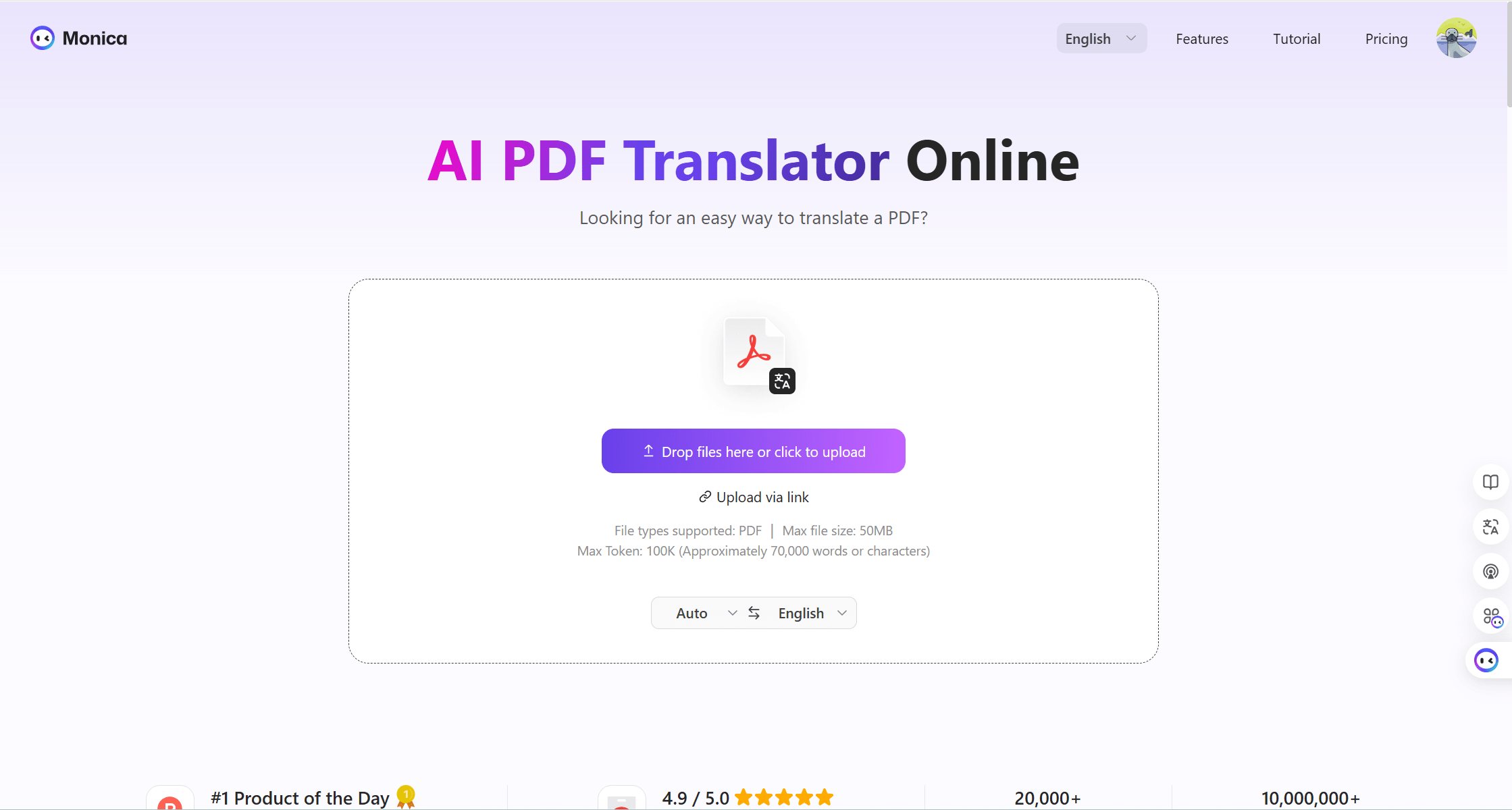
 Click “Translate” to generate the translated document.