5 Underrated Business Apps for the iPhone

Recently, we posted “5 Underrated Business Apps for the iPad” Today, we’re doing the same for the iPhone!

Since the opening of the iTunes App Store, great iPhone apps have flooded market. With tens of thousands of apps available to download, finding the best ones has become a bit of a chore. There are site and blogs that try to help by highlighting the best of the best – apps like Evernote, Dropbox, and Bump, for example. The problem is, the list is almost always the same! So, how do you find the great apps that aren’t featured on the top 10 lists, but are still worthy of a spot on your iPhone’s home screen? Let us help, with 5 handpicked underrated iPhone apps for business productivity.

1.  CardMunch (Free)
Download

How many times have you collected a stack of business cards at a networking event or conference, only to lose them in a desk drawer without ever entering them into your phone? If you’re like me, too many times! It has become somewhat of a chore to enter all the details from a card into your phone. That changes with CardMunch!

CardMunch allows you to take a photo of a business card, then submit it to their servers where it is transcribed by real people and sent back to your phone, ready to add to your address book. The whole process takes anywhere from 5-15 minutes and definitely beats adding them all in manually. CardMunch even has a 1-tap follow-up feature that sends an email to your new contact with your info attached. Staying in touch couldn’t be easier! And since LinkedIn recently purchased CardMunch, it’s 100% free to use. So go download CardMunch and get all those business cards converted today!

2. RedLaser (Free)
Download

RedLaser is arguably the most accurate barcode & QR code reader available for mobile devices. This free iPhone application allows you to quickly do a number of things. The most obvious use is to scan an item’s barcode to get more information, pricing, and availability. This proves especially useful when shopping for high-priced items, as you can easily learn if it’s available elsewhere for less. Another great use is to scan multiple items in succession, then email the results off to yourself or someone else. This is a great way to remember what items you looked at while at the store and an amazingly easy way to send off a shopping list to whoever does the purchasing in your company.

RedLaser can also scan QR codes. As these becoming increasingly popular, the ability to quickly and accurately scan these codes on your phone becomes very important. With RedLaser, doing just that is incredibly simple. Put simply, this is an app that everybody should have on their iPhone!

3. JotNot Scanner Pro ($0.99)
Download

JotNot Scanner Pro turns your iPhone into a scanner. Simply snap one or more photos of a document and let the app process it into an easy to read PDF, which you can share via email, print via AirPrint, or save to Evernote, Dropbox, Google Docs, and more. For a little extra ($0.99 for 5) you can even send your scanned document via fax! The genius behind JotNot Scanner Pro is that you don’t have to carefully line up the photo. You can simply snap a quick shot at an angle, and then use the app to put it in the right perspective. It’s really something you need to see to understand how well it works!

The only thing that would make JotNot Scanner Pro better is some sort of OCR (Optical Character Recognition) so that we could edit documents after scanning them. Still, when you need to digitize a document quickly, JotNot Scanner Pro is a great way to go!

4. TeuxDeux ($2.99)
Download

TeuxDeux is beautiful in its simplicity. With a highly minimalistic interface, this app lets you keep track of your todo list. For those of us who don’t need tags, categories, and other advanced features, TeuxDeux is perfect. The iPhone app syncs up with its free web-based counterpart, allowing you to access your todo list just about anywhere. Additionally, you are able to access multiple accounts from the app – perfect for those who want to keep their work and play lists separate!

TeuxDeux’s minimal approach goes beyond the visual design. Moving tasks is as easy as a drag-and-drop, and completing them is as simple as a tap. If you didn’t get around to a task that was due today, it will automatically be moved forward, reminding you each day until you complete it. Since TeuxDeux’s web interface is free, you can try its approach to task management before you buy the iPhone app. Unless you require the advanced features other task managers offer, I’m quite confident you’ll find TeuxDeux’s simplicity and design a refreshing change of pace!

5. Localscope ($1.99)
Download

Localscope is the easiest way to find out what’s around you. With Localscope, you can quickly learn about what’s around you, find businesses, hear what people are saying nearby on Twitter, and more. Search Google, Bing, Foursquare, Twitter, and Wikimapia, all from one app. Localscope does all this in a beautiful and innovative way.

Imagine you are at a conference. With Localscope, you can search nearby Tweets to see what people are saying, look up nearby coffee shops on Foursquare to find a great place to meet with new connections, or find a great steakhouse for dinner on Google. At the end of the day, Localscope does not do anything another app couldn’t do. What it does do, however, is offer a refined interface to search locally faster and easier than ever before. That functionality is well worth the $1.99 asking price.


If there’s an app that you think deserves to be on this list, let us know in the comments! And be sure to tune in next week for 5 Underrated Business Apps for Android.
Introducing CompanionLink Secure Analog Sync

Note: The post below was part of our 2011 April Fools fun. We’ve left it live for you to enjoy!

Sometimes even the most secure digital sync method isn’t secure enough. If you want to ensure your data is 100% safe from even the most advanced hackers, your options are severely limited. Until now.

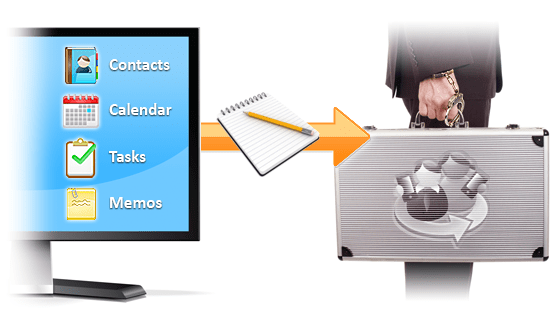
Today, we’re thrilled to announce CompanionLink Secure Analog Sync. For a monthly fee, we provide a highly trained CompanionLink Secure Analog Sync Agent to hand copy your data and store the information in a secure briefcase handcuffed to their body at all times. So how exactly does the new Secure Analog Sync work?

First, our trained Agent hand copies your data to a legal pad with a pencil, using manual encryption methods that require a secure cypher developed exclusively by CompanionLink to decrypt. The Secure Analog Sync Agent will then lock this information in a military-strength briefcase, handcuff the briefcase to their wrist, and follow you around as you go about your day. Anytime you need data, simply ask! The Agent will quickly open the case, decipher the data, and provide you with the information you need. And since the Agent always has a pencil on hand, you can add information to your database while you’re on the go. Once back at the office, our Secure Analog Sync Agent will input the data into your primary database.

With CompanionLink Secure Analog Sync, we’ve made it easier than ever to protect your data. To get started simply click the button below!

CompanionLink Gets Social

Good news: CompanionLink is now on Twitter, Facebook, and LinkedIn. We’d love to connect with you on each of these networks to share tips & tricks, discuss mobile productivity news, and answer any questions you may have. Each network is different, so read on to find out what we’ll be sharing on each one!

On Twitter, you’ll find us at @companionlink. We’ll be sharing blog posts, industry news, tips & tricks, and helping out with any questions you might have about our products or sync in general. So click the follow button below to connect with us:


On Facebook, we’ll share blog posts and popular industry news, as well as answer your questions on our wall or in our discussion boards. To join our Facebook community, just hit the like button:

On LinkedIn, you’ll be able to follow CompanionLink to see our latest updates in your LinkedIn newsfeed. You can also learn more about our products and recommend them to your peers. To get started, simply click the follow button below:

CompanionLink Software on LinkedIn

We hope to connect with you on one (or all) of these networks soon!

5 Underrated Business Apps for the iPad

There are many popular business apps for the iPad – Evernote, Dropbox, and QuickOffice Connect to name a few. Chances are, you’ve heard of most of these. If not, definitely check them out now. Of course, these are just a few of the many, many apps available in the App Store. So, how do you find great new apps that haven’t made it onto the top 10 list, but are still worthy of a place on your iPad’s home screen? Let us help, with 5 handpicked underrated iPad apps for business productivity.

1. Dragon Dictation (Free)

This simple app allows you to do one thing, and do it quite well! With Dragon Dictation, you don’t have to deal with the iPad’s touch keyboard or haul around a Bluetooth keyboard. You simply speak, and Dragon Dictation takes care of the rest. Your spoken message is converted to text, where you can make any quick edits needed and e-mail it off to your work computer for the finishing touches.

The trick to the app’s high level of accuracy lies in its connection to Nuance’s servers. As such, you do need to be connected in order to make use of this app. That minor detail aside, once you start using it I’m sure you’ll find it hard to live without! Download Dragon Dictation for free.

2. ReadItLater ($4.99, universal)

ReadItLater allows you to save websites and articles for reading at a later date. There are a few ways to really take advantage of this app. Using a bookmark or browser extension on your computer, you are able to save articles to ReadItLater, which then get synced to your iPad. With a quick review before heading out, you can even save select articles for offline reading – a great way to stay productive while on a flight! Alternatively, you can make us of ReadItLater’s integration in other apps or via a bookmark in Mobile Safari to save articles for review on your desktop.

Any way you use it, ReadItLater is an essential tool for those who need to digest large amounts of reading material on a daily basis. Download ReadItLater from the App Store!

3. Popplet ($4.99, Free Lite Version)

Popplet is almost too new to be considered underrated, but I couldn’t ignore this great little app. Popplet is web service and iPad app that gives you a virtual “whiteboard” for organizing thoughts, brainstorming and mindmapping, planning projects, creating process charts and diagrams, and more all in a simple to use, collaborative environment. It’s fast, user friendly, and it looks good. While it’s still a fairly new service, it certainly has a lot of potential and will undoubtedly help you be more productive on the go.

Learn more about Popplet at their website and download the app here.

4. iTeleport: Jaadu VNC ($24.99)

iTeleport lets you access your computer from just about anywhere. Simply launch the app on your iPad when you’re connected to the internet and you’ll be able to actually control your computer right from the screen! iTeleport works with Macs and PCs, and has been designed specifically with the iPad’s touch interface in mind. With such instant and easy access to your computer, your iPad becomes much more powerful as a productivity tool.

In the world of App Store prices, $25 may seem like a lot, but the benefit that this app brings far outweighs the initial cost. Head on over to the app store and download iTeleport for yourself.

5. Air Display ($9.99)

The iPad is a great tool when you are out on the go, but how can you make it useful even when you’re at your desk in front of your primary computer? The answer is Air Display. Air Display lets you use your iPad as a wireless second monitor. The extra screen space allows you to constantly keep tabs on your inbox, to-do list, calendar, or whatever you choose to display, all while keeping your main desktop free of clutter! Not only that, but Air Display actually lets you take advantage of the iPad’s touch screen as a secondary input device as well.

Air Display works on both Mac & PC. Check out the requirements, learn more, and download the app today.

Is there an app that you think deserves to be on this list? Let us know in the comments!

DejaOffice for Android v1.11 Adds Powerful New Grouping Feature

DejaOffice for Android v1.11 is now in beta, and available for direct download at dejaoffice.com/androidapp. The newest  DejaOffice update includes a powerful new grouping feature that allows you to group your data by a variety of fields. For example, you can now group your contacts by category, company name, or city.

Group Contacts by Category Group Contacts by City Group Contacts by Company

This is an incredibly robust feature that is sure to save time and help you organize better. I’ve spoken to sales guys who travel around the country, and they’ve often said that it would be helpful to be able to fly into a city (say Denver) and pull up a list of contacts from that city. Easy. Or imagine that you want to quickly view all your contacts that work at Intel. Done.

We’re pretty excited about the new grouping feature. To download the latest beta of DejaOffice, point your Android browser at dejaoffice.com/androidapp. Let us know what you think in the comments below!


Android’s Popularity Continues To Rise

Android, as a platform, has seen growing popularity since its inception. Before Android, Apple had a tight grip on the changing smartphone market. They were one of the first, and certainly the most influential, to transform the smartphone into what it is today. But, as we all know, Apple’s OS only works on Apple devices. That’s where Google stepped in. They created an open source OS that existing phone manufacturers could use. The use of Android as an OS spread rapidly, catching up with Apple’s market share in little time.

Today, that popularity continues to rise. A recent survey by Market Force shows that 34% of those surveyed would like to buy an Android phone, while only 21% indicated they wanted an iPhone. This is no surprise to us – we can see a similar trend among our customers.

Why is this?

Arguably, one of the reasons is that Android runs on more devices. But I think there’s more to it than that. Android is an open platform that’s designed to allow users great customization and flexibility. People like to own their experiences. The Android platform allows them to do just that. With it, you can make your phone as fun, simple, extravagant, or productive as you like! The very same device can be a portable arcade as easily as it can be a mobile productivity hub.

Now, obviously this is just one survey. New Android phones will continue to be released, and Apple is likely a few months away from releasing the iPhone 5 and iOS 5. How this will affect people’s buying decisions remains to be seen. For now, it’s safe to say that Android phones aren’t going to go away any time soon!

Support Update: CompanionLink Build 4036 Now Available

CompanionLink build 4036 is now available on our updates page. This update addresses a USB sync error that affects a small number of devices when syncing with the latest version of DejaOffice for Android. If you have experienced the following, please update now:

– USB drive mounts to the PC properly and the user is able to read/write data to it, but CompanionLink never starts a sync
– Previously able to sync with build 4033 and earlier
– Only the very first USB sync works after deleting the companionlink.db file and starting over

Why All Sprint Customers Should Go Sign Up For Google Voice

Google recently announced complete integration between Google Voice and Sprint phone numbers. In my opinion, this is huge news. Sprint customers will be able to link their number to Google Voice and instantly take advantage of all the great features that Google Voice offers. This all works seamlessly, without requiring an app of any kind on the phone.

As a Sprint customer using Google Voice, you’ll be able to forward calls to other phones, take advantage of voicemail transcriptions, send (and archive) texts online, make calls from your Sprint number via Gmail, and more. Having such easy and ubiquitous access to your call history, text messages, voicemail, and more can be a huge productivity boon. For some time now our phones have been able to augment our computer use. It’s about time our computers truly do the same for our phone use!

If you’re a Sprint customer ready to integrate with Google Voice, head over to https://www.google.com/googlevoice/sprint/ to get started. If you’re on one of the other networks (like myself), well, you’ll have to wait patiently and hope that the other carriers follow suit!

5 Things We Want To See In The iPhone 5

With the iPad 2 release behind us, many are looking forward to the next big thing from Apple. Apple has a history of releasing a new iPhone every summer, so it is widely expected that we’ll see the 5th iteration of the iPhone in the coming months. What will this new version bring? Perhaps only Steve Jobs himself knows for sure. So, if you’re listening Steve, here are 5 things that we’d love to see in the iPhone 5 as business users:

1. Advanced Hardware

We’re thinking specs similar to that of the iPad 2 will do just fine! A faster processor, more RAM, and more graphics power will only help the iPhone 5 to stand out that much more from the competition. While we’re at it, let’s boost the quality of the cameras, add in more storage, and enhance the battery as well. With this kind of extra hardware, we’re bound to see many more advanced apps pop up in the App Store.

Likelihood of this happening? High. With virtually every new product Apple release, we can expect to see some kind of performance boost. The iPhone 5 should be no different.

2. Near Field Communication

Near Field Communication (NFC) is a new technology to cell phones. It allows users to easily transfer information wirelessly when in close proximity to a NFC sensor. This could be especially useful for everything from “checking in” on social media sites to unlocking the secure door at work to paying for dinner with an app from Visa or American Express. Imagine not having to carry a wallet around any more simply because your phone can serve its main purpose digitally!

Likelihood of this happening? It’s hard to say. It has been rumored that the next iPhone will include NFC, but it has also be rumored that it wont. Only time will tell.

3. Wireless Charging

One of the biggest limitations of any smartphone is the battery. Those of us that use our phone constantly know that even with the best battery available, it can be hard to make it through a day without plugging in. We’d love to see a wireless charging dock for the iPhone 5 that allows us to simply set the phone down on a pad to charge it. In between use at our desk, we would be charging our phone without even thinking about it!

Likelihood of this happening? Unfortunately, not that great. The rumor mill hasn’t turned out any hard details regarding anything like this. Additionally, you’d still need to plug in when transferring data at this point so it’s hard to imagine Apple adding a feature that only duplicates an existing (and still necessary) process.

4. Biometric Security

As we store more and more important (and sensitive) information on our phones, adding an extra level of security would be a welcome feature. Adding some sort of biometric security measure, whether it is facial recognition, voice recognition, or a fingerprint scanner, would go a long way in making our phones more secure. Imagine losing your iPhone with NFC capabilities – now you’ve lost your phone and your wallet! Sure, passwords are secure, but biometric recognition is secure and convenient!

Likelihood of this happening? Unlikely. As with wireless charging, this is a feature that has not been mentioned in any of the big rumors. It certainly makes sense to add it, but knowing Apple they would only do so if technology is up to their high standards.

5. iOS 5

Our wish list for iOS 5 could be an entirely new post! However, in the interest of brevity we’ll highlight our two main requests. First, we’d like a better notification system. The current system doesn’t handle multiple notifications well, and with more and more apps using them, Apple needs to do something to improve the system. We’d also love to see widgets. While Apple does a lot of things very well, this is an area in which they need to play catch-up with Android. Widgets on iOS could open up huge potential for increased productivity. Including these two features in iOS 5 would go a long way in making the iPhone a true business-class device!

Likelihood of this happening? We will almost certainly see iOS 5 around the same time as the iPhone 5. Whether or not it includes the above features remains to be seen. The most likely feature we’ll see is an improved notification system. Apple is well aware of the limitations of their current system and is likely taking a serious look at improving them.


Now that you’ve read ours, what features do your iPhone 5 wish lists include? Let us know in the comments!

Go Ahead, Make The Switch!

The HTC Thunderbolt is (finally) launching tomorrow. As such, I felt it would be appropriate to touch on the process of switching phones. With 4G data speeds, a 4.3” screen, an 8 megapixel rear facing camera, a front facing camera for video calls, a 1GHz processor, and more, the Thunderbolt should prove to be quite popular, causing many customers to trade in their current phone. Of course, this means going through the process of backing up and transferring all your data will become a top priority.

Switching phones used to be quite a pain. Often, you’d find yourself re-entering all your data, which could take a very long time, especially if you used your phone for business. These days, many phones include some kind of sync to help you get most of your data moved over, but it’s not always so easy. A user hoping to switch from an iPhone to the Thunderbolt, for example, will likely run into some roadblocks. Getting contacts, calendars, tasks, memos, and more transferred over isn’t as simple as it is if you were to simply upgrade to a new iPhone. Unless, of course, you use CompanionLink and DejaOffice!

We’ve developed our products in such a way that you can move to a new device quickly and easily. After installing DejaOffice on a new device, you’re just a quick sync away from having all your important contacts, calendars, tasks, and memos back at your fingertips. After all, it’s your data – you should have easy access to it no matter what device you prefer to use!

For more information on how to sync the HTC Thunderbolt with your PC, click here.

Tablet Faceoff: Motorola’s Xoom vs. Apple’s iPad 2

By now, you’ve no doubt seen countless reviews and comparisons of the Motorola Xoom and Apple iPad 2. They talk about the size, the weight, the features, etc. and post galleries of images and embedded software development for your viewing pleasure. By all means, they are certainly providing helpful information.

That said, I want to compare the two from a productivity standpoint. I want to take a look at the two devices and answer the following question: Which device will allow you to be more productive while on the go?

In order to accomplish this, I’ll be looking at three distinct areas:

1. Tech Specs: Battery life, speed, screen size, etc
2. Usability: Interface design, intuitiveness, etc
3. Compatibility & Expandability: Will it work with my system?

Tech Specs:

The Xoom and iPad 2 aren’t drastically different when it comes to hardware. Both devices have a screen size of ~10” (though the Xoom has a higher resolution), both are running dual-core 1GHz processors, both have front & rear facing cameras, both feature batteries that will last all day, and both share similar dimensions & weight. When it comes down to it, neither device is especially better than the other in terms of tech specs. The Xoom’s screen resolution is a bit higher, its cameras are a bit better, and it will soon support 4G speeds and Adobe Flash. The iPad 2 is thinner, lighter, has higher built-in storage options, sells for less money, and is available on multiple networks.

The Verdict: From a technical specification standpoint, the devices are quite similar when considering mobile productivity. They both offer large screens, they’re both quite portable, and they both have plenty of power to run your mobile office. Everything else aside, it really comes down to personal preference.

Usability:

I am quite impressed with how far Android has come lately. Many of the features found in Android 3.0 are impressive, and the level of customization the device allows is great. Widgets offer at-a-glance information, the freedom to arrange home screens at will allows better organization. Overall, with a small investment of time, the Xoom can be setup to make you extremely efficient on the go. However, it feels surprisingly slow when compared to iOS 4.3 on the iPad 2 – and that’s saying something. I would never have called the Xoom slow before, but setting them side by side shows just how well Apple has optimized their iOS to take advantage of the hardware.

The iPad 2 does not introduce many new features when it comes to usability, but rather optimizes existing ones.  Everything feels even faster than before. Anything that involved more intensive graphics power simply screamed on the iPad. Early testing seems to agree that the iPad 2 is around 2x faster than the Xoom when it comes to graphics power. As a result, everything the iPad does quickly it does beautifully as well, with smooth animations and transitions. It is clear that Apple has invested a lot of time perfecting the experience. This unique experience often translates into a higher level of productivity.

The Verdict: It’s a close call, again. Many users will prefer the level of customization and organization that the Xoom offers. Being highly organized is a crucial part of being productive on the go. On the other hand, the speed that the iPad 2 manages to handle everything you throw at it easily makes up for its more basic organization options.

Compatibility:

Android sets up via Google. iOS, via iTunes. The different setups mean different levels of compatibility, whether with other devices or programs. That said, it’s the apps that can make all the difference.

The iPad 2 supports all existing iOS apps right out of the box. Essentially, if your setup works on an iPhone, iPad 1, or iPod Touch, it will work just fine on the iPad 2. The Xoom has a little catching up to do in this area, simply due to the fact that it’s the first tablet with Honeycomb. Since Honeycomb is the first official tablet version of Android, the platform has some catching up to do. That said, existing Android apps work (even if they’re not optimized for the tablet) and, as such, the Xoom supports most existing Android solutions.

At the end of the day, the more popular solutions will work just fine. For example, DejaOffice works great on both the iPad 2 and the Xoom. A quick install of the app is all it takes to start getting all your contacts, calendars, tasks, and memos over to the tablet.

The Verdict: The iPad 2 wins when it comes to sheer numbers, but the Xoom and Android are quickly catching up.

So Where Does This Leave Us?

It’s actually a close call. Both the Xoom and the iPad 2 have their strengths. So what tablet should you get? Ultimately, the decision is up to you, but in my opinion the winner is the iPad 2. The Xoom is a great product with its powerful customization options and 4G data speeds, and Android 3.0 will only continue to get better. However, I’d have to say that overall the iPad 2 is simply the best tablet currently available. With it’s incredible speed, sleek Apple design, lightweight form factor, and intuitive UI, it has set the bar high for mobile productivity in the tablet market and has left competitors playing catch-up.

Of course, that’s my opinion – I’d love to hear yours in the comments!

AES-256 Security: Now Standard in CompanionLink & DejaOffice

Whether it’s a company requirement, an industry standard practice, or a personal preference, many users find their wireless sync options limited by the lack of secure solutions available to them. Most cloud-based systems are not an option as user data is stored on an outside server. Even local Wi-Fi can be an issue if the data is not securely transferred.

At CompanionLink, we take data security very seriously. Keeping your data in sync is our end goal, but keeping it safe in the process is extremely important as well. That’s why we’re now using AES-256 Security in the latest versions of CompanionLink and DejaOffice for Android (and iOS soon). So just how secure is AES-256 Security? Let’s take a look.

AES stands for Advanced Encryption Standard, and the number 256 refers to the number of bits in the key size. Bits? Keys? I know, it sounds technical – and it is! If you’d like to read up on all the specifics of AES-256 Security, I’ll refer you to other online sources. With that said, let’s get back to explaining just how safe your data is under this security protocol. I’d like to refer to a quote from the Computer Security Division of the National Institute of Standards and Technology stating:

“The design and strength of all key lengths of the AES algorithm (i.e., 128, 192 and 256) are sufficient to protect classified information up to the SECRET level. TOP SECRET information will require use of either the 192 or 256 key lengths.”

In a nutshell, the NSA considers AES-256 secure enough to protect TOP SECRET classified information. Data doesn’t get much more secure than that. With AES-256 Security built in, you can rest assured knowing that your data is secure with CompanionLink and DejaOffice!