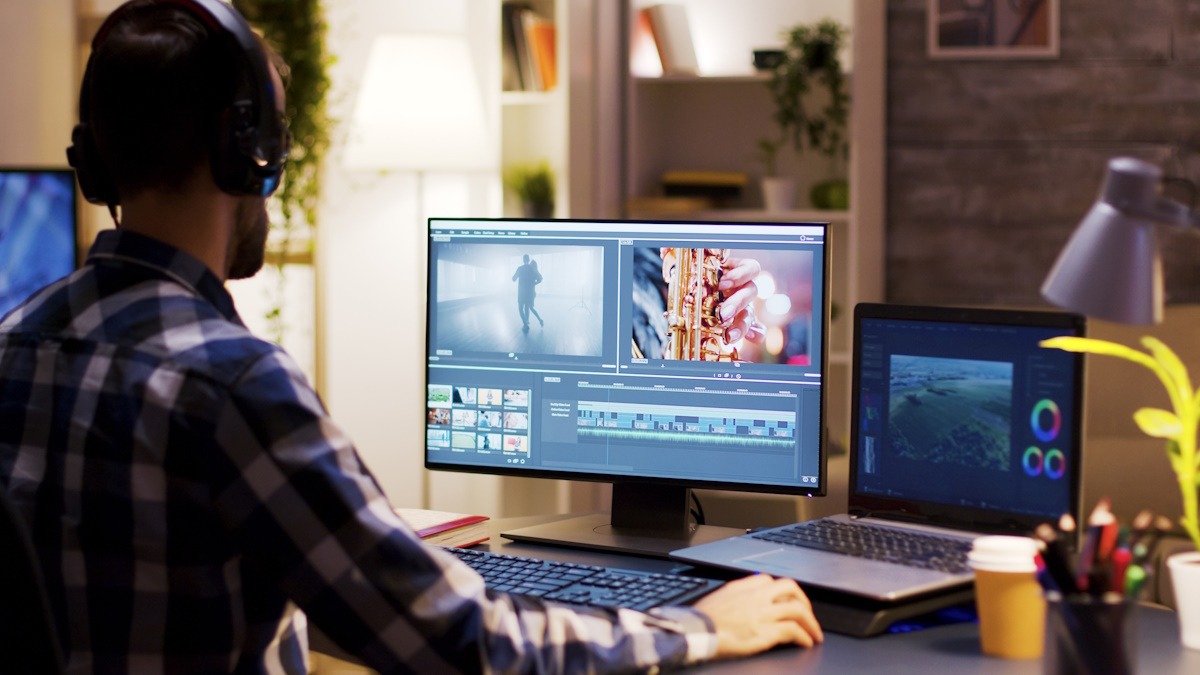
Eight Proven Methods to Enhance Video Quality in 2024

In today’s digital world, video quality has become a critical factor in capturing and keeping viewer attention. High-quality visuals don’t just enhance the viewing experience; they boost audience engagement and retention, making content more impactful and memorable. With the right video quality enhancer and techniques, you can significantly improve video clarity, color, and resolution, creating professional-looking content that resonates with audiences. This guide covers the best ways to enhance video quality for impressive, viewer-friendly results.

Part 1: Best Video Quality Enhancer on Windows and Mac

The most effective way to elevate video quality is by using a video enhancement tool like HitPaw VikPea. This advanced video quality enhancer designed for both Windows and Mac users, offers a range of features to make your videos look professional. You can access a range of AI models to denoise, repair, colorize, stablize, reduce blur, enhance facial details, and related tasks. It even lets you change the resolution, format, and other aspects. You can even preview the output using its built-in media player before exporting it to your system.

Main Features:

  • Offer a simple and intuitive UI to enhance video quality
  • Upscale video details using deep learning AI technology
  • Help you unblur and colorize videos with vivid clarity
  • Repair damaged and unplayable videos without hassle
  • Fast and smooth processing with high-quality output

Steps of Enhancing Video Quality Using HitPaw Video Enhancer:

Step 1. Upload the Original Video

The first step is to launch the software and choose “Video Enhancer” from the left side. Now, upload the source video to proceed.

Step 2. Select an AI Video Enhancement Model

It’s time to choose the enhancement model from the right side column according to the video requirement. You can also select the desired mode.

Step 3. Preview and Export

Lastly, press the “Preview” button. If the video is okay, go back and click the settings icon to choose “Resolution,” “Bit Rate,” “Format,” and the destination folder. Hit “Export.”

Part 2: 8 Different Ways to Enhance Video Quality

Aside from AI video quality enhancer, there are several practical steps to improve video quality from production to post-editing. Let’s explore:

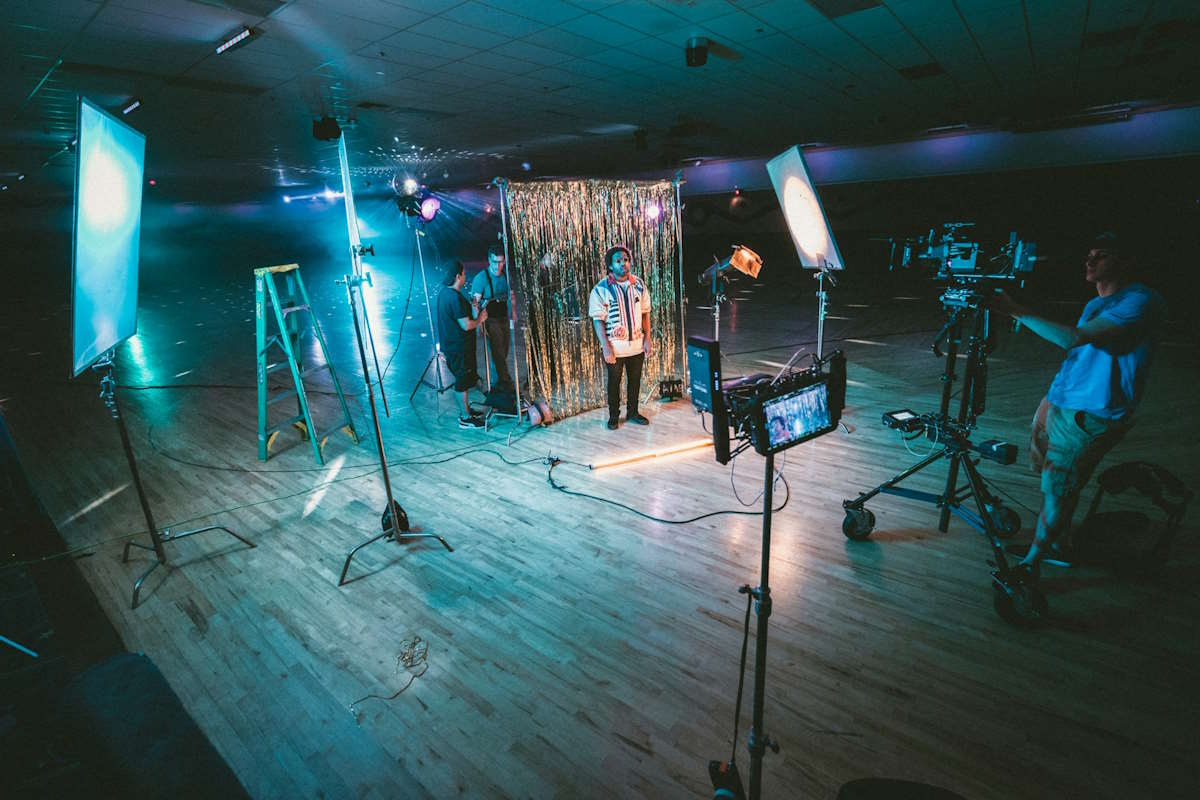
1. Invest in Good Lighting

Quality lighting is key to creating a clear and vibrant video. Natural light is excellent, but if unavailable, consider investing in softbox lighting or LED lights. Proper lighting can make your video appear more professional and visually appealing.

The best lighting setup for high-quality output is three-point lighting, including a main light, a fill light, and a backlight. The main light is the bright one facing the subject, the fill light is opposite to the key light and a little dimmer, and the backlight is behind the subject, separating the subject and the background.

2. Use High-Quality Equipment

Cameras and external microphones have a significant impact on video quality. Although smartphone cameras have improved, dedicated cameras provide better quality in terms of resolution, focus, and color depth. If you’re recording audio, a good external microphone can improve clarity and reduce background noise.

3. Proper Camera Settings

Adjusting your camera’s settings can enhance video quality before you even start editing. Key settings include:

  • Resolution: Choose the highest resolution your camera supports.
  • Frame Rate: For a cinematic feel, use 24 fps; for sports, try 60 fps. However, a common frame rate for YouTube is 30fps.
  • ISO and Exposure: Ensure optimal brightness without overexposure.

4. Optimize Audio Quality

Video quality isn’t only visual. Clear audio complements high-definition visuals, enhancing the overall experience. Use a dedicated microphone to reduce background noise, capture clear sound, and adjust audio settings during editing to achieve a balanced soundscape.

5. Apply Color Balance and Grading

Name: color-balance-and-grading

Alt: Color Balance and Grading

Color correction and grading give your video a professional polish. Color balance adjusts the overall hue to look more natural, while grading adds a specific look or feel to your video. This process can make your footage appear more cinematic or vibrant, depending on your preference.

6. Enhance Video Quality with Stabilization Techniques

Shaky footage can distract viewers and lower the perceived quality of your video. Use a tripod or gimbal for stable shots, especially for handheld recording. Many video editing tools, including HitPaw, offer stabilization features to fix shaky footage during post-production.

7. Choose the Right Format, Resolution, and Bitrate

Selecting the right file format, resolution, and bitrate is essential for achieving optimal quality. For example:

  • Resolution: Use Full HD (1080p) or 4K for high-quality output.
  • Bitrate: Choose a higher bitrate to retain detail, especially for HD or 4K footage.
  • Format: MP4 is a universal format that balances quality and file size well. However, choose the one depending on the device or platform’s requirement.

8. Use Professional Editing Software

Editing software allows you to refine and polish your videos. Programs like HitPaw VikPea offer tools for color grading, stabilization, transitions, and more. Editing enhances the visual appeal and flow of your video, helping you achieve the final look you’re aiming for.

Part 3: FAQs about Video Quality Enhancer

1. Why is my video quality bad?

Video quality can suffer due to low resolution, poor lighting, high compression, or outdated equipment. Simple adjustments in lighting and resolution settings, as well as using quality enhancement tools, can significantly improve the final output.

2. How does an AI video quality enhancer work?

AI video quality enhancer uses machine learning algorithms to analyze video frames and make adjustments that enhance resolution, reduce noise, and improve details. It can upscale videos, remove artifacts, and automatically adjust color & brightness.

3. Is there a free video quality enhancer?

Yes, there are various free video quality enhancer tools, like HitPaw VikPea’s free trial. However, for professional results, a paid video enhancer often provides more advanced options and better output.

Conclusion

Improving video quality is a multi-step process. By following the eight methods in this post, you can create videos to captivate and engage viewers. However, the best way to enhance video quality is by using a specialized tool like HitPaw VikPea. It offers quick processing and high-quality output to improve your videos. Try out this software today to give your videos the professional edge you deserve!

Modern Virtual and Augmented Reality Technologies in Structural Design

The leap in the development of virtual reality, which is reflected in the emergence of . Such an innovation as Augmented Reality, reflected not only in the field of entertainment and games, it was also reflected in such a complex and important area. Structural design. This direction has been given a new impetus.

Integrated virtual and augmented reality programs, on structural design. Provided new opportunities for visualization of projects by engineers and architects. Which is directly reflected in the minimization of errors and optimization of all work processes.

As we know three-dimensional models have long been mandatory in design. Building and structures But thanks to the ability to not only. Visualize but also interact with such models. In a virtual environment is giving a new impetus to. In design processes. Structural Design Software

Advantages of technology in structural design

  • The main advantage of this technology is that the engineer can move around the building or structure, looking at all the details in the chronology of the project that he needs. This makes it possible to detect risks in time and bypass complex problems at certain stages of construction, which directly affects the price and timing of projects.
  • Augmented reality, unlike virtual reality, allows not only to dive fully into the 3D model, but also to combine the projected models with real objects, this gives the engineer the opportunity to evaluate how the design objects will look in the real environment, as well as to compare the design model with the real condition on the construction site.
  • Augmented reality can also be used to monitor how well the real structure matches the design models. Structural design software that integrates the ability to work with augmented reality makes it possible, in simple words, to superimpose 3D models on existing structures, this has a direct impact on the installation process.

Summary and conclusions

Modern virtual simulation technologies are involved not only in entertainment, but also every year more and more integrated into the structural design process. This directly affects investments in this direction, which accelerates the development and emergence of new types of virtual reality, meaning augmented reality. Perhaps in the future, the use of virtual visualization technology will influence the construction technology itself, and we will see something new not only in structural design, but also in construction technology.

Trends in Transitions for Short Videos in 2024

The digital landscape continues to evolve, shaping how we consume and create content. Short-form videos dominate social platforms, captivating viewers with quick, engaging snippets. In this dynamic environment, the art of seamless scene changes has become paramount. Creators now rely on innovative transition video maker tools to craft compelling narratives that keep audiences glued to their screens.

The Power of Fluid Storytelling

Smooth scene shifts do more than please the eye; they enhance story comprehension and emotional impact. By eliminating jarring cuts, creators maintain viewer immersion, allowing messages to resonate more deeply. This fluid approach to visual storytelling has become a hallmark of viral content in 2024.

Emerging Transition Trends:

  1. Augmented Reality Blends: Merging real and virtual elements for captivating scene changes.
  2. Voice-Activated Shifts: Using audio cues to trigger visually stunning transitions.
  3. Micro-Animations: Subtle movements that guide the viewer’s attention between scenes.

These innovative techniques are reshaping how stories unfold in the digital realm, offering new ways to engage and surprise audiences.

The Role of AI in Content Creation

Artificial intelligence has revolutionized the TikTok editing app landscape. Advanced algorithms now suggest optimal transition points, analyze viewer engagement, and even generate custom effects. This symbiosis of human creativity and machine efficiency is pushing the boundaries of what’s possible in short-form content.

Mastering the Art of Seamless Flow

To excel in this evolving landscape, creators must:

  1. Experiment with novel transition styles.
  2. Prioritize narrative coherence over flashy effects.
  3. Analyze audience response to refine techniques.

By focusing on these aspects, content creators can craft videos that not only catch the eye but also leave a lasting impression.

The Impact of Transitions on Viewer Retention

Studies show that well-executed transitions can significantly boost watch time and sharing rates. The best TikTok editing app options now include features specifically designed to capitalize on this phenomenon, offering creators powerful tools to keep viewers engaged from start to finish.

As technology advances, we can expect even more innovative approaches to scene transitions. The line between editing TikTok video tools and professional-grade software continues to blur, democratizing high-quality content creation.

Vjump: A Game-Changer in Video Editing

Among the various platforms available, Vjump stands out for its intuitive interface and powerful features. It empowers creators to bring their visions to life with minimal technical hurdles, making professional-level editing accessible to all. The TikTok video editor landscape is richer and more diverse than ever. Creators who master the art of seamless transitions will find themselves at the forefront of this digital revolution, crafting content that not only entertains but also deeply resonates with audiences.

5 Creative Ways to Use Motion Video Frames You Haven’t Thought Of

We know and love motion video frames for watching our favourite memories with the memory video frames. But do you know, they can be used for so much more!

Don’t let yourself be trapped in the belief that they are just used to display photos or videos on a loop. Motion video frames present amazing and exciting possibilities for presenting our emotions, and memories in everyday, joyful as well as for business and professional contexts.

Here are five creative ways that are different from the regular ones to add some pixie dust to your memories.

Bring Your Memories to Life: Get creative with Motion Video frames.

1.   Make your Greeting Cards more alive

Using motion video frames you can design animated greeting cards that become lively when, a concept of true animation. Rather than a still picture or a video with music, only one can record and share a short video, a pleasant memory, or a personal message for a birthday. Imagine turning a photo to video and embedding it in a card, creating funny animated cartoons tailored to the occasion

Alert/Note/Spoiler: It’s going to be very interesting

How it works: You can add a short motion video or print a QR code on your card. When someone scans the code, receives the animated message making the gesture more unique and special.

2. Make your Photos come to life

We all have put photo frames on our walls. Motion video frames are perfect for wall art, where you can time travel back to memories through the motion of the videos. You can place frames with videos that can play your last family trip or a serene view from one of the trips.

Got old printed photos? Don’t let them sit in boxes or albums collecting dust. You can easily convert printed photos to digital and unlock a whole new world of creative uses. Once digitized, they can also be edited, animated, or turned into short video clips for motion frames.

Let Your Ideas Fly!

Creative tip: To create a picture story, you can use several frames placed in a pattern. You can add short videos of the views from the tip and take a tour back in the memory lane through the wall art.

3. Make your Invites Stunning

Why send a conventional paper or digital invitation again when it is much more appealing to send out an invite that the receiver is gonna love?

Think about being able to send an invitation to your wedding or party with a preview of that event, like an animation or a trailer with a view of the venue, the appearance, or a short and sweet video of the host inviting you. Remember how Aditi sends an invite to Bunny in Yeh Jawani hai Diwani? Motion video frames add a wow factor.

Why It’s Cooler Than You Can Imagine!

Why it’s cool: It helps set a vibe and make an initial impression for the event, but apart from that it is about the little details with the touch of personalization, which gives an anticipation before they decide to attend the event.

4. Showcase the customer stories and feedback

Customers’ feedback is very valuable although the usual written feedbacks are so plain or seem like the testimonies are rehearsed. Given the nature of motion video frames, you can easily record real time customer experience and use in the office or events.

Because the personalisation where the customer shares the feedback in person on a video, makes the feedback more credible.It portrays credibility and creates confidence unlike conventional text or even still images.

Here’s Why It’s Epic.

Where to use them: Display motion video frames in your lobby, use them in your presentation, add them to your website like many e-commerce sites have, or use them in trade fairs to attract more customers.

5. Make the Menus more interactive and exciting

Using motion video frames instead of ordinary menus can be so exciting. You can use the Motion video frames by adding short clips of the dish of the restaurant with a glimpse of that dish being prepared and plated beautifully and make your customers indulge in the beauty of it. This gives a different dimension of dining.

Where the Magic Fits: find ‘the spot’

Where to use them: Someplace the frames at the entrance or at the reception or the waiting area to capture the attention of the guests towards the menu or highlighting the Restaurant’s Chef’s special, specials of the day menu, or seasonal food with some fusion.

Motion video frames are not merely a fancy way to share photos and videos; they are an art for making memories as well as coming up with different yet more engaging narratives that cannot be expressed through simple pictures. However, if you would like to personalize it for gifts, invites, or just make keepsakes for you or your clients, these frames are always one go to option. That is why it is better to use creative and amazing motion frames to make any existing moment special.

High-Frame Rate: Elevating Visual Sync For Seamless Performance Across Devices

High-frame rate (HFR) technology is rapidly transforming the way we interact with digital media, particularly in gaming, streaming, and productivity. 

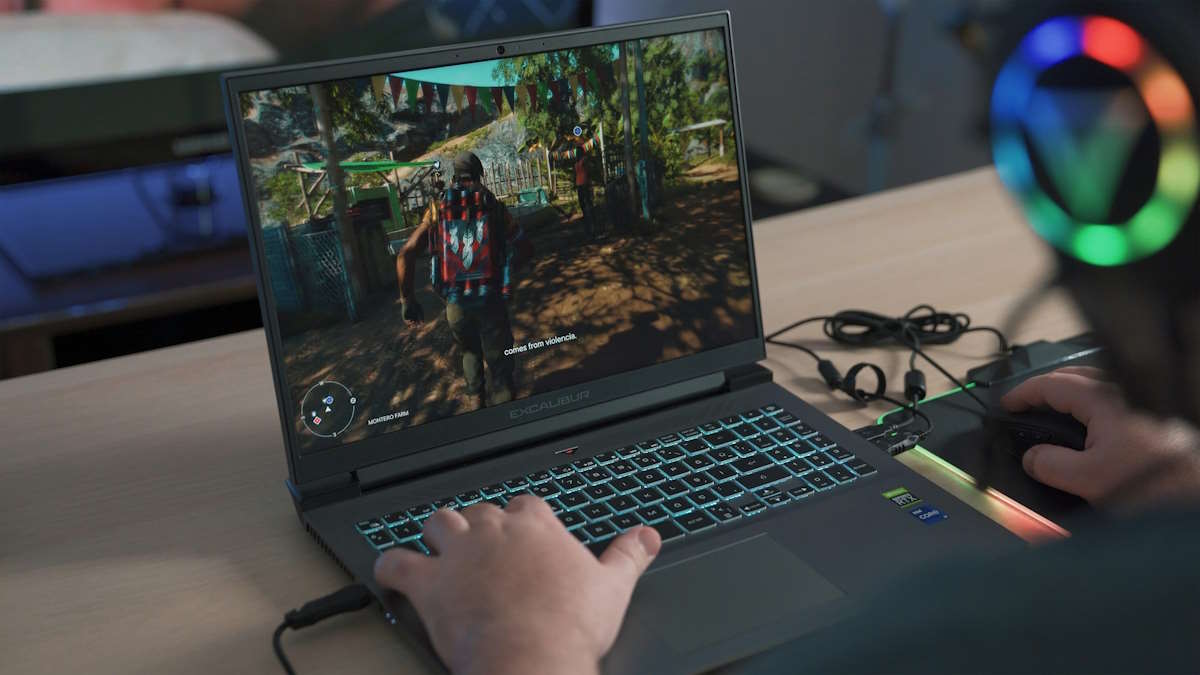
By offering smoother animations and sharper visuals, HFR has become vital for enhancing user experience across various devices. Recent advancements have pushed frame rates beyond 60 frames per second (fps) to as high as 240 fps, particularly for high-end gaming and esports, where reaction time and smooth visuals are critical for success. 

Studies have shown that higher frame rates not only improve gameplay but also reduce issues like screen tearing and ghosting, creating a more immersive experience​.

The adoption of HFR is also growing in video streaming, with platforms like YouTube and Twitch supporting content at 60 fps, which provides smoother playback for action-packed videos. As of 2024, even monitors capable of 1000 Hz refresh rates have been demonstrated, showcasing the potential for ultra-smooth visuals in both gaming and productivity​

As this technology evolves, HFR is set to become a standard feature across devices, promising improved performance for gaming, streaming, and even office tasks.

Optimizing High-Frame Rate Technology for Multiple Devices

As high-frame rate (HFR) technology continues to advance, optimizing it for a wide range of devices and uses has become key to ensure consistent performance and visual quality across platforms.

From gaming consoles and smartphones to streaming devices and computers as well as for high frame rate in video production, HFR delivers smoother visuals, improved motion clarity, and better overall user experiences.

Getting the best out of HFR requires device-specific adjustments and strategic use of compatible hardware and software. This section explores the key areas in which users and developers can optimize HFR technology for different devices to ensure maximum performance.

Choosing the Right Display for High-Frame Rate

When it comes to HFR, having the right display is key for achieving optimal visual performance. 

High-refresh-rate monitors and TVs are designed to take full advantage of higher frame rates, reducing issues such as screen tearing and motion blur. Choosing a display with a refresh rate that matches or exceeds the frame rate output of your content or game is critical.

  • For Gaming: If you are a gamer, choosing a monitor with at least 120 Hz or 144 Hz is highly recommended. For competitive gaming, a 240 Hz monitor or even higher is ideal to experience the full benefits of HFR​
  • For Streaming and Videos: While most TVs and monitors support 60 Hz, more advanced models now support up to 120 Hz or higher. Streaming content at 60 fps or more is becoming the standard on platforms like YouTube and Twitch, especially for sports or fast-action videos​
  • Mobile Devices: Many high-end smartphones now come with screens that support 90 Hz or 120 Hz refresh rates. Opting for these models ensures smoother scrolling and better gaming performance, making a significant difference in how content is perceived​

Leveraging Adaptive Sync Technologies

To fully optimize HFR across devices, leveraging adaptive sync technologies such as NVIDIA’s G-Sync or AMD’s FreeSync can prevent issues like screen tearing and stuttering. These technologies synchronize the refresh rate of the display with the frame rate of the content, creating a smoother visual experience.

  • G-Sync vs. FreeSync: G-Sync, developed by NVIDIA, is supported by a range of gaming monitors, particularly for high-end gaming setups. FreeSync, an open standard developed by AMD, is also widely available and tends to be more cost-effective​
  • For Multi-Platform Gamers: If you use multiple platforms (PC and console, for instance), choosing a monitor or TV that supports both G-Sync and FreeSync ensures better compatibility and smoother performance across devices. For example, Xbox Series X supports FreeSync, which can pair well with compatible monitors​
  • VRR for TVs: Variable Refresh Rate (VRR) is becoming more common in high-end TVs, especially for streaming and gaming. VRR allows the TV to adjust its refresh rate dynamically, which is especially useful for console gaming at high frame rates​

Optimizing Graphics Settings for High-Frame Rate Performance

Achieving high-frame rate performance is not solely dependent on your display; it also requires fine-tuning graphics settings across devices. By adjusting these settings, you can maximize performance without sacrificing visual quality.

  • Lower Resolution for Higher Frame Rate: Reducing the resolution can significantly improve frame rates, particularly on lower-end systems. In many cases, it is better to have smoother motion at 60 FPS or higher at a lower resolution (such as 1080p) than to experience choppy performance at 4K​
  • Disable V-Sync: Vertical Sync (V-Sync) locks the frame rate to the display’s refresh rate but can introduce input lag. Disabling V-Sync in favor of G-Sync or FreeSync is often recommended to maintain smooth motion without lag​
  • Optimize Game Settings: Many games provide options to reduce graphical intensity, such as disabling anti-aliasing or lowering shadow quality, to boost frame rates. These tweaks can help optimize performance, particularly in high-action scenes​

Network Considerations for Streaming High-Frame Rate Content

When streaming content, ensuring your network can handle high-frame rate video is integral to maintaining visual quality without buffering or lag. Streaming platforms, such as Netflix, YouTube, and Twitch, now offer HFR content that requires a stable and fast internet connection.

  • Recommended Internet Speeds: For 60 fps 4K streaming, a minimum internet speed of 25 Mbps is recommended. For 1080p at 60 fps, at least 15 Mbps is needed. Ensure your connection can consistently meet these speeds to avoid downgrades in quality​
  • Wired Connection Over Wi-Fi: For a more stable connection, consider using a wired Ethernet connection, especially when streaming high-frame rate content to devices like gaming consoles or smart TVs​
  • Streaming Devices: Devices such as Chromecast Ultra and Apple TV 4K are designed to handle HFR content, but make sure your internet connection and home network can keep up with the data demands of HFR streaming​

Hardware Upgrades for Enhanced High-Frame Rate Performance

If your current setup struggles to maintain a high frame rate, upgrading your hardware is often the most effective way to enhance performance. This is especially true for gaming PCs, where components like graphics cards, processors, and storage can directly influence frame rates.

  • Graphics Cards: Upgrading to a GPU that supports higher frame rates and refresh rates is critical for gaming at 144 FPS or higher. NVIDIA’s RTX series and AMD’s RX series offer robust performance for high-frame-rate gaming​
  • CPU: A faster processor can help eliminate bottlenecks that prevent your system from achieving high frame rates. Consider upgrading to a multi-core processor with a high clock speed to improve overall performance​
  • Storage: Upgrading to an SSD (solid-state drive) can significantly reduce loading times, which can indirectly improve frame rate consistency, particularly in games with large, open-world environments. 

Endnote

High-frame rate technology is not only revolutionizing gaming and streaming, but it is also making its way into professional fields like video editing and virtual reality design. 

As HFR adoption continues to grow, we can expect even greater integration into these industries, leading to faster workflow processes and more accurate visual renderings. 

Looking ahead, there is also potential for HFR technology to play a critical role in medical imaging and training simulations, where precision and fluidity are key for success. This highlights how HFR’s impact is extending beyond entertainment and gaming, paving the way for broader technological advancements.

Best Video Converter for Mac Review — HitPaw

Are you searching for the best video converter for Mac? Whether you want to convert videos for different devices or various formats, or enhancing their quality, checking through the available video converters for Mac becomes an uphill task.

Fortunately, this article can help you rule out the noise. We will introduce one of the top solutions—HitPaw Video Converter—which is designed to make all your video conversions a breeze.

Hang in there to find out how this tool can satisfy all your video conversions with a slick and efficient experience on your Mac.

Let’s begin.

Part 1. What Makes HitPaw Video Converter for Mac Important for Us

HitPaw Video Converter for Mac is one of the leading all-round video converter for Mac, to meet various demands about video and audio conversion. Aimed at supporting varied file formats, providing fast conversion speed with acceleration through GPU, and equipped with editing tools to enhance the quality of videos.

Additionally, this free video converter for Mac fuses a video downloader supporting the most famous sites, a music converter for streaming services, and even a screen recorder to capture activities carried out on your desktop.

With its user-friendly interface and powerful capabilities, HitPaw Video Converter for Mac is an all-in-one solution for media conversion and editing tasks.

Key Features

  • Versatile Video/Audio Conversion: Supports over 1000 formats with full GPU acceleration for lossless conversion.
  • Device Specific Presets: Best presets for a number of devices, ranging from iPhone to iPad, Apple TV, PS4, and Xbox One.
  • High-Speed Downloading: Downloads content from over 10,000 sites with a single download for playlists, channels, and subtitles.
  • Music Converter: Convert music from Apple Music, Spotify, and YouTube Music with the tags in ID3 format well-preserved and removing DRM.
  • Video Editing Tools: Cutting, merging, putting a watermark, filters, and effects are some of the available features to enhance videos.
  • Screencast: Records any area of the screen, with audio and webcam support.
  • Video Compression: Effective File Reduction Without Losing Any Quality.
  • DVD Ripping: Converts DVDs to digital formats for easy access.

Part 2. Detailed Review: HitPaw Video Converter for Mac

Here’s a detailed review of HitPaw Video Converter for Mac that will help you decide whether it’s right for you or not:

Easy Guidelines

Now, let us see how to use HitPaw Video Converter for Mac.

Step 1: Install HitPaw Video Converter for Mac

First, download the HitPaw Video Converter installer from the official site.

Step 2: Launch the Program & Find the “Download” Section

After installation, launch HitPaw Video Converter from the Applications folder. Now, in the very first window that appears when step into the interface, you can see the “Download” section.

In this area, any video can be downloaded from online platforms such as YouTube and so on.

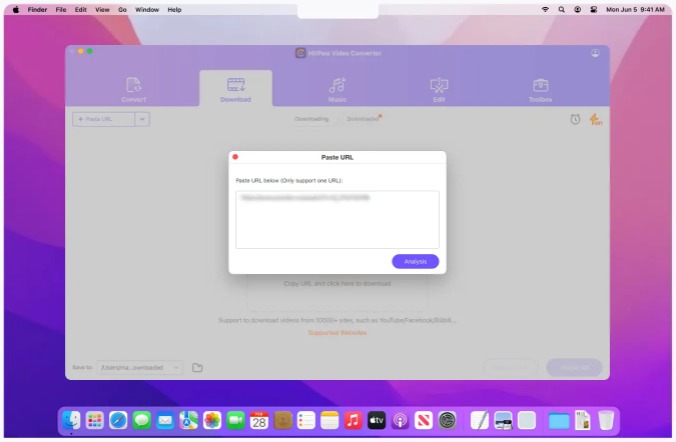
Step 3: Copy YouTube Video URL & Paste to Download

Go to YouTube and copy the URL of the video to be downloaded. Return back to HitPaw Video Converter and then paste this URL into the field provided in the “Download” section.

download2 Copy & Paste a Video URL

Click the download button. HitPaw Video Converter will take over from here and save your video into your local folder.

Step 4: Find the File in Local Folder and Convert to Required Format

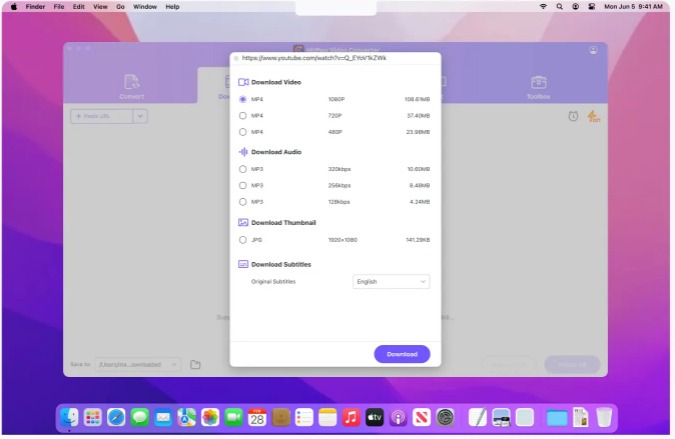
After downloading, find the file in your local folder. Open HitPaw Video Converter again. You should select the file to be converted on the main interface of the application.

downloa3 Choose Format, Quality, Subtitle, etc.

Choose the desired format of output from the list and press the “Convert” button. This video converter for Mac will turn it in no time into that which you want to use.

Advantages

  • Supports over 1000 video and audio formats for extensive compatibility
  • AI-powered video enhancement and comprehensive editing tools
  • Fast conversion speeds with full GPU acceleration
  • User-friendly interface suitable for all skill levels
  • Includes a video downloader, music converter, and screen recorder

Disadvantages

  • Conversion speed may decrease with large or complex files
  • Free trial version has limitations which may affect full evaluation

Part 3. What Can Be HitPaw Video Converter for Mac Alternative

If you’re looking for an alternative to HitPaw Video Converter for Mac, you might want to consider HitPaw Online Video Converter. This tool offers many of the same features as its desktop counterpart, with the added convenience of being accessible directly through your web browser.

HitPaw Online Video Converter provides a user-friendly interface that allows you to convert videos without needing to install any software. Here’s why it might be a great choice for you:

  1. No Installation Required: Since it’s an online tool, you don’t have to worry about downloading and installing software. Simply visit the website, and you’re ready to start converting.
  2. Ease of Use: The interface is straightforward, making it easy to upload your video files or paste URLs for online video conversions. It’s designed to be intuitive, so even beginners can use it without a hitch.
  3. Fast and Efficient: HitPaw Online Video Converter provides quick conversion speeds, so you won’t have to wait long to get your videos in the desired format. It supports a range of formats and resolutions to meet your needs.
  4. Cross-Platform Compatibility: Since it’s web-based, you can use it from any device with an internet connection. This flexibility allows you to convert videos from different platforms and operating systems.

If you prefer the convenience of an online tool or need a quick solution without installing additional software, HitPaw Online Video Converter is an excellent alternative to HitPaw Video Converter for Mac.

Related Questions on Best Video Converter for Mac

1. What is the best video converter for Mac if I need to convert large files?

If you frequently work with large files, look for a video converter that offers GPU acceleration for faster processing. HitPaw Video Converter for Mac is a strong choice as it supports fast conversion speeds and handles large files efficiently.

2. Can I use HitPaw Video Converter on multiple Macs with a single license?

HitPaw Video Converter typically requires a separate license for each Mac. Check the licensing terms on the official website to understand their policy on multi-device usage.

3. Are there any free alternatives to HitPaw Video Converter for Mac?

Yes, there are free alternatives available, such as HandBrake or VLC Media Player, though they may lack some advanced features and speed of HitPaw Video Converter. These free options can handle basic conversion tasks.

Conclusion

HitPaw Video Converter for Mac is the best video converter for Mac for anyone needing a reliable video conversion tool. It supports over 1000 formats, converts videos quickly, and includes extra features like video downloading and editing.

Whether you need to convert videos for different devices, download content, or improve video quality, HitPaw Video Converter has you covered. Its easy-to-use interface and powerful features make it a great option for both beginners and experienced users.

Best Practices for Visual Collaboration in Conference Rooms

Imagine walking into a conference room in which everything, from the lighting to the placement of AV components, is carefully thought out. The technologies work perfectly, and the room itself promotes collaboration and a productive atmosphere. Professional AV integration makes it a reality, offering new opportunities and innovative solutions.

Effective visual collaboration connects teams, encouraging everyone to share his ideas. As remote work becomes more common, the design and functionality of your conference room should respond to this trend. Let’s explore the best practices to create an atmosphere where every participant gets engaged and involved.

Understanding the Role of Conference Room Design

The design of the conference room significantly influences the process and productivity of video collaboration. It’s not just about integrating a screen or a camera; you have to consider the entire room layout. The size, shape, and acoustics of the room will determine how clearly participants can see and hear each other.

Additionally, pay attention to conference room AV setup and equipment placement. The key goal is to keep everyone engaged and interested, with equal opportunity for participation. To achieve this, avoid poor sightlines and uneven sound distribution, evaluating the placement of both AV equipment and seating for all attendees.

Optimizing Audio and Video Quality

Conference room audio video solutions form the basis of any successful meeting. Clear audio guarantees effective communication, while sharp visuals keep everyone engaged. That’s where high-resolution cameras and displays play a crucial role, providing optimal visibility. Note that this equipment should match the room’s size, avoiding common pitfalls like glare or low resolution.

Sound is an integral part of the audio video conference setup. Directional microphones and echo-cancelling systems ensure high-quality audio with no background noise. These solutions lead to a more natural conversation flow where everybody feels involved and understood.

Seamless AV Integration

For effective video collaboration, all AV components must be compatible and work together smoothly. By partnering with a reliable AV integration company, you will ensure that microphones, speakers, displays, and control systems work and combine perfectly.

Professional AV companies can also help evaluate your current setup, recommend upgrades, and implement solutions tailored to your specific needs. In larger cities like Los Angeles and New York, you’ll likely have access to a wide range of AV integration companies to choose from. However, in rural areas such as Bozeman, Montana, or Bar Harbor, Maine, you may need to seek out local specialists or smaller firms that serve your region.

When these elements function cohesively, you can focus on the meeting process instead of equipment and technical issues.

Video conference setup may include both wired and wireless connectivity solutions to offer maximum flexibility. This gives the participants a choice of the most convenient way to share content, thus enhancing the overall experience.

User-Friendly Control Systems

Well-designed conference room audio visual solutions should be easy for anyone to use. Intuitive control systems allow participants to control the audio, video, and lighting without extensive technical knowledge. This allows attendees to focus on productive meetings without sacrificing their comfort level.

Training is also crucial to ensuring smooth operations. With proper training, staff can confidently manage the video collaboration platform and make quick adjustments if necessary. Training and preparation minimize disruptions and keep the meeting running efficiently.

Ensuring Accessibility and Inclusivity

Modern boardroom audio visual solutions respond to various needs, including remote participants and attendees with special needs. Larger screens allow for better readability, while features like closed captions make meetings more accessible and inclusive. This comprehensive approach ensures that every voice is heard, regardless of location or physical ability.

In addition to physical accessibility, the video conference setup should integrate with various collaboration tools. When your equipment is compatible with multiple software platforms, it’s easier for attendees to participate actively, whether from the conference room or remotely.

Lighting and Acoustics Considerations

One often overlooked aspect of any conference room AV setup is the effect of lighting and acoustics. Proper lighting guarantees that everyone in the meeting will be visible, with nobody falling into shadows. Advanced lighting systems can also accommodate different types of meetings, from formal presentations to informal brainstorming sessions.

Acoustics is another factor that affects audio video conference quality. Echoes and distortions may distract participants, so using acoustic panels and other sound-absorbing solutions may be a good way out. However, to reach maximum effect, this task should be performed by a professional AV integration company.

Strategic Placement of Equipment

The placement of equipment in the conference room is crucial for creating an immersive video collaboration platform. Cameras should be at eye level to create a natural conversation flow, while microphones are placed evenly to capture voices from any part of the room.

Displays must be installed where they are easily visible to everyone in the room. Avoid placing them in areas with direct sunlight, which may cause glare on the screen. These details in conference room audio visual solutions really make all the difference in building a perfect meeting experience.

Scalability and Future-Proofing

The need for a conference room audio video solution will grow with your organization. The system has to be scalable and easily adapted to changes in technology or your team size. Modular components can be upgraded or expanded to make your conference room relevant and functional for years to come.

Regular maintenance and updating are crucial for the smooth running of any video conference setup. This proactive approach will help you stay ahead of technical issues that could disrupt important business meetings. Moreover, your team will always have the best collaboration tools, resulting in improved teamwork and productivity.

Elevating Your Meeting Experience

All elements of your conference room have to work together for effective visual collaboration. Thoughtful design meets cutting-edge technology to create a setting where creativity and communication flourish. This well-designed space will boost productivity, bringing confidence and innovation to your team.

The right conference room audio video solutions will turn this vision into reality. Modern AV solutions engage every participant, whether onsite or remote. As you refine your conference room, remember that it’s all about empowering your team with the right tools for collaboration and success.

Easy Guide to Downloading Videos from Twitter and TikTok: Step-by-Step Methods

Influencers and Students have a driving need to save and archive videos from their feeds and others. An influencer can make a commentary video based on a video found online. A student may need to study a subject in depth and can benefit from slowing a video down. Anyone can make a mix-tape compilation for personal use, which falls under fair use guidelines.

While some videos can be downloaded quickly, most are restricted by guardrails that deny simple downloading. That should not stop you. There are powerful online tools available to download Twitter videos in MP4 format for personal use.

TikTok has a built-in download system, but this can be improved using the SSS TikTok downloader website, which gives you free access any time you like. TikTok usually lets users download videos directly. However, some videos may not have this feature. If a creator sets their video to private, you can try downloading it using the SSS system.

When is it Legal to Download and Save a Video?

Knowledge is power. Understanding copyright issues and platform rules can guide your actions. You must be aware of the content you want to save. If you want to support creators, share their original posts instead. This way, you show appreciation for their work and keep it safe from copyright issues. Downloading can be fun, but responsibility is critical.

Twitter has some built-in features to help you save videos. You can see this option on some tweets. Not every video can be downloaded. If the tweet has a download button, you can click it. This method is simple and quick. Click the button, and the video will be saved on your device.

You do not need to worry if Twitter does not allow you to save the video. Many other websites can help you download Twitter videos. First, you must copy the link to the tweet with the video. You can do this by clicking the share icon on the tweet. After that, you can select “Copy Link to Tweet.” Now, you can use a downloader website.

In addition to downloading videos, you can easily delete tweets with TweetEraser to keep your Twitter profile clean and up-to-date.

Downloading from TikTok

Downloading videos from TikTok is easy. You use TikTok’s built-in features. If a creator allows it, you download videos directly. Look for the share button on the right side. If the download option is there, tap it. The video is saved to your phone. This process works for many videos. Some creators turn off this option to protect their content. You respect their choice.

If TikTok does not let you download, use a tool like SSS TikTok downloader. Start by copying the video link. Tap the share button and select “Copy Link.” Next, find the SSS downloader site and find the input box. Paste the link you copied in the box. After you paste, click the download button. The site prepares your video. Follow the prompts. You can choose the video quality. Your video will be ready to download soon.

Using Download Services for TikTok Videos

You can also use SSS mobile apps to download TikTok videos. These apps are on app stores. These apps are made for this purpose. After installing one, open the app and copy the video link. Follow the same process you use on websites. Most apps have a simple interface. They guide you through each step to make it easy.

Downloading from TikTok has many options. You choose based on your needs and preferences. Always think about the intentions of the video creators while doing this. Many people have problems with video quality when they download from Twitter or TikTok. Sometimes, the video looks blurry or does not play well. This can happen because of the website or app you download. First, check your internet connection. A slow connection can cause issues with the video. Choose a different website or app that can give better quality. Some tools let you pick video resolution. Always try to download the best quality possible.

Using a Web Tool for Downloading from Twitter

Choose a good website for downloading. One popular website is SSS Twitter. On this website paste the link in the box. After you paste the link, click the download button. The website can take a moment to process the link. When it is ready, it will show you options for video quality. You can choose the quality you want and start the download. It is simple like that.

You can also use the SSS mobile apps to download Twitter videos. Many apps are available on iOS and Android. First, you must install the app you want from the app store. Open the app and follow the steps to set it up. Most apps will ask you to log in to your Twitter account.

Next, find the tweet with the video. Users can Find video content more easily by exploring Twitter hashtags and trending topics related to their interests. Copy the tweet link in the same way as explained before. Go back to the app and paste the link. Tap the download button and the video will be saved to your phone. Using apps can be easy for those who like mobile downloads. Just check app ratings.

Not every app works well, and some can have ads. Twitter post analytics can help you to track metrics on the videos such as impressions, engagements, profile visits, and follower growth.

Solving Errors when Downloading

Download errors can frustrate anyone. You can see error messages when you try to save a video. These messages can happen for many reasons. The video can be deleted from the platform. Some download tools do not work with some videos. If you have issues, refresh the page and try again. Copy and paste the link carefully. Any mistake can fail. If the problem keeps happening, think about using another downloader.

Sometimes, the primary way may not work at all. Do not panic. There are other ways to save videos. You can use screen recording tools on most devices. These tools let you capture what you see on your screen. Start the video and use the screen recorder to save it. This method works well if regular downloads do not work.

You can also ask someone for help. Many people have experience downloading videos, and they may have tips or tools that work better than what you have. Social media groups or forums are good places to find advice. You can even find new apps that make the process easier. Share your experiences. Other people will appreciate it, and you may get helpful feedback.

The World is your Oyster

Do not let problems stop your video adventure. Each issue is a chance to learn something new. Finding solutions can help you better understand the tools and platforms. Face the challenges and enjoy the process.

Downloading videos from Twitter and TikTok can be easy and fun. There are different ways to do it on each platform. On Twitter, you can use third-party websites to get video links. The process is simple: Copy the tweet link and paste it on the website to download it. Some mobile apps can help you save Twitter videos. Look in the app store for options.

On TikTok, downloading videos can be more simple. TikTok often lets users download content directly. You can find the download button easily in the app. You may use online downloader tools if you see a video with restrictions. Copy the video link from TikTok and paste it on the downloader website. You can watch your favorite videos saved on your device.

Copyright and Fair Use Considerations

If you created your video and posted it to TikTok or X, you own the copyright and have the right to download your own content from the platform. In addition, you have a fair use right for the personal use of content you have paid for. You are allowed to back up paid content on your devices and view it for yourself. Finally, you have a fair use right to sample or use a short, non-representative section of another video to show a reaction or comment on it as part of your work, provided you are not representing your work as the creator of that content.

Respect copyright laws while downloading videos. Copyright protects creators and their work. Before you use any downloaded video, think about the original creator. Always ask for permission if you want to share their content. Some videos get removed because of copyright claims. Respecting creators can build trust in the online community. Your actions matter, so be responsible with what you download.

Summary

Video downloading is convenient. It lets you save interesting content for later. You can build your collection of funny clips, inspiring stories, or valuable tutorials. But this convenience comes with responsibility. Think about how you use downloaded videos. Consider sharing the creator’s original work. This way, you can support them and show appreciation for their efforts.

Downloading videos from Twitter and TikTok is easy. Once you download, you can use the video for personal use or incorporate it into your influencer product. Enjoy the process, but also remember to be respectful. How you handle content shows your values. Take time to think about the impact of your actions. It would be best if you stayed safe and responsible. You can enjoy the wonderful world of videos online.

How to Save TikTok Videos Without Watermark

TikTok is one of the most popular social media platforms out there, and for good reason – with its wide range of entertaining and educational content. However, sometimes you may want to save TikTok videos without the watermark. This is where a TikTok downloader comes in handy. In this article, we’ll show you how to use a TikTok downloader for saving videos without watermarks.

What are these tools?

A TikTok downloader is an application or software that allows you to download TikTok videos directly onto your phone or computer. They’re designed to be easy and quick so that even inexperienced users can manage them easily. Some downloaders also allow saving TikTok videos without including their branding – this can be useful if you want to use it personally or share it with others.

Why should you save them without watermarks?

There are several reasons why it might be better not to have any marks whatsoever:

  • Clean Content: If you plan on using the video for presentations or other professional purposes then having unnecessary distractions like watermarks all over might take away from what you’re trying to convey.
  • Re-Editing: With no logo, it becomes much easier to add brands/elements into videos while editing them further according to your liking. Here, Akool.com stands like a pro to help you create and edit videos. 
  • Better Viewing Experience: Unwatermarked clips provide cleaner visuals during playback, thus considerably enhancing the overall watching experience.

Steps To Save A Video From TikTok Downloader

Here’s how you can save a video from TikTok without using any tool:

  • Open Your Browser
  • Go To www.tiktok.com
  • Find The Video You Want To Save
  • Copy The Video URL from The Address Bar (Or Tap on the Share Button)
  • Paste It Into The Browser Address Bar And Add “ss” Before “tiktok”
  • The Page Will Redirect To the Download Site, Choose Quality And Download!

If the steps above are not working, please try these steps:

  • Open the TikTok app on your smartphone
  • Go to the video you want to download and tap on the share button
  • Copy the Link
  • Now Open the Snaptik App (It Is Not Available On Playstore, You Can Use the Browser Version)
  • Paste The Copied URL In The Blank Field & Tap On the Download Button!

Apps To Save TikTok Videos Without Watermark For Android & iOS Devices

Here are some of the best apps for saving TikTok videos without watermarks for free. These apps work on phones running Android and iOS Operating Systems.

  • MusicallyDown is a website that helps users download their favorite videos from social platforms like TikTok without a watermark. The site is free to use and has no ads or restrictions.
  • SnapTik is another online tool that allows you to save TikTok videos without having any trace of watermarks. This downloader works with all operating systems and web browsers, so it’s easy for anyone who wants an unwatermarked clip.
  • TTDownloader is a reliable tool that offers high-quality downloads for TikTok videos without watermarks. It’s easy to use and has a simple interface.

Tips For Using Video Downloader Apps To Remove Watermarks:

Here are some tips that will help you make the most out of your experience while using these tools:

  • Make sure they’re safe- Always check if there are any security threats associated with downloading files onto your device such as viruses or malware programs before proceeding further.
  • Respect copyright laws- Remember not everyone appreciates sharing their content without giving credit where credit is due so be mindful about this aspect when using other people’s materials during the editing process, etc., otherwise, it might land up in legal trouble.
  • Choose High Quality – always go for those downloaders that offer higher resolution clips since low quality may look bad, especially on bigger screens where pixelation becomes more noticeable thus spoiling the overall watching experience considerably.

Finale

Utilizing a TikTok downloader to save TikTok videos without the watermark is an easy and efficient method of getting neat looking professional videos. Whether you want to save your beloved TikTok videos for offline watching or use them in a project, this article provides steps that will guide you in achieving what you desire. Always ensure that you have trustworthy downloaders and respect content creators’ rights. Enjoy downloading!

How to Fix Videos Not Playing on Mac: Comprehensive Solutions and Tips

Nothing is more frustrating than encountering a web page video that does not play. No one wants to spend time fixing it, but the right solution is not always obvious. Unfortunately, there are multiple reasons videos not playing on Mac, and there are multiple areas to check to fix the problem. The good news is that you can find the right solution quickly.

Whether you want to watch a movie you downloaded or enjoy some funny clips online, you can often find a quick way to fix the problem.

Local Videos

Let us first look at the local videos that do not play on your Mac. If you downloaded a video that does not work, there are two leading solutions.

Make sure the video downloaded correctly

The first solution is to download the video again. Often, a video does not play because it is corrupted or damaged. Sometimes, an unstable internet connection causes incomplete downloads. If you are facing this issue, try downloading the video from the same or a different source.

Try a different media player for the video

The second solution is to use a different media player. Sometimes, the player you use cannot open the video file. For example, QuickTime Player may not support every format. If this is the case, try using another video player. Elmedia Player is a great option. It supports many formats and works smoothly on Mac. Using a different player can make your video viewing much more straightforward.

Online Videos

Now, let us discuss online videos that do not play on macOS. Many people use popular browsers like Safari, Chrome, or Firefox. You can try a simple trick if videos on YouTube or other sites do not play. Open the video in incognito mode or a private window. This option stops the browser from saving your online activities. This way, cookies or extensions do not interfere with playback.

In Safari, you can open a new private window easily. Go to the menu bar, click File, then select New Private Window. You can also press Command + Shift + N at the same time. This will open a new window. Once it is open, paste the link to the video you wish to watch. This quick method often fixes the playback issues.

Since you are in incognito mode, the video will play smoothly. Some users find this method helpful. It is simple and quick to use. However, it may not always resolve the problem. Still, it is worth a try.

Time to Refresh

If the video still does not play, refreshing the page may help. A simple refresh can clear bugs. To reload a page in Safari, locate the tab with the video. Click on View in the menu bar. Then select Reload Page. Alternatively, you can press Command and R at the same time to refresh quickly.

Force Quit if Necessary

If Safari fails to refresh the page, it is time to force quit the browser. This is an option when nothing else works. To force quit Safari, press Command and Option and Esc altogether. A window will appear showing all open applications. Select Safari and click Force Quit. This action will close the browser completely.

Open Safari again after that. Then, return to the webpage with the video. You can try playing the video once more. Each step can help solve annoying playback issues. Sometimes, the most straightforward solutions bring the best results.

Close Safari with a Quick Action

To reset Safari, you can quit the browser quickly. Click on Safari in the menu bar and select Quit. This action closes all tabs. You can also press Option + Command + Esc at the same time. This shortcut helps to close Safari quickly. Another way is to click on the Apple icon in the menu bar. Then choose Force Quit. A small window will show what apps are open. Select Safari and click the Force Quit button. This method guarantees the browser is closed completely.

Clear the Cache for Smooth Sailing

Clearing the cache can fix many problems. It removes saved data that could interrupt video playback. Go to Safari > Settings > Advanced. Find the box that says “Show Develop menu in menu bar” and check it. Then, click on the Develop menu. Select Empty Caches to clear them. For better results, also clear cookies. Go to the Privacy section in Safari’s settings. Click on Manage Website Data and then click on Remove All. This step keeps Safari free of old data.

Disable Extensions That Block Videos

Browser extensions can sometimes cause issues with video playback. They may block the content you want to see. To disable extensions, go to Safari > Settings > Extensions. This section shows all installed extensions. Review the list carefully and select the ones you think may be the problem. Disable them one by one to see if the video plays. This process helps to pinpoint the cause of the issue.

Final Thoughts

It can be frustrating to have your videos not play on a Mac. Fortunately, you can often think through the problem and find a solution in a few minutes. However, by using the tips mentioned here, video issues should lessen.

Advanced media players can save time and effort. They support more formats and reduce compatibility issues. One good option is Elmedia. This player has a simple interface and plays many file types. With it, you can enjoy your videos without worries.

How Backgrounds Can Elevate Your Video Content

Your video seems ready, but you feel like something is just not clicking. It’s missing that spark, that wow factor. Guess what? The secret might be as simple as a killer background! So, today, we’re diving into how the ideal background can take your videos from “meh” to “magnificent” and keep your audience hooked.

Think About the Concept of Your Background

How to choose a virtual background for video recording? Simply think about which one best fits your video’s mood and general vibe. Say you’re sharing a heartfelt vlog about your latest travel adventure. How awesome would it be to have a stunning beach scene or a bustling cityscape behind you? The rightly chosen background sets the main stage, fully pulling your viewers into your story.

Pick from Background Options

There are so many options out there! You could go with solid colors for a clean, simple look, or get adventurous with complex patterns for a more dynamic feel. Sleek black or white background? Perfect for minimalism! Vibrant gradient? Will definitely add some pop! And of course, don’t hesitate to use images or short video clips that resonate with your theme. The sky’s the limit here! Just ensure your background enhances your main content without stealing the spotlight.

Bring Your Video to Life with Editing Software

With your dream background in mind, it’s time to integrate it into your video project. This is where video editing software comes into play. There are tons of options to choose from: Lightworks, HitFilm, KineMaster, and others. Explore thoroughly to find the one ideal for you.

And if you have the desire and time, you may even consider crafting your own video editor. Yeah, it might sound daunting at first, but companies like Banuba make it surprisingly doable. Their Background Changer API or AR SDK by Banuba can help you and your team create something truly unique and even filled with some AR magic in no time.

Integrate Your Background

Import your video into the editor and drag your background onto the timeline, ensuring it sits beneath your main video layer. This layering keeps your primary content front and center while your background keeps working its magic in the back seat.

Tweak the Settings

Now comes the fun part: tweaking the settings. Depending on your software, you might have a host of options. Adjust the opacity so your background doesn’t overpower your video. Play with color correction to match the mood of your content. Experiment with blending modes to find the perfect visual harmony. You can do whatever you want, literally!

Enhance Your Video with Effects and Filters

Don’t stop there! Enhance your background with effects, filters, or adjustments. Maybe add a slight blur to keep the focus on you, or apply a color grading effect that ties everything together. The goal is to create a seamless visual experience that complements your story.

Add Text and Graphics

Let’s take it up a notch by adding text and graphics. This step is all about providing extra context and making your content more engaging. 

Adding text can be super useful. With it, you can highlight key points, give extra information, or even throw in some fun facts. When choosing fonts and colors, think about how they’ll look against your background and how they fit with your overall theme. Everything should look cohesive and polished, like a well-curated art piece.

As for graphics, it may include anything from charts and graphs to illustrations and diagrams. All in all, graphics are visually appealing, and when working in a duo with text, they create a team that makes the most complex info clearer and easier to remember. So, no matter what you’re explaining—some trends, processes, or even abstract concepts—combining text and graphics will help you to convey any information more effectively.

Choose a Platform and Get Ready to Export

Your video is looking great! And here is the final step: exporting it. Select the appropriate file format (MP4, AVI, MOV, etc.) and resolution (HD, 4K,8K, etc.) that matches your requirements. Different platforms may have specific recommendations for video formats and resolutions. For instance, YouTube has detailed guidelines on the best formats and settings for optimal video quality.

Share Your Masterpiece

Finally, it’s high time to tap that “Share” button and show your video to the world! Post it on any social media platform (Instagram, TikTok, etc.) to wow your followers or upload it to your website to attract new viewers. The options are both vast and exciting!

Wrapping It All Up

Don’t settle for the ordinary—transform your videos into jaw-dropping visual experiences. Explore new techniques and ideas and free your imagination. Your next video has every chance to go viral and skyrocket your content to new heights.

So, dare to innovate, experiment, and push boundaries. Get out there into this big digital world and start creating, but most importantly, have a blast doing it!

How to Replace Background Video Without Green Screen in 2024

Being a video creator on YouTube, Instagram, or any other platform, video editing remains a crucial part of your life. Besides changing other video aspects, you may also need to change the background if you have videos with a background that doesn’t fit your theme. In this scenario, you can record the video with virtual background or replace the background with a video effect, image, video clip, or solid color.

Whatever the situation, various background remover tools help you perform the task effortlessly and quickly. So here are all the methods that assist you in how to replace background video without a green screen. It’s because only some tools offer high-quality results, especially when you are replacing them without a green screen. These tools also exist if you need to remove the background of a photo and not just a video.

Methods to Replace Background Video Without Green Screen

Let’s take a plunge into the details of all the best ways to replace background video without a green screen!

Way 1. Replace Background Video with Unscreen

Unscreen is a remarkable tool that helps you replace the background of a video recorded without the green screen, to help you. It supports multiple video formats, like WebM, OGG, MP4, MOV, OGV, and GIF. So you can upload the desired video without any hassle.

In addition, it offers a fantastic plugin for Adobe Premiere and After Effects to effortlessly complete the task. Finally, you don’t have to try anything like paint masks, pixels, or colors. The service is entirely automatic, bringing up quality results.

Steps for replacing background video without a green screen using Unscreen:

Step 1. The first step involves opening the Unscreen website. Now, click “Upload Clip” to browse and select the desired video.

Step 2. Secondly, press the “Change Background” button under the video. From here, you can either upload a video or choose one from the available ones.

Step 3. Lastly, you should expand the “Download” tab and download it in the desired format, i.e., animated PNG. All done!

Way 2. Replace Background Video Using Kapwing

Kapwing is another amazing online tool that assists you in isolating the subject of your video from the background without a green screen. You can simply remove the background from the Effects tab and replace it with the desired video.

Furthermore, its in-built media player allows you to preview the live changes. It offers multiple other features, including transitions, effects, layers, filters, object tracking, etc. You can crop, erase, rotate, adjust the aspect ratio, and trim videos on Windows.

Replace background video without a green screen through Kapwing:

Step 1. Once you have opened the Kapwing website on your browser, tap “Upload Your Video”> “Click to Upload,” browse, and choose the video.

Step 2. Next, expand the “Effects” tab from the right-side column of the video. Here you will find the “Remove Background” button; press it. Also, you need to open the “Layers” section from the left-hand side column and media.

Step 3. Finally, drag the video over the complete video using the bottom playback section. Adjust it over the video from the preview area, right-click, and send it backward. That’s all!

Way 3. Replace Background Video in VEED.IO

VEED.IO offers a free online video background remover that helps you replace your background with the desired image or video. Even you can easily change the size, background color, and duration. For instance, you can change roblox background for your videos.

More so, it lets you use stock media or your images/videos from the system and Cloud. Besides, you can add sound effects, elements, subtitles, and music clips from the library. Lastly, recording a camera, screen, and webcam is possible.

Here is how to replace the background video without the green screen with VEED.IO:

Step 1. First of all, open the website on your browser using the given link and click “Remove Video Background Now.” From the main interface, you can upload the file from your system or choose one from the stock videos.

Step 2. Once uploaded, tap the video to open the settings. Scroll down from the left-hand side column to enable the “Remove Background” button. After background removal, click “Add Media” from the lower playback panel.

Step 3. Next, pick up or upload a video for the background. Adjust it well on the video, click on it, choose “Arrange,” and then “Bring to Backward.” Export it, and you are all done!

Bonus tip. Record Video with Customized Background

Though the recommended methods help you replace background video without a green screen, you may require to record a video with a customized background beforehand. So EaseUS RecExperts offers the ultimate recording solution with a green screen.

Once you set the green screen background, this software assists you to record webcams with some simple clicks. You can record the webcam only or screen video with the webcam. Also, it lets you select the desired audio source from the microphone and system sound. Even you can choose the camera source, along with the resolution and sound quality.

Besides picking up a background preset, you can upload the desired one from your system after enabling the chroma cutout option. More so, its schedule recording feature helps you record videos at a specific time, even if you aren’t available. Even its auto-split and auto-stop functions aid you in saving the videos with proper duration and file size.

Main Features:

  • An intuitive webcam recorder for Mac/Windows users
  • Select the entire screen or recording region flexibly
  • Change Background in Microsoft Teams effortlessly
  • Support advanced sound options, i.e., volume mixer
  • Offer in-built tools for the editing of the recordings

FAQs about Replace Background Video Without Green Screen

Do you still have questions in your mind? Here are some commonly asked questions regarding how to replace background video without a green screen:

1. How to remove the background from the video without a green screen after effects?

After Effects offer you two ways to remove the background without a green screen, the Luminance method and the Retroscope method. The second one is easier and more effective, where you can use Retrobrush to smear it on the subject in the video. If the background gets selected automatically, hold Alt to exclude it. Refine edges and do retroscoping for a complete video. Also, click “Freeze” and check the composition. That’s all!

2. Can I replace the background in the video?

Yes, removing or replacing the video’s background with or without a green screen is possible. However, an efficient tool is required that can change the background quickly without compromising the video quality after processing. You can try Adobe Premiere Pro, OpenShot, Unscreen, Kapwing, and more.

3. How can I record a video with a virtual background without a green screen?

It is possible to record video with a virtual background using background apps on various devices. For example, users can try ManyCam on a PC and Chromavid on phones. However, EaseUS RecExperts can help you with customized backgrounds using the webcam recording feature and green screen.

Conclusion

Though the market offers tons of video editors that can change or replace the video background, this write-up covers the most efficient ones with which you can achieve high-quality output. However, it is better to set the background and all other settings while recording videos firsthand.

If you want to create spectacular videos, EaseUS RecExperts is the best option. It lets you record videos with a green screen to achieve a customized background. So you can record a webcam with or without the screen, according to your demands.