Android 17 rolled out with upgraded privacy dashboards and smarter permission controls — but here’s the frustrating truth: none of that stops the ads. Banner ads in free apps, unskippable video ads mid-game, pre-roll ads in streaming — they’re all still there.
The good news is that Android remains the most open mobile platform for ad blocking in 2026, far ahead of iOS in what it actually lets you do.
The bad news is that most “ad blocker” apps in the Play Store are essentially useless for the ads that bother you most. This guide cuts through the noise and covers both browser-based and system-level solutions — so you can block ads across your entire device, not just inside one browser tab.
How Ad Blocking Works on Android 17
Not all ad blocking is created equal. Understanding the difference between approaches will save you from downloading something that only half-works.
Browser extension-based blocking is what most people are familiar with — add-ons like uBlock Origin in Firefox or extensions in Brave. These work well inside that browser, but the moment you switch to an app, a game, or a streaming service, they do nothing. Your browser extension has zero visibility into network traffic from other apps.
System-level blocking via local VPN is the real deal. Apps that use this method create a local VPN tunnel on your device — no data leaves your phone, but all network traffic from every app gets routed through a filter. This is what blocks in-app ads, in-game ads, and ads in streaming apps. No root required on Android 17.
DNS-level blocking is a lighter-weight option. Android 17’s built-in Private DNS setting (Settings → Network & Internet → Private DNS) lets you point your device at an ad-filtering DNS server. This blocks known ad domains across all apps before they even load. It’s less precise than VPN-level filtering, but it’s free and requires no app installation.
Why most “free” Android ad blockers don’t work: many apps that market themselves as Android ad blockers are just browsers with a built-in blocker. They miss every in-app ad that isn’t served through their browser — which is most of the ads that actually annoy people.
What to Look For in an Android Ad Blocker in 2026
With the market cluttered with half-measures, here are the criteria that actually matter:
- System-level VPN or DNS filtering — not just a browser extension
- Works without root — rooting voids warranties and breaks some apps
- Cross-app coverage — blocks ads in browsers, games, streaming, and other apps simultaneously
- Whitelist support — some banking apps and rewarded-ad games need to be excluded
- Low battery impact — a local VPN running 24/7 should be lightweight
- No traffic logging — your DNS queries and network traffic shouldn’t be sold to advertisers
- YouTube ad blocking — the most requested feature, and the hardest to deliver
- Regular filter list updates — ad networks change constantly; outdated lists miss new formats
The Best Ad Blockers for Android 17 — Full Reviews
1. AdLock for Android
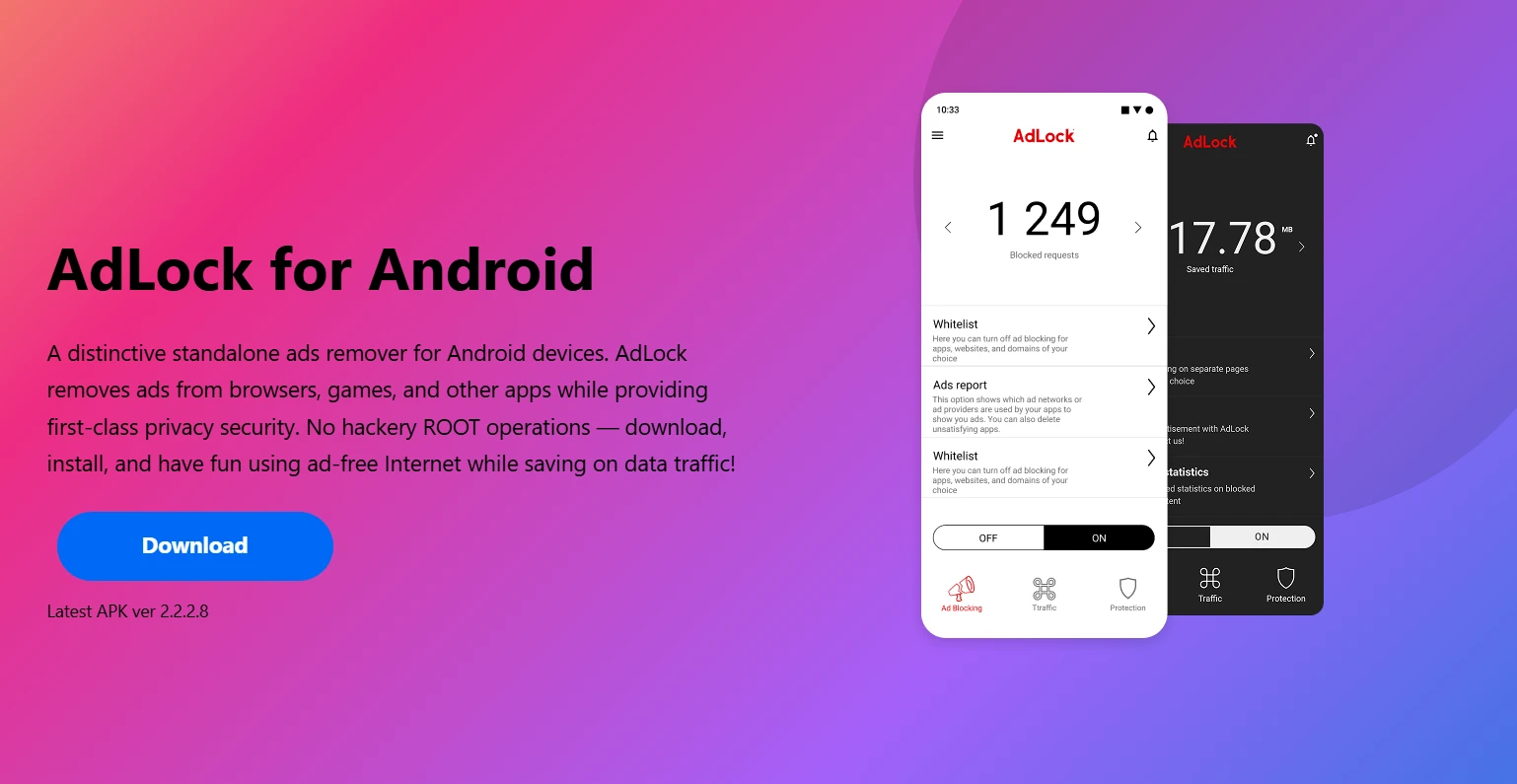
AdLock is the strongest recommendation here, and the reason is straightforward: it operates at the system level, intercepting traffic from every app on your phone — not just what happens inside a browser. It sets up a local VPN tunnel that requires no root access and works on Android 17, 16, and 15 without any compatibility issues.
What makes AdLock stand out as a practical Android ad blocker is its combination of scope and simplicity. Install it, enable it, and ads disappear across your browsers, apps, games, and streaming services simultaneously. The whitelist feature is genuinely useful — you can allow ads in specific apps, which matters if you play games that offer rewarded ads for in-game currency. AdLock maintains a clear no-traffic-logging policy, so the local VPN doesn’t come with a privacy tradeoff.
- Pros: True system-level blocking, no root, covers all apps, whitelist support, privacy-focused
- Cons: Premium features require a paid subscription
- Free vs Paid: Free trial available; full feature set behind subscription
- Best for: Users who want comprehensive ad blocking across the entire device, not just the browser
2. AdGuard for Android
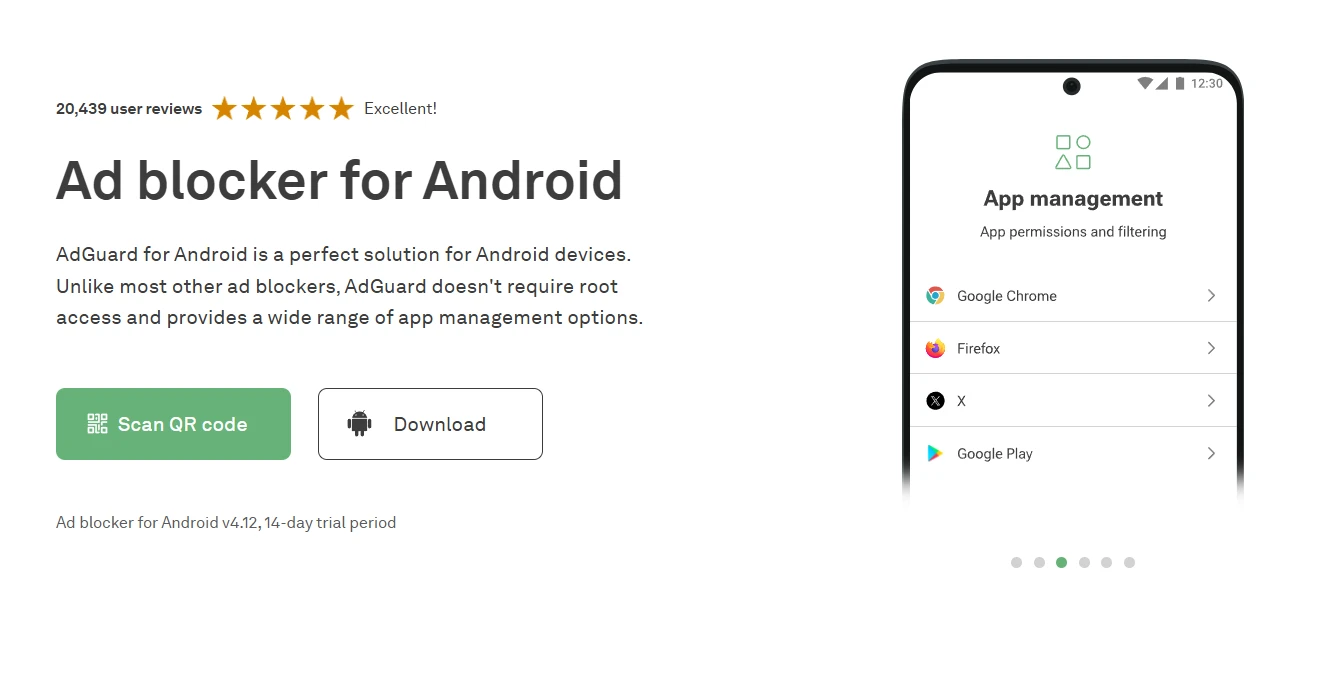
AdGuard is one of the most established names in ad blocking, and its Android app earns that reputation. Like AdLock, it uses a local VPN to intercept traffic at the system level — so it blocks ads across all apps, not just browsers. The free version covers browser-level filtering; the premium version unlocks DNS filtering, per-app controls, and access to larger, more specialized filter lists.
If you want granular control — blocking by category, enabling HTTPS filtering, managing individual apps — AdGuard gives you more dials to turn than most competitors. That depth comes with a slight learning curve for less technical users, but the defaults are solid out of the box. It’s a trusted, long-running product with a transparent privacy policy.
- Pros: Feature-rich, system-level blocking, large filter list library, per-app controls
- Cons: Full feature set requires Premium subscription; interface can feel complex
- Free vs Paid: Functional free version; Premium unlocks advanced features
- Best for: Users who want maximum control and customization over what gets blocked
3. Private DNS (Built-in Android 17 Feature)
Before installing anything, check what Android 17 already gives you for free. Under Settings → Network & Internet → Private DNS, you can set a custom DNS server. Point it to dns.adguard.com or your NextDNS configuration address, and your device will resolve domain names through an ad-filtering server — no app required, no root needed.
This works across all apps because DNS resolution is handled at the OS level. The tradeoff is precision: DNS blocking catches requests to known ad domains, but it can’t inspect individual requests the way a local VPN can. Some ad SDKs that share domains with legitimate content will slip through. Still, for a zero-cost, zero-install setup, it delivers meaningful reduction in ad load across the entire device.
- Pros: Completely free, no app required, works system-wide, no battery overhead
- Cons: Less precise than VPN-level filtering; some ads will get through
- Free vs Paid: Completely free
- Best for: Budget-conscious users who want basic system-wide blocking without installing anything
4. DNS66
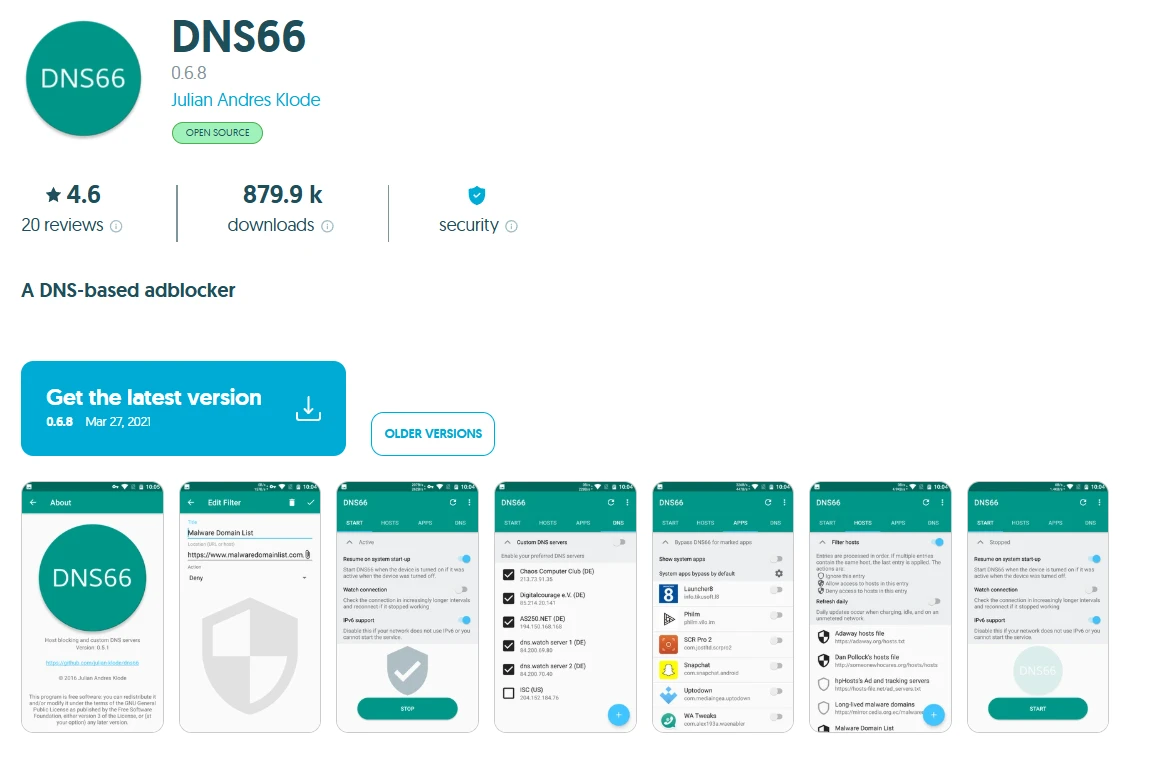
DNS66 is an open-source Android ad blocker that uses a hosts-file blocking approach through a local VPN connection. It pulls from customizable filter lists and blocks ad domains before they load — across all apps, without root access. Setup takes a few more steps than commercial options: you need to download the APK from F-Droid (it’s not on the Play Store), configure your filter sources, and manually refresh lists.
The upside is total transparency. The code is public, there’s no subscription, no analytics, and no business model that depends on your data. For users who want full control over what’s blocked and how, DNS66 is a solid foundation. For users who want something that just works, it requires more patience.
- Pros: Open-source, free, no ads, no tracking, system-level coverage
- Cons: More setup required, no Play Store distribution, smaller community support
- Free vs Paid: Completely free
- Best for: Advanced users who prefer open-source tools and want full control without paying
5. Blokada 5
Blokada 5 is the free, open-source version that most Android users should look at before Blokada 6 (which moved to a subscription model). It runs as a local VPN, blocking both ads and trackers across all apps. You can still download Blokada 5 as an APK directly from the Blokada website — it’s not on the Play Store anymore, but it remains actively used.
The tracker-blocking is a strong point: Blokada 5 targets analytics SDKs, fingerprinting scripts, and third-party data collectors alongside traditional display ads. The interface is less polished than AdLock or AdGuard, and the filter list options are more limited, but the core functionality works well. Good community forums if you run into issues.
- Pros: Open-source, free, blocks trackers in addition to ads, system-level coverage
- Cons: Requires APK sideloading, UX less polished than commercial alternatives
- Free vs Paid: Free (Blokada 5); Blokada 6 moved to subscription
- Best for: Users who want open-source, free blocking with strong tracker protection
Quick Comparison Table
| Tool | Blocking Method | Root Required | Free Option | Blocks In-App Ads | Best For |
| AdLock | Local VPN (system-level) | No | Trial available | Yes | Complete device-wide blocking |
| AdGuard | Local VPN + DNS | No | Yes (limited) | Yes | Power users wanting customization |
| Private DNS | DNS filtering | No | Yes (free) | Partial | Zero-install basic coverage |
| DNS66 | Local VPN + hosts file | No | Yes (free) | Yes | Open-source enthusiasts |
| Blokada 5 | Local VPN | No | Yes (free) | Yes | Open-source + tracker blocking |
YouTube on Android 17: Can You Block Ads?
This is the question every Android user has, so the honest answer first: the YouTube app on Android 17 does not reliably yield to any mainstream ad blocker. Google has spent considerable engineering effort making sure in-app YouTube ads survive blocking attempts, and they rotate servers and ad-delivery methods frequently enough that even system-level blockers only catch some of them.
Your best workarounds:
Watch YouTube in a browser instead. Firefox with uBlock Origin, or Brave with its built-in blocker, still blocks YouTube ads effectively in 2026. This works because the browser’s own extension layer can intercept the ad requests before they load. The trade-off is losing the full-screen controls and PiP behavior of the native app.
YouTube Premium remains the only fully reliable, fully supported ad-free YouTube experience. It’s the path Google wants you to take, and it does work.
System-level blockers like AdLock and AdGuard intercept many YouTube ad domains and do reduce ad frequency in the app, but YouTube’s infrastructure is too large and too frequently changed to guarantee complete blocking. Treat any in-app reduction as a bonus, not a guarantee.
Which Android Ad Blocker Should You Use in 2026?
The right tool depends on what you actually need:
Want zero setup, completely free? Use the Private DNS method. Set it to dns.adguard.com in two taps and you’re done. You’ll notice fewer ads with no battery impact and nothing to maintain.
Want the most complete blocking across all your apps? AdLock is the call — system-level, no root required on Android 17, covers browsers, games, and streaming simultaneously, with a whitelist for apps you want to exclude.
Want open-source and free? Blokada 5 or DNS66 both deliver genuine system-level blocking without a subscription or a proprietary codebase.
Want maximum customization? AdGuard’s premium tier offers more per-app control and filter list options than anything else on this list.
Play games with rewarded ads you actually want to see? AdLock and AdGuard both support whitelists, so you can exclude specific apps while blocking everything else.
Budget-conscious but want real system-level blocking? AdLock’s free trial lets you test full functionality before committing, and AdGuard’s free version covers browser-level blocking without a subscription.
Browser extensions are a starting point, not a solution. If in-app ads are what’s driving you to look for an ad blocker for Android 17, a system-level VPN tool is the only thing that will actually fix the problem across your whole device.