Electronic Shelf Labels (ESLs) are changing the retail industry by automating pricing and improving operational efficiency. These digital price tags replace traditional paper labels, enabling retailers to update pricing and product information instantly. Electronic shelf labels can lead to better pricing accuracy and reduce the overall costs for retailers. This makes them a solid investment for the modern retailers. In this article, we will go through the key benefits of ESLs.
4 Major Benefits Of Using ESLs
1. Reduced Labor Costs
Retailers constantly update prices due to promotions, inflation, or inventory shifts. Traditional price tags require employees to replace labels manually. This is a time-consuming and labor-intensive task. ESLs eliminate this need by allowing centralized updates which reduces the overall labor costs. Since price updates happen remotely, employees spend less time printing and replacing labels. This reduces overtime costs and allows staff to focus on customer service and sales.
2. Higher Pricing Accuracy
Mistakes in the pricing of the products can lead to lost revenue, customer dissatisfaction, and compliance issues. Manual price changes often lead to discrepancies between shelf prices and checkout prices. ESLs update automatically, eliminating errors and ensuring consistency. Also, they allow retailers to adjust prices in response to demand, competitor pricing, or market trends. This helps maximize revenue by capitalizing on peak sales periods or reducing surplus stock.
When customers see accurate prices at the shelf and checkout, they develop trust in the retailer. This further improves the shopping experience and increases brand loyalty.
3. Better Inventory Management
Retailers struggle with stock management which leads to events of overstocking and understocking. Both these events can bring loss for your store. ESLs are integrated with inventory management systems. So, they instantly reflect the changes in the stock level. This prevents any mismatch between in-store and online stock levels. Also, expiring or slow-moving products can be discounted dynamically through ESLs. The approach promotes sales before items become unsellable.
Besides this, ESLs make sure that listed stock is available for retailers offering online shopping with in-store pickup. This reduces order cancellations and improves customer satisfaction.
4. Improved Store Efficiency And Sustainability
ESLs improve the overall store efficiency and sustainability efforts. There is no need for thousands of paper price tags in the store which reduces waste and promotes eco-friendly retailing. Also, digital labels can display QR codes, product details, and promotional messages. This further improves the customer experience by providing more information on the shelf.
The best part is that your employees no longer have to spend hours updating prices as ESLs can handle it quickly. This offers a smoother workflow and fewer disruptions during peak shopping hours.
The Bottom Line
Here are some of the top benefits of using ESLs in your store. ESLs automate price updates and simplify inventory management which allows you to take customer satisfaction to the next level. They are a solid investment in today’s fast-paced digital world. They will help you optimize the operations of your store and stay competitive in the market without adding high stress to your overall budget.
The Benefits Of Implementing ESLs For Retailers: Cost Savings And Efficiency was last modified: January 30th, 2025 by Pedidos Purolink
Data pipelines have emerged as a critical component in managing and processing data efficiently. They are the unsung heroes that enable organizations to collect, process, and analyze data seamlessly, ensuring that businesses can make data-driven decisions in real time. In the context of databases, data pipelines serve as a bridge between raw data and actionable insights, transforming complex datasets into usable formats.
Whether you are dealing with large-scale enterprise systems or smaller datasets, understanding data pipelines can significantly enhance the performance and reliability of your database operations. This article delves into what data pipelines are, their role in databases, and why they matter for modern businesses.
What Are Data Pipelines?
At their core, data pipelines are a series of automated processes that move data from one system to another, often transforming it along the way. In the context of databases, they enable the smooth ingestion, processing, and storage of data across different platforms. For instance, a company might collect customer data from its website, process it for analysis, and store it in a relational database for further use. This process often involves multiple steps, such as data cleaning, validation, and enrichment, which are all part of the pipeline’s workflow. With the increasing complexity of data sources and formats, having a well-designed data pipeline ensures that the right data reaches the right place at the right time.
The Role of Data Pipelines in Databases
Data pipelines play a pivotal role in ensuring databases remain efficient and scalable. They help in automating repetitive tasks, such as data extraction, transformation, and loading (ETL), which are essential for maintaining database integrity. Without a pipeline, these processes would require manual intervention, increasing the risk of errors and delays. Moreover, data pipelines facilitate real-time data processing, enabling businesses to respond quickly to market changes or operational challenges. By integrating seamlessly with databases, they ensure that data is always up-to-date, accurate, and ready for analysis. This not only improves database performance but also empowers organizations to derive meaningful insights from their data.
Key Components of a Data Pipeline
A typical data pipeline consists of several interconnected components, each serving a specific purpose. The first step is data ingestion, where raw data is collected from various sources such as APIs, sensors, or files. Next comes data transformation, where the collected data is cleaned, formatted, and enriched to meet specific requirements. This step may involve removing duplicates, filling missing values, or converting data types to ensure consistency. Once transformed, the data is loaded into a target system, such as a database or data warehouse, where it is stored for further use. Monitoring and error-handling mechanisms are also integral to data pipelines, ensuring that any issues are promptly identified and resolved.
Benefits of Using Data Pipelines
The benefits of implementing data pipelines in databases are manifold. First and foremost, they enhance data accuracy by automating repetitive and error-prone tasks. This ensures that the data stored in databases is reliable and consistent, which is crucial for making informed decisions. Additionally, data pipelines improve efficiency by reducing the time and effort required to process and manage data. They also enable scalability, allowing businesses to handle increasing volumes of data without compromising performance. Furthermore, by supporting real-time processing, data pipelines empower organizations to act on insights as they emerge, giving them a competitive edge in today’s fast-paced environment.
Challenges and Best Practices
While data pipelines offer numerous advantages, they are not without challenges. Designing and maintaining a robust pipeline requires careful planning and a deep understanding of the data and its requirements. Common challenges include handling data quality issues, ensuring compatibility between different systems, and managing pipeline failures. To overcome these challenges, it is essential to adopt best practices, such as modular design, which allows for easier troubleshooting and updates. Regular monitoring and testing of pipelines can also help in identifying and addressing issues proactively. Additionally, leveraging modern tools and frameworks, such as Apache Kafka or Airflow, can simplify the development and management of data pipelines.
Embracing Data Pipelines for Better Database Management
Data pipelines are an indispensable tool for managing databases in today’s data-driven world. They streamline the process of collecting, processing, and storing data, ensuring that businesses can make timely and informed decisions. By automating complex workflows and enabling real-time data processing, pipelines enhance the efficiency, accuracy, and scalability of database operations. However, building and maintaining a robust pipeline requires careful planning, ongoing monitoring, and the use of modern tools. As organizations continue to grapple with increasing data complexity, investing in well-designed data pipelines will be crucial for staying competitive and unlocking the full potential of their databases.
Understanding Data Pipelines in Databases was last modified: January 25th, 2025 by Prishykhan Khan
With the economic landscape stacked against them, small businesses have to rapidly adapt to shifting market conditions and make the most out of their limited resources if they hope to remain competitive. This guide will help you do so by outlining impactful strategies for optimizing operations and enhancing productivity.
Set Clear, Actionable Goals
You might have an overarching goal in mind for your business, but is it clear how day-to-day operations contribute to achieving it? Employees will be most productive when they understand their responsibilities and can work towards actionable goals with concrete deadlines.
Help them along by breaking long-term goals into smaller, more manageable steps. These work well on multiple levels. You can start each day with an overview of crucial tasks that need doing and apply the same principle for weekly and monthly workloads.
Master Time Management
Distractions, poor task prioritization, and a mismatch between employee competencies and the tasks they perform lead to loss of productivity – and revenue. A twofold approach works well for identifying and addressing the problem.
You’ll want to use a time tracking tool to break down and evaluate what activities you and your employees spend time on during a given day or week. Doing so will highlight inefficiencies, letting affected employees rearrange their schedules and habits to eliminate them.
Further optimization is possible through time blocking, the practice of designating portions of your day to dedicated work. Time blocking lets you focus on a specific task, eliminating the inefficiencies of multitasking and preventing other work from disrupting your flow state.
Embrace Automation
Small businesses tend to have flexible employees that can take on different duties. While understandable given budget constraints, this also means your brightest staff must juggle between menial yet necessary tasks and the work only they can do to grow the company.
Whether it’s streamlining payroll processing, speeding up error-free data entry, or strategically timing a series of email blasts, automation is both necessary and cost-effective for boosting productivity in your workplace.
Ensure Secure Data Handling
While not as immediately apparent as some tips, being proactive about cybersecurity is indispensable for maintaining productivity by keeping you safe from cyber threats and maintaining a disruption-free workflow.
The need for strong passwords is a good example. As your business’s dependency on digital tools and third-party services grows, so does the likelihood of employees using duplicate and easily guessable passwords for convenient account access. Business password managers mitigate risks like data breaches without impacting that convenience.
On the one hand, they improve security standards by automating password creation and storage, ensuring unique, strong credentials for all accounts. On the other hand, a master password for manager access is convenient and much easier to remember than the dozens of credentials it protects. Plus, autofill streamlines logging in without compromising security.
Improve and Enhance Communication
Poor business communication contributes significantly to wasted labor hours and lower revenue potential. Despite spending more time communicating, employees continue to do so inefficiently due to a lack of standardized practices.
Improving communication requires streamlining requests, focusing on key matters, and ensuring timely messaging. Turning redundant meetings into succinct announcements plays an important role as well. You can achieve effective communication by adopting and exclusively using a few select tools to keep everyone updated, brainstorm ideas, and report on progress.
Ensure Safe Access to Company Resources
Remote work continues to be desirable, and it can positively impact productivity and employee satisfaction. However, it can pose a security risk if you don’t take proper precautions. Luckily, merely setting up a business VPN server and having employees use it before connecting to company resources reduces the risks while offering welcome productivity benefits.
The state-of-the-art encryption a VPN provides lets remote employees securely access company networks and handle sensitive data, even if they’re connecting through public Wi-Fi that wouldn’t be secure on its own. Moreover, VPNs can help workers in different time zones access any geographically restricted tools. They can also bypass ISP throttling, ensuring effective use of video conferencing apps and cloud storage tools.
Conclusion
Improving productivity is undoubtedly important, but it’s not something that needs overthinking. There’s no need for an upending paradigm shift when a few calculated nudges in the right direction will do. Implement the changes we suggest above and steer your business toward long-term stability and growth.
Tips to Boost Business Productivity for Small Businesses was last modified: July 21st, 2025 by Camie Cooper
Exporting and importing data from an Exchange Server is part of the normal routine and day to day job of any Exchange Server admin. Import and Export of Exchange Mailbox to PST can be for various reasons being a disaster or normal routine for the company. The easiest thing is importing an old PST archive into the main or a shared mailbox, or exporting a leaver or an unwanted mailbox to PST for keeping a copy of it.
To export a mailbox to a PST from Exchange Server 2007, there is a process. You should have a 32-bit operating system with 32-bit Microsoft Office 2003 SP2 installation along with Exchange Server 2007 with Management Tools installed. There is no graphical interface to export or import in Exchange 2007 and user will have to use PowerShell to do the job.
However, you may use an EDB to PST converter tool, such as Stellar Converter for EDB. It’s a GUI based tool that helps you extract mailboxes from Exchange database files and save them in PST format in a few clicks. Thus, you don’t need to run multiple PowerShell commands to export PST in different Exchange Server versions. The software makes it quick and easy to export Exchange mailbox to PST or Live Exchange server without any size limitation.
Reasons to Import or Export Mailboxes to PST
As an administrator and the company, one would need to import .pst files to mailboxes or export mailboxes to .pst files. Some common examples are as follows.
With compliance and governance, you can export a mailbox to a .pst file for legal purposes. After the export is complete, you can import the .pst file to a mailbox that’s specifically used for compliance purposes.
Creating a point in time snapshot of a mailbox in case you would like to keep an export of a mailbox or entire mailbox database, this way you can use the data quicker.
With PST files, these can be used to import either user created PST files or from the server export to the user’s mailbox or archive mailbox. This is an easy method for transferring email from a user’s local computer to an Exchange server.
Steps to Import and Export Exchange Mailboxes to PST
let see how we can perform the manual way to perform the requirement, we will be going through the native ways on how to export from a live Exchange Server and also will take a look at the best alternatives. You can also follow the manual method from here: Procedures for mailbox exports to .pst files in Exchange Server
For newer Exchange Servers from 2010 to 2019 you do not have to install anything as the PowerShell cmdlets can be used natively just by opening the Exchange Management Console and running them.
For this task, we will be using the New-MailboxExportRequest and New-MailboxImportRequest to export and import data from our Exchange Server. For the sake of Exchange Server 2007, the commands are slightly different as these are Export-Mailbox and Import-Mailbox.
We must start off by having the right user and the right roles. We must start by creating the role and assign the user to the role. It is recommended to create a group example ExchangeExportAdmins and assign the role to that Active Directory group. If you export the mailbox and you get an error such as below it will be due to a permission issue.
Open the Exchange Management Console and type the following command to create the role.
This will give the user or group the rights to import and export.
Exporting mailboxes to PST
The first step to export a mailbox is to create a share where to store the PST files which are exported. Exchange will not be able to export to a file path example D:\PSTFiles but a network path example \\EX01\PSTFiles. When you share the folder, the Exchange Trusted Subsystem must have read and write permissions on it or else the export will fail.
Right-click on the folder and click on Properties.
Click on the Sharing tab.
Click on AdvancedSharing and tick Sharethisfolder.
Click on Permissions and add the Exchange Trusted Subsystem and System as FullControl.
When this is done we can start exporting the mailboxes by using the New-MailboxExportRequest PowerShell cmdlet as below.
If you have spaces in the mailbox or file path you would need to enclose the entry in the inverted commas
This will start the export process. To see the status of the export you must use the Get-MailboxExportRequest PowerShell cmdlet where it will show failed, completed or in-progress.
This will export the whole mailbox including mail, journal, contacts, tasks and calendar. There are ways to filter out a bit the export by using the below criteria. These options include date limit or date range, folder inclusion and folder exclusion which we will go through below.
To export a mailbox but only exporting a folder or folders you can do this as below using the IncludeFolder parameter. If you are exporting multiple folders, these can be separated with a comma.
To export all the mailbox but excluding a folder or folders such as Deleted Items or Spam folder, you must use the Exclude Folder parameter and separating multiple folders with a comma as below.
You cannot have both include and exclude options in the same export, only one parameter can be used. Another parameter is the date filtering which can be used as a date limit or a date range. For this we must use the ContentFilter parameter as below.
This will export all content from the date 01/01/2019 till today using the GT (Greater Than) option. If you would like to export all data from 01/01/2019 backwards for archiving, you would need to change the GT option to the LT (Less Than) option as below.
To have a date range, for example, you would need to export all the emails from 2018 till 2019, you would need to use the below command which will set the date ranges using the GT and LT option.
There is a small inconvenience as when to export a lot of mailboxes at once as this would incur the setup of a script with a for-each loop in PowerShell which could hinder the performance of your Exchange Server and there is progress or continuity if the process stops.
From the graphical interface in Exchange 2013 onwards, we can export to PST from the EAC itself. After login, click on Mailboxes and highlight the mailbox to export. Click on the … menu button and click on Export to a PST file. The interface can allow you only to export one by one.
Then you need to choose to export the mailbox only or with the archive mailbox as well. Specify the destination which must be a share example \\ex01\PSTFiles. The last part is to select the recipient where the report will be sent after the mailbox has been exported and you will be alerted as well.
Of course the above are all valid if your database and Exchange Server are healthy as there is no native tool that lets you directly export to PST from an EDB.
Importing PST files into Mailboxes
After setting up the file share with the PST files and the correct permissions and role assignment we will need to use the PowerShell cmdlet New-MailboxImportRequest to import our data as below.
When the command has been executed, you can view the progress by using the PowerShell cmdlet Get-MailboxImportRequest as below by having completed, in-progress and failed.
You can import more than one or all the users in one go using a loop as with the export process but with the same repercussions. From the graphical interface in Exchange 2013 onwards, we can import from a PST using the EAC itself. After login, click on Mailboxes and highlight the mailbox to import to. Click on the … menu button and click on Import PST. The interface can allow you only to import one by one.
Enter the network path where the PST resides and click Next. Select the destination and if you want to restore in the mailbox or the archive mailbox, and select the recipient to receive the report. You will also be notified in the alerts of EAC.
All of this is good thou a bit of an administrative effort and a bit annoying with regards to Importing and Exporting Exchange Mailbox to PST, but it will all be futile if your Exchange Server is decommissioned. Stellar Converter for EDB is the best third party EDB to PST Converter tool you can use to export multiple mailboxes from a EDB file to PST. The EDB file can be of any version of Exchange and can export to PST and other formats such as HTML, EML and PDF. The application can also import an EDB directly to a live Exchange Server or an Office 365 tenant making the application the best tool to assist any Exchange Server Admin.
Conclusion
In this blog we have seen the step and option we can use to import PST file and export mailboxes to PST into our Exchange Server. We have also seen the pros and cons of each method and the general decision would be the ease of the export/import as well as the data integrity and compatibility as well as the ease of portability. The best contender which as all the mention features is Stellar Converter for EDB. It can open multiple databases being online or orphaned and you can granularly export to PST, another Exchange Server and even Office 365.
How to Export and Import Exchange Mailbox to PST? was last modified: January 23rd, 2025 by Amit Kumar Singh
Ever come across an MPP file and found yourself stuck because you don’t have Microsoft Project on your PC? Don’t worry. There’s a solution. In fact, there are several! Let’s explore some fantastic tools that’ll help you view and work with MPP files, even if you don’t have access to MS Project.
GanttPRO
First up on our list is GanttPRO, and trust me, it’s a well-deserved first place. What makes it stand out? Let’s imagine you’ve just received an MPP file from a client. With this tool, within minutes, you can be viewing an MPP file in a sleek, modern and easy-to-navigate interface (something Microsoft Project is definitely missing).
GanttPRO shines with its intuitive interface and the best Gantt chart maker on the market. You’ll love how it transforms those complex MPP files into beautiful Gantt charts that actually make sense. The import process is as simple as dragging and dropping the file. And before you know it, you’re diving into your project details.
What really sets GanttPRO apart is its collaborative nature. Once you’ve opened your MPP file, you can share it with your team and work on it together at the same time. Like Google Docs, but for project and task management. The app brings a fresh and novel approach to a bit of an old-school approach of Microsoft.
ProjectLibre
Next up is ProjectLibre. If you’re looking for a free, no-strings-attached solution, you’ve just struck gold. This open-source alternative feels surprisingly familiar to Microsoft Project users. So, even if you don’t like changes, you will still like this solution.
The best part? ProjectLibre runs on any operating system: Windows, Mac, and Linux. You’re covered in any case. It handles MPP files like a pro, preserving most of the original formatting and data. Although it might not have all the bells and whistles of premium options, it’s an unbeatable open-source solution for basic project viewing and editing.
Project Reader
Sometimes you just need to view a project file without all the extra features. That’s where Project Reader comes in. It’s like a PDF reader, but for MPP files. It’s lightweight, loads quickly, and does exactly what it promises.
What I really appreciate about Project Reader is its straightforward approach. You won’t find yourself clicking through endless menus or getting lost in features you’ll never use. It’s optimal for those who just need to review project timelines or quickly check task assignments.
Seavus Project Viewer
Seavus Project Viewer takes things up a notch with its professional-grade features. This viewer handles even the most complex MPP files with ease. And it doesn’t come at the cost of a cluttered interface or complex installation.
One feature that stands out is its ability to generate detailed reports based on the data of your MPP files. You can export data in various formats, and use it for creating presentations or sharing information with clients who don’t need full project management software.
Project Plan 365
Project Plan 365 will appeal to those who are constantly switching between devices. Whether you’re on your office PC, using your personal Mac, or tablet, you can access your MPP files without missing a beat. It’s like carrying Microsoft Project with you wherever you go.
The web-based version is particularly impressive. You can view, edit, and share your projects from anywhere as long as you’re connected to the internet. Plus, its interface has a modern touch, yet maintaining the vibes of Microsoft Project.
Smartsheet
SmartSheet takes a different approach to MPP file handling. Instead of just showing your projects, it transforms them into collaborative workspaces. You’ll get a nice combination of spreadsheets, project management tools, and team collaboration.
It’s not like you import your MPP file, and view it. Smartsheet will turn your static project plan into a living, breathing document that the entire team can interact with and work on. On top of that, you can subscribe to its automation features and stay on top of tasks and deadlines without constant manual updates.
Project Viewer 365
For those times when you need a quick look at an MPP file without installing anything, Project Viewer 365 can come to the aid. It’s entirely web-based, meaning you can upload and view your files right in your browser. No downloads, no installations, just instant access to your project data.
The viewer keeps all the details from your original files, including resource assignments, task dependencies, and even custom fields. While you can’t edit the files, its viewing capabilities are more than enough for a quick dive.
MPP Viewer
Last but not least, MPP Viewer brings project file viewing to your mobile device. In a world where we’re increasingly working on the go, having access to your project files on your phone or tablet is invaluable.
The app handles MPP files remarkably well, considering the limitations of mobile devices. You can zoom in on Gantt charts, check task details, and even generate basic reports right from your phone. It’s perfect for those quick checks during meetings or when you’re away from your desk.
Let’s summarize
Choose:
GanttPRO if you need a modern, user-friendly interface with strong Gantt chart capabilities and team collaboration features.
ProjectLibre if you want a free, open-source solution that mimics Microsoft Project, and works across OS.
Project Reader if you only need to quickly view MPP files without extra features or complexity.
Seavus Project Viewer if you need to manage complex MPP files professionally, with detailed reporting and export options.
Project Plan 365 if you need a cross-platform solution that allows you to view, edit, and share MPP files anywhere, anytime.
Smartsheet if you want to turn your MPP files into interactive, collaborative workspaces with automation features.
Project Viewer 365 if you need a quick, no-installation solution to view MPP files directly in your browser.
MPP Viewer if you need a mobile-friendly option to view MPP files and track on the go.
Conclusion
Finding yourself stuck with an MPP file and no Microsoft Project? Fear not—there’s an array of tools to make your life easier. Whether you need a collaborative powerhouse like GanttPRO, a free and familiar open-source option like ProjectLibre, or a lightweight viewer like Project Reader, there’s a solution for everyone. For professionals handling complex files, Seavus Project Viewer shines, while Smartsheet and Project Plan 365 cater to those who need cross-platform access and advanced collaboration. Even mobile users have a friend in MPP Viewer for quick on-the-go project checks.
No matter your needs, these tools ensure that managing MPP files without Microsoft Project is no longer a challenge—it’s an opportunity to explore better ways to handle your projects.
Services for Opening Files from Microsoft Project was last modified: January 22nd, 2025 by Evelina Brown
A watermark is an overlay placed on a digital image, video, or other document as proof of ownership and usage rights. Though they help protect one’s rights over a particular material, there are occasions when one would wish to erase watermarks. This could involve altering your creations, using copyrighted materials again, or even handling some ethical issues like watermarks on the products you develop. Following the increase in demand for convenient and efficient tools, watermark removal has emerged as an important one. This blog looks into the future 2025 to discover the best free watermark remover 2025 with its main features to facilitate your decision-making.
Criteria for Choosing the Best Free Watermark Remover
User-Friendliness
Any good watermark remover should have a user-friendly interface. It should be easy and enjoyable for tech-savvy users and novices to alter pictures and videos.
Effectiveness
An efficient tool erases watermarks without affecting the images’ original quality, making your pictures and videos look as good as new.
Features
A watermark remover must have additional functions, such as editing multiple files simultaneously, compatible file formats, and other utilities. These options are time savers and increase efficiency.
Accessibility
A good tool should work well on different operating systems, including Windows and Mac operating systems, mobile devices, web browsers, etc. This makes it convenient for users on any device, such as a computer, tablet, or mobile phone.
Limitations in Free Versions
Freebase versions of some tools have restrictions, such as a limited number of edits or the addition of logos. Choosing wisely will help avoid all these minor drawbacks.
5 Top Best Watermark Remover Free 2025
iWatermark
iWatermark can add a watermark to an image and delete a watermark from an image. It provides flexibility in that one can choose to have the capability of an invisible watermark and one with slightly visible watermarks. This tool is compatible with iOS and Android, so users with devices on the two platforms will not be left out. However, although it’s very powerful, some new users might experience some difficulty accessing its different features at first.
Features:
Invisible and visible watermarking
Supports iOS and Android
Multi-purpose editing tool
Easy photo and video watermarking
Pros:
Versatile and feature-rich
Works across mobile platforms
Adequate for multiple watermarking needs
Cons:
Slight learning curve for beginners
Limited advanced options
2. iMyFone MarkGo
iMyFone MarkGo is an effective solution for quickly and easily erasing watermarks from pictures and videos. It can process multiple files in one go, thus allowing users to edit many files simultaneously due to their business. Nevertheless, it works only on Windows, so Mac and mobile users will require different options. These are essential for those who need a quick and efficient response in no time.
Features:
Batch processing support
Handles multiple file formats
Removes video and image watermarks
Lightweight and efficient
Pros:
Works for both images and videos
Supports large file sizes
Fast and responsive customer support
Cons:
Only available for Windows
No mobile or macOS compatibility
3. Inpaint
Inpaint is a convenient web application that removes watermarks from photos online for free. Its user-friendly interface does not necessitate installation and is equally accessible to anyone. In addition to simple edits, it also helps with intricate backgrounds or complex edits. It is best for those interested in photo watermark removal without paying.
Features:
Intuitive and simple interface
Online, no installation is needed
Removes unwanted elements effectively
Fast for quick edits
Pros:
Free and easy to access
No downloads required
Simple for beginners
Cons:
Struggles with detailed backgrounds
Limited editing capabilities
4. Apowersoft Online Watermark Remover
Apowersoft is an AI watermark remover. It enables users to enjoy the writing removal process of images and videos and offers batch-processing services. It is a simple program that doesn’t need to be installed, making instant fixes convenient. However, to use it, one needs an internet connection; thus, it is limited for use, primarily offline.
Features:
Works for images and videos
Batch processing support
No software installation required
Supports multiple file formats
Pros:
Simple and user-friendly
Accessible on any device with internet
Ideal for quick and easy edits
Cons:
Internet connection required
Limited advanced editing options
5. AI Ease
AI Ease is one of the best free watermark remover tools powered by AI. It is designed for photo editing, including speed and precision watermark removal from images. The free tool requires no sign-up and ensures high-quality results with batch processing capabilities. It stands out as the best free watermark remover 2025, making it perfect for users who want to remove watermarks without hassle.
How to Use Ai Ease Photo Editor Tool to Remove Water Mark from Photos Step by Step
Follow the following steps to remove watermarks with an AI photo editor with AI ease.
Alt Text: AI Ease-photo editor tool for watermark removal
Step 1: Upload Your Image
You can start by uploading your image to our photo watermark remover. For your convenience, we support formats such as PNG, JPG, JPEG, WEBP, and MBP.
Step 2: AI Detection and Removal
Our advanced AI technology will quickly identify and remove watermarks from your image in just a few seconds.
Step 3: Fine-Tune with Precision
Use the brush tool to highlight any remaining watermarks, then click “Remove” for an immaculate result.
Step 4: Save and Use
Download your edited image without watermarks and use it as needed for your projects.
Tips for Using Watermark Removers Effectively
Ethical Considerations
Always adhere to copyright laws. Remove watermarks from the files that you have legal rights to or have permission to alter. Taking ethical action, however, will not get you into any legal trouble.
Optimize Image Quality
For the best results, use high-quality images to remove watermarks. This will ensure that the final image is clean and very professional-looking.
Choosing the Right Tool
You should select the tool according to your needs, file formats, and platform. This will save you time and help you obtain better results.
Back-Up Original Files
It is essential to keep a copy of the original file before editing. If something goes wrong, you may lose some important details.
Check for Additional Features
Check the extra features, like batch processing or editing tools on advanced levels. Those features help save effort while also enhancing your experience in processing things.
Conclusion
Free watermark removers for 2025 that include iWatermark, iMyFone MarkGo, Inpaint, and Apowersoft give access to great features for easy and neat editing. Even though there are many different options, AI Ease takes the cake for its AI-powered precision, simplicity, and quality. When using these tools, you must respect copyright and act ethically. Editing has never been easier, given the role that continues to play AI in improving creative tasks. Try these tools, see what fits your needs, and change your editing experience. Now is the time to get going and see how simple it is to eliminate watermarks!
Best Free Water Mark Remover 2025: Top Tools to Use was last modified: January 20th, 2025 by Ella Finch
In today’s digital age, cloud technology has become a cornerstone for businesses aiming to stay competitive and innovative. Amazon Web Services (AWS) has emerged as a leader in this space, offering a wide range of services that enable organizations to achieve agility, scalability, and cost efficiency. However, to truly unlock AWS’s potential, businesses need to understand how to implement and optimize its solutions effectively. This article explores how companies can harness AWS cloud solutions to achieve business success.
Why Businesses Are Moving to AWS Cloud
The adoption of AWS is skyrocketing across industries, and for good reason. Businesses today require scalable solutions that can grow in tandem with their needs. AWS offers a flexible infrastructure that can quickly adapt to demand fluctuations, allowing companies to operate without over-investing in hardware.
Cost efficiency is another major driver. Traditional IT infrastructure demands significant upfront investment and ongoing maintenance costs. With AWS, businesses can move to an operational expenditure model, paying only for the resources they use. This approach not only reduces capital expenses but also ensures budget predictability.
Moreover, AWS provides access to cutting-edge technologies, including Artificial Intelligence (AI), Machine Learning (ML), the Internet of Things (IoT), and Big Data analytics. These tools enable businesses to innovate, make informed decisions, and improve efficiency.
Key Benefits of Using AWS Cloud
AWS offers a host of benefits that empower businesses to achieve their goals.
One of the most notable advantages is the ability to deploy and manage resources rapidly. With AWS, businesses can significantly reduce the time required to launch new applications or services, ensuring a faster time to market. This agility is crucial in today’s fast-paced environment, where staying ahead of the competition often hinges on speed.
Another critical benefit is the robust security and compliance framework provided by AWS. It includes data encryption, multi-factor authentication, and adherence to global regulatory standards, ensuring that sensitive business information remains secure.
AWS’s global infrastructure is another game-changer. With data centers strategically located worldwide, businesses can ensure low-latency performance for their applications, no matter where their customers are. For companies seeking to combine these benefits with tailored operational practices, AWS DevOps consulting can further optimize the use of AWS services, enabling seamless integration and automation.
Strategies to Harness AWS Cloud Solutions
Businesses need to adopt strategic approaches to make the most of AWS. The first step is often adopting a cloud-first mindset. This means designing business operations around the cloud’s capabilities rather than retrofitting outdated processes.
Workload optimization is another critical strategy. Businesses can adjust their cloud environments to balance efficiency and expenses by analyzing application performance, resource usage, and costs. Managed services offered by AWS, such as Amazon RDS for databases or AWS Lambda for serverless computing, can further streamline operations and reduce administrative overhead.
Additionally, automation is key. Automating repetitive tasks like resource provisioning and monitoring allows teams to focus on innovation rather than maintenance. Incorporating AWS tools like CloudFormation or CodePipeline into workflows can significantly enhance efficiency and consistency.
Use Cases of AWS Cloud in Business
AWS has transformed how businesses operate, and its applications are virtually limitless.
One prominent use case is improving customer experience through AI-driven tools. For instance, businesses can leverage Amazon Lex to build intelligent chatbots or Amazon Personalize to deliver tailored product recommendations. These technologies enable companies to engage customers more deeply and drive loyalty.
Another powerful application is data-driven decision-making. AWS offers comprehensive analytics services, such as Amazon Redshift and AWS Glue, that allow businesses to process and analyze massive datasets. These insights can guide strategic decisions and help companies stay ahead of market trends.
Another area where AWS excels is effortlessly scaling applications. Businesses experiencing seasonal demand spikes, such as e-commerce platforms during holidays, can use services like Amazon EC2 Auto Scaling to adjust resources automatically. This ensures optimal performance without unnecessary costs. Learn more about how AWS can transform your operations at ITMagic.
Challenges and How to Overcome Them
Despite its many advantages, AWS implementation comes with challenges. One common hurdle is understanding the cost structure. With its pay-as-you-go model, costs can quickly spiral if not carefully managed. Businesses should leverage AWS cost management tools and set budget alerts to avoid unexpected expenses.
Another challenge is managing the complexities of migrating existing systems to the cloud. Legacy applications may require refactoring, and integrations can be time-consuming. A well-planned migration strategy, supported by skilled professionals, can mitigate these issues.
Lastly, the lack of in-house expertise is often a barrier. AWS offers many services, and navigating them effectively requires specialized knowledge. Engaging certified AWS consultants can help bridge this gap, ensuring businesses maximize the value of their cloud investments.
Conclusion
AWS cloud solutions offer immense potential for businesses to innovate, scale, and optimize operations. AWS provides the tools needed to thrive in today’s competitive landscape, from cost efficiency to advanced technologies. By adopting strategic practices, leveraging automation, and working with experienced professionals, businesses can fully harness the power of AWS to drive success. Now is the time to explore AWS solutions and take your business to the next level.
Harnessing AWS Cloud Solutions for Business Success was last modified: January 20th, 2025 by Evelina Brown
A cluttered purse is a recipe for chaos. You’re digging around for your keys, fumbling for your wallet, and wondering why you’re carrying three tubes of lipstick and a crumpled grocery receipt from last month. Sound familiar? If your purse has become more of a black hole than a functional accessory, it’s time to take control.
Here’s how you can keep your purse organized and clutter-free, making it easier to find what you need and saving yourself from unnecessary stress.
1. Start With a Fresh Slate
Before you can maintain an organized purse, you need to declutter the one you already have. Empty everything out onto a clean surface, like your dining table or countertop. This allows you to see exactly what you’ve been carrying around.
Sort items into three categories: must-haves, occasional needs, and things you don’t need at all. Essentials like your wallet, keys, phone, and everyday makeup belong in the must-have pile. Occasional items, like a small notebook or reusable shopping bag, should only stay if your purse has enough room. Trash or relocate everything else – old receipts, gum wrappers, expired loyalty cards – they’re just taking up space.
Once your purse is empty, give the interior a quick clean. Use a lint roller or vacuum attachment to remove dust and crumbs, and wipe down any spills or stains with a damp cloth.
2. Use Pouches and Organizers
The secret to a clutter-free purse is compartmentalization. Instead of letting everything jostle around freely, invest in small pouches or purse organizers to keep your items separated and easy to find.
For example, a zippered pouch can hold makeup and personal care items, while another can store small tech accessories like earbuds and charging cables. Your keys and credit cards should have their own designated spot to prevent them from getting lost in the shuffle.
3. Downsize Your Wallet
Your wallet can take up a surprising amount of space, especially if it’s bulky and overflowing with unnecessary items. Consider switching to a compact leather wallet that holds your essentials without taking up half your purse.
Look for a wallet that has slots for your most-used credit cards, a secure section for cash, and maybe a small coin pouch. A streamlined wallet keeps your purse lighter and also makes it easier to locate your payment methods when you’re at the register.
4. Streamline Your Essentials
One of the biggest culprits of a cluttered purse is overpacking. You don’t need to carry your entire life with you – focus on the essentials.
Ask yourself: Do I really need four pens, five lipsticks, and a full-size bottle of lotion? Probably not. Opt for travel-size versions of items like hand sanitizer, lotion, and perfume. Keep only one or two lipsticks in shades you wear regularly.
The same rule applies to non-essentials like books or snacks. If you know you’ll need them for a specific outing, pack them that day. Otherwise, leave them out to keep your purse light and functional.
5. Schedule Regular Decluttering
Even with the best intentions, purses have a way of accumulating clutter over time. The key to staying organized is to make decluttering a regular habit.
Set aside a few minutes once a week to go through your purse. Empty it out, toss any trash, and remove items that don’t belong. This small investment of time can save you a lot of frustration down the line.
You can also make decluttering part of your nightly routine. Before you go to bed, take a quick inventory of your purse and remove anything you don’t need for the next day.
6. Choose the Right-Sized Bag
The size of your purse plays a big role in how organized it stays. If your bag is too large, you’re more likely to overpack, turning it into a bottomless pit of random items. On the other hand, a bag that’s too small can leave you struggling to fit your essentials.
Look for a purse that matches your lifestyle and needs. If you’re always on the go and need to carry multiple items, a medium-sized crossbody bag with compartments might be ideal. If you prefer to travel light, a sleek clutch or compact shoulder bag could work better.
The key is finding a bag with enough room for your must-haves without inviting clutter. A well-designed bag with built-in pockets and compartments makes organization much easier.
Prioritizing Mindfulness
A clutter-free purse starts with being intentional about what you carry. Each time you add something to your bag, ask yourself if it’s really necessary. If not, leave it behind.
For example, if you’re heading out for a quick errand, do you really need your full makeup kit or a day planner? Probably not. Mindful packing not only keeps your purse organized but also prevents strain on your shoulders from carrying unnecessary weight.
Yes, an organized purse is about aesthetics. But it’s also about functionality, efficiency, and reducing stress. When everything has its place – and you aren’t carrying things you don’t need – you’ll spend less time rummaging around and more time focusing on what matters. That’s the best possible outcome!
6 Tips for an Organized, Clutter-Free Purse was last modified: January 15th, 2025 by Alex Sanders
Staying organized in today’s fast-paced world feels like a constant challenge. Whether we’re juggling personal responsibilities or managing professional tasks, finding systems that truly work for us can seem overwhelming. That’s where custom solutions come in—they’re tailored to fit our unique needs, ensuring we stay productive without unnecessary stress.
From digital tools to physical planners, personalized organization strategies help us streamline our lives and reclaim our time. By adopting solutions designed specifically for how we operate, we can achieve a balance that works for both our personal and professional goals.
Let’s explore how customized approaches can transform the way we manage our day-to-day lives, giving us the clarity and control we need to thrive.
The Need For Custom Solutions
Every individual or organization faces unique challenges when it comes to organization. Generic tools often fail to address specific requirements, leading to inefficiencies and overlooked opportunities. Custom solutions offer the adaptability needed to tackle diverse personal and professional needs effectively.
Personal organization benefits significantly from tailored approaches. A custom system, such as personalized planners or digital workflows, aligns with daily habits and preferences. This ensures that time is optimized, tasks are prioritized, and duplicate efforts are minimized.
In professional environments, a one-size-fits-all approach rarely works. Teams and businesses require systems designed to accommodate unique workflows, goals, and communication styles. Custom tools streamline operations, increase collaboration, and align processes with organizational objectives.
Physical tools, like customized storage systems or even custom made magnets for tracking tasks, offer tangible ways to enhance visual organization. These tools provide immediate clarity, reducing confusion and keeping complex projects manageable.
Investing in custom solutions leads to long-term benefits, including improved focus, better time management, and maximized productivity.
Benefits Of Personalized Organization Strategies
Personalized organization strategies provide tailored advantages that enhance productivity, efficiency, and task management. They adapt to specific requirements, making it easier to achieve both personal and professional goals.
Increased Productivity
Custom solutions streamline task prioritization and resource allocation, enabling users to focus on high-impact activities. Personalized systems, such as task-specific planners or digital tools, reduce distractions and improve time use. For instance, workflows optimized around daily routines help avoid overcommitments. In professional environments, tailored tools improve project management by ensuring team members address critical tasks first. The Harvard Business Review notes that effective organization mitigates decision fatigue, freeing mental capacity for strategic efforts.
Tailored To Unique Needs
Individualized strategies align with specific habits and preferences, improving usability and engagement. Custom-made components like goal-oriented trackers or color-coded labels are effective in handling diverse requirements. For example, a self-employed professional might require a bespoke digital planner for client deadlines, while a student may benefit from visual aids for scheduling. Personalization fosters a sense of ownership, making it easier to maintain organizational systems and achieve consistency.
Enhanced Efficiency
Tailored tools eliminate unnecessary processes, saving time and effort. Custom workflows designed for unique operations reduce redundancies and improve task coordination. For instance, integrating automated systems with personalized templates shortens response times in professional tasks. Physical customizations, like modular storage solutions, optimize space and make locating essentials more convenient. By matching solutions to specific challenges, personalized strategies minimize wasted time and increase workflow efficiency. Harvard research indicates that optimizing efficiency directly contributes to higher overall output.
Key Features Of Custom Solutions For Organization
Custom solutions for organizations offer unique features that address individual and professional needs, enabling efficient management of tasks and resources.
Flexibility And Adaptability
Custom solutions provide flexibility and adapt to personal and professional workflows, accommodating diverse preferences. They allow users to modify systems as priorities change, ensuring continuous relevance. For example, customizable digital planners enable adjustments to task schedules, while physical tools like modular storage solutions can be rearranged to suit evolving needs. These adaptable systems effectively manage dynamic work environments and personal routines, ensuring optimal functionality.
Integration With Modern Tools And Technology
Custom organizational solutions seamlessly integrate with modern tools and technology, streamlining processes. Digital platforms, such as project management software, connect with existing systems like calendars and communication apps, improving collaboration. Tailored solutions also support automation, reducing manual input, and saving time.
Scalability For Growth
Custom systems grow with individual or business needs, ensuring sustained efficiency. They accommodate increasing complexities, such as expanding teams or added responsibilities. Digital workflows like CRM systems can scale by incorporating new features or users, while physical solutions like adjustable shelving adapt to additional items. Scalable designs enhance long-term usability, supporting both current demands and future aspirations effectively.
Popular Tools And Services For Custom Organization
Identifying the right tools and services allows for the creation of effective custom organizational systems. From individual needs to business workflows, these resources ensure tailored solutions for better management.
Digital Tools For Personal Use
Personalized digital tools deliver flexibility and usability for individual organizations. Mobile apps like Notion and Todoist offer customization options for task tracking and goal planning. Trello provides visual boards that cater to varying project complexities. Tools like Microsoft OneNote support detailed note-taking and information storage, making them ideal for personal productivity.
For home organization, cloud-based services like Dropbox and Google Drive facilitate digital file management across devices. Custom solutions, such as widget personalization and automation with tools like Zapier, can integrate existing apps for seamless workflows. These platforms adapt to specific needs, ensuring users maintain effective, consistent organization in daily activities.
Professional Services For Businesses
Customized professional services streamline business operations and collaboration. Enterprise software like Monday.com and Asana is tailored for workflow management, optimizing team collaboration and task allocation. CRM tools such as HubSpot align data management and customer interactions with unique business goals.
Beyond aesthetics, they serve practical functions like scheduling visualization and inventory categorization. Professional services like document management systems and advanced ERP solutions, including NetSuite, ensure scalability while addressing specific requirements of growing enterprises. Businesses can leverage these solutions to enhance output and operation efficiency.
How To Choose The Right Solution For Your Needs
According to insights from Harvard Business Review, effective organization not only boosts efficiency but also reduces decision fatigue and improves focus. Selecting the proper custom organizational tool depends on understanding specific requirements and matching them with available options. Well-considered decisions can significantly enhance productivity and streamline workflows.
Assessing Personal Or Business Goals
Defining goals provides clarity when choosing tailored solutions. For personal use, consider objectives such as tracking daily tasks, managing time efficiently, or simplifying storage. Evaluate lifestyle patterns to identify the tools that complement individual habits, like digital planners or physical organization aids.
In professional contexts, identify targets such as improving team collaboration, centralizing data management, or increasing process efficiency. Custom tools like CRM systems or cloud-based services align processes with these objectives. When goals involve branding, physical solutions combine functionality with aesthetics, doubling as promotional assets for teams or businesses.
Comparing Features And Costs
Evaluating features alongside costs ensures the chosen solution maximizes value. For digital tools, assess integration capabilities, user interface, and scalability. For instance, solutions like Asana or Trello offer task management with flexibility for team growth, often at tiered pricing.
On physical tools, compare durability and customization options relative to price. Align features with budget limits by prioritizing essential aspects, ensuring cost-efficient choices without compromising functionality.
Transform Your Productivity with Custom Solutions for Personal and Professional Organization was last modified: January 12th, 2025 by Prester Witzman
Outlook subfolders are essential for organizing your email and properly managing your inbox. But what happens if those subfolders suddenly disappear? This widespread problem can cause stress and disrupt your business, mainly if the folders include essential emails or files.
This article looks at the causes behind missing Outlook subfolders and provides practical strategies to help you find and recover them. We can help you with Windows 11, 10, and previous versions. Continue reading to learn how to restore order to your Outlook and retrieve lost subfolders easily!
Part 1. My Outlook Subfolders Are Missing – What Now?
Outlook subfolder missing occurs for several reasons, including inadvertent deletion, synchronization issues, or damaged data files. Missing subfolders may substantially affect productivity, mainly if they contain essential emails.
Reasons For Missing Subfolders:
Accidental deletion: Folders may have been accidentally removed or relocated.
Syncing Issues: Errors during email synchronization with the server might cause subfolders to vanish.
View Settings Changes: If you change how Outlook looks, your subfolders might not be accessible.
Data File Corruption: Damaged PST or OST files might cause folder loss.
Archived or exported data: Subfolders may be preserved in an archive or PST file, rendering them unavailable from the primary inbox.
It is critical to use a methodical strategy to identify the problem. The next part will examine some practical procedures for locating lost subfolders.
Part 2. How to Find Missing Outlook Subfolders
Losing track of Outlook subfolders may interrupt your productivity and add extra stress. Fortunately, there are many methods to find them on a Windows PC. We’ll review three reliable methods: Data File Properties, the Search Function, and Virtual Basic for Applications (VBA) Code.
Method 1: Locate Subfolders Using Data File Properties
Outlook’s Data File Properties tool provides a simple method to see the structure of your email folders, including subfolders.
Step 1. Launch the “Outlook” program on your Windows computer.
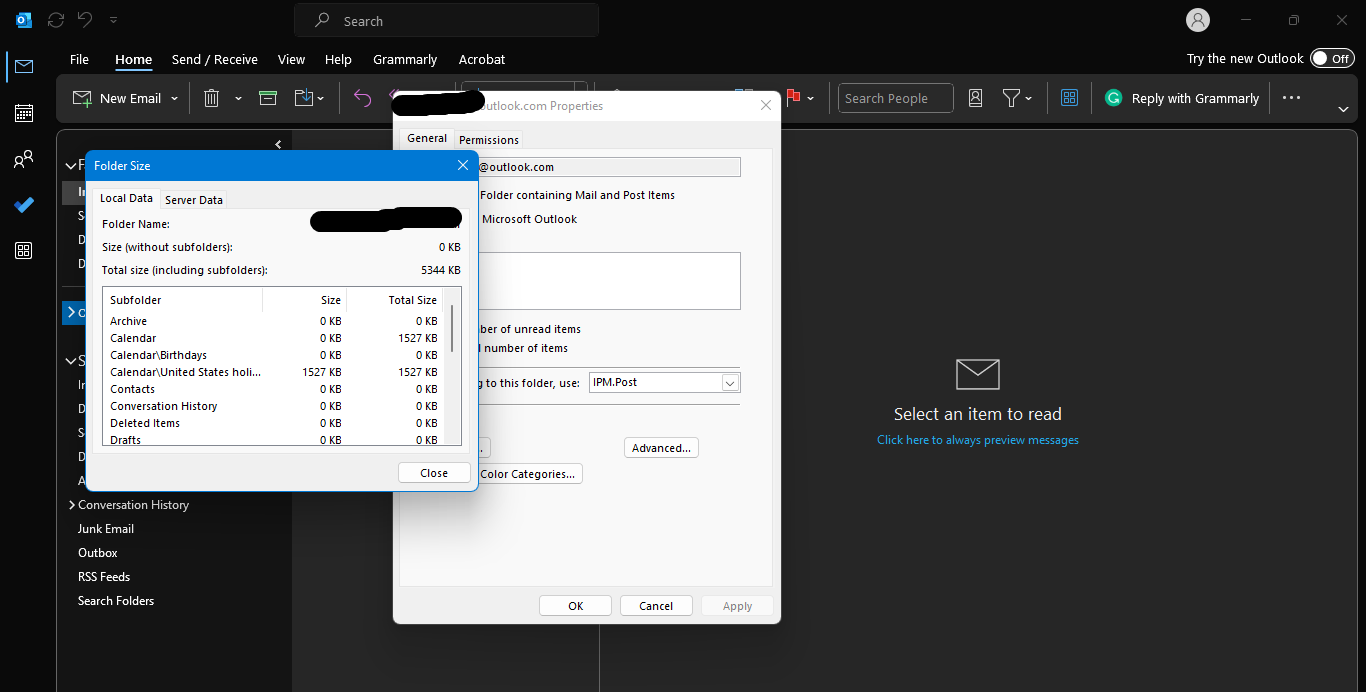
Step 2. Right-click the email account whose subfolders are missing. Choose “Data File Properties” from the context menu.
Step 3. In the new box, click “Folder Size.” A thorough list of all subfolders under the account will show, allowing you to identify and find any missing ones.
This method works best when subfolders remain connected to your account but are not immediately visible in the folder pane.
Method 2: Use the search function.
Outlook’s advanced search tool may help you identify certain emails or folders by searching for relevant keywords. This is especially handy if you assume that the subfolders contain missing emails.
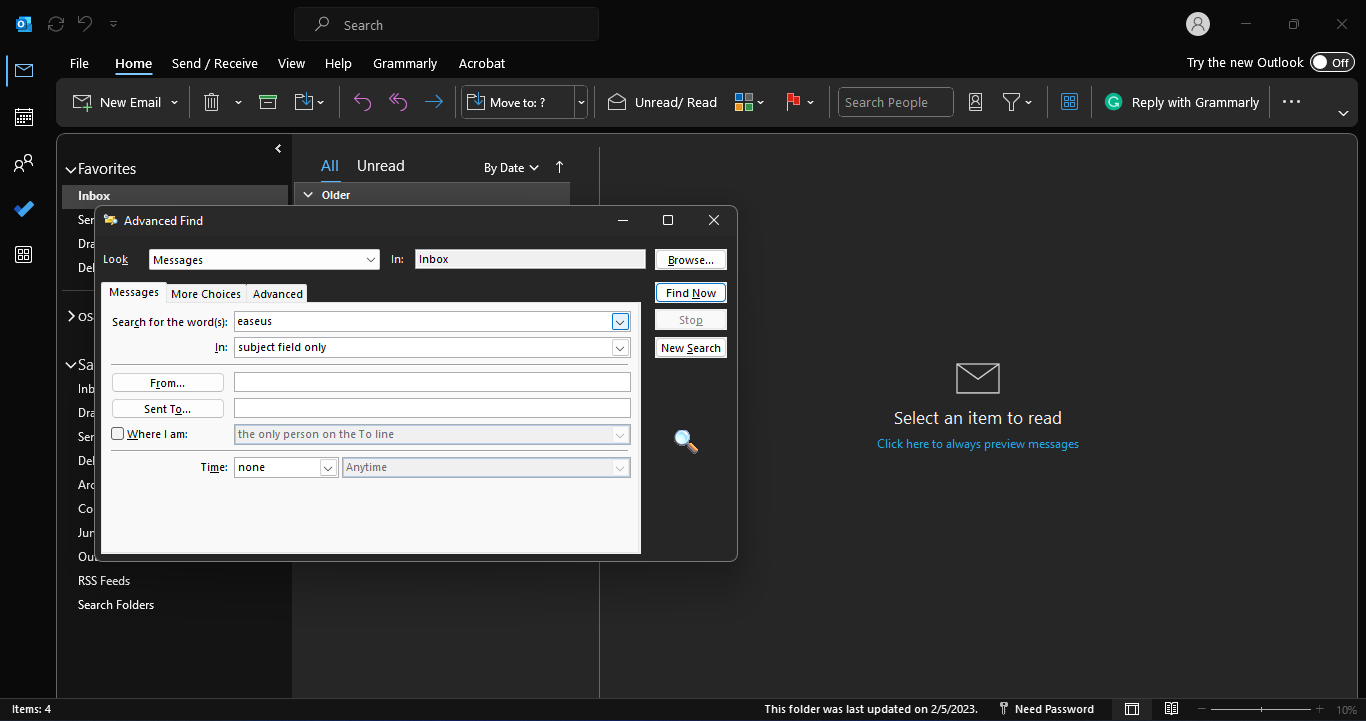
Step 1. Open Outlook and press Ctrl + Shift + F on your keyboard to get the “Advanced Find” window.
Step 2. Enter keywords, phrases, or subject lines relating to emails you believe are in the lost folder.
Step 3. Once the results appear, click “Browse” in the top-right corner. This will display the subfolder holding the found emails and allow you to establish its location.
This method helps recall email information saved in subfolders.
Method 3: Use VBA Code for Advanced Search.
Users experienced with coding or who want to attempt a more complex method may utilize Virtual Basic for Applications (VBA) to automate the search for missing subfolders.
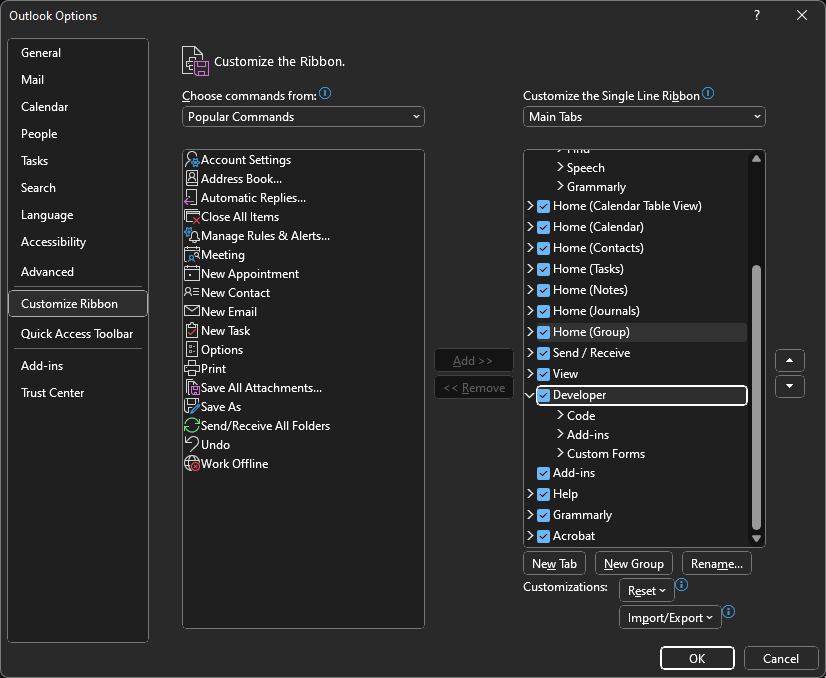
Step 1. Open Outlook and go to “File > Options > Customise Ribbon.” To activate the Developer tab, check the box next to “Developer.”
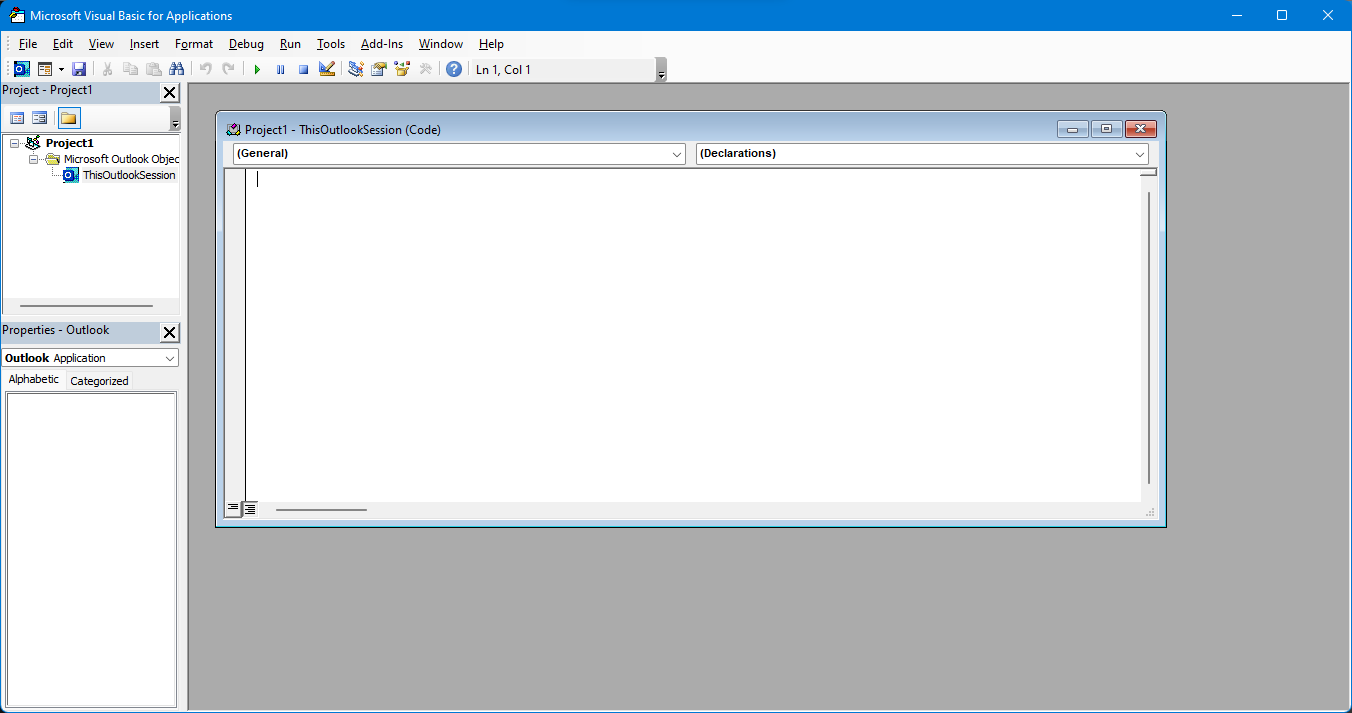
Step 2. On the Developer tab, choose “Virtual Basic.”
Step 3. Expand “ThisOutlookSession” and paste the “VBA code” to find missing folders.
Step 4. Click “Run Sub/UserForm” and enter search keywords for the missing subfolders. The code will do an automated search and show the results.
This method effectively discovers highly nested or hidden subfolders that traditional methods cannot identify.
Part 3. How to Recover Missing Outlook Subfolders
If reviewing folder settings does not cure the problem and your Outlook subfolders remain missing, it is probable that data corruption or inadvertent deletion will happen. No worries, as advanced data recovery tools may easily retrieve lost subfolders. One such incredibly successful option is the EaseUS Data Recovery Wizard. This program is intended to recover lost data in various settings, making it ideal for restoring missing Outlook subfolders.
The EaseUS Data Recovery Wizard is excellent at recovering lost data from email applications such as Outlook, allowing users to recover anything from subfolders to complete mailbox files (PST or OST). Due to synchronization difficulties, this program makes it easy to recover deleted, damaged, or lost subfolders.
Whether your Windows OS crashes or the Outlook Client becomes infected with malware or viruses, you can quickly retrieve emails from deleted Outlook subfolders. With a recovery record of over 99.7% and millions of satisfied data recovery users, never let your crucial emails go missing again. EaseUS’s straightforward UI and powerful recovery algorithms provide a smooth experience for users of all technical skill levels.
Key Features of the EaseUS Data Recovery Wizard:
Advanced Email Recovery is intended to recover deleted Outlook subfolders, such as PST/OST files, attachments, and emails.
Works with Windows 11/10/8/7 and supports all major file systems.
Provides two scanning modes: quick recovery data or more profound for difficult recoveries.
It allows you to see recoverable files to ensure you get the correct data.
It protects against unintentional deletion, system failures, formatting issues, and virus assaults.
Ensures that no existing data is overwritten or damaged during the recovery process.
EaseUS not only delivers a dependable solution, but it also saves time and effort with its efficient algorithms. Its powerful scanning and filtering tools make locating what you’re looking for easy.
Don’t allow missing subfolders to restrict your work or generate unneeded frustration. Download EaseUS Data Recovery Wizard now and recover your Outlook subfolders with a few clicks.
Step 1: Select the folder location to scan.
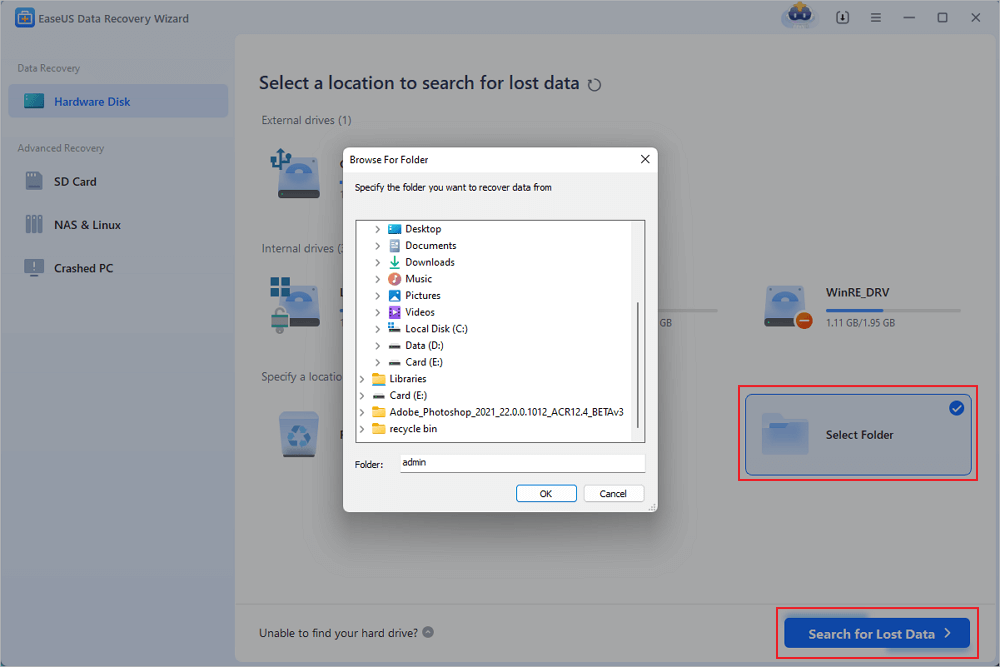
Open the EaseUS Data Recovery Wizard and double-click “Select Folder.” Browse to the location where the folder was lost, then click “OK” to begin the scan.
Step 2: Locate and preview recoverable files.
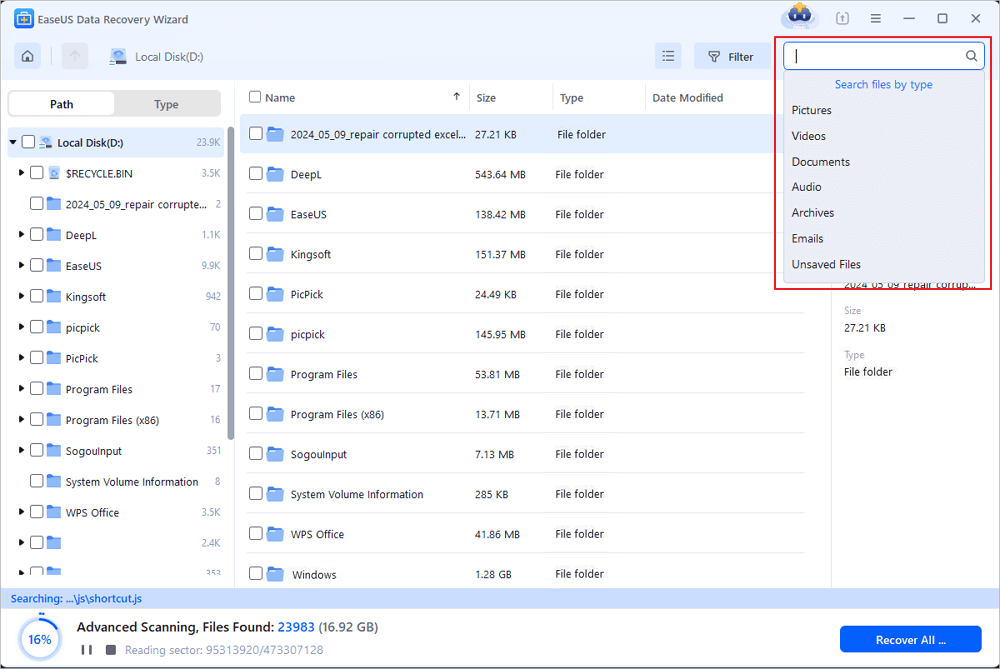
If you remember the folder’s name, use the search box to locate it quickly. Open the found folder and double-click the files to preview them. Alternatively, use the Filter feature to find specific file types.
Step 3: Recover and save the folder.
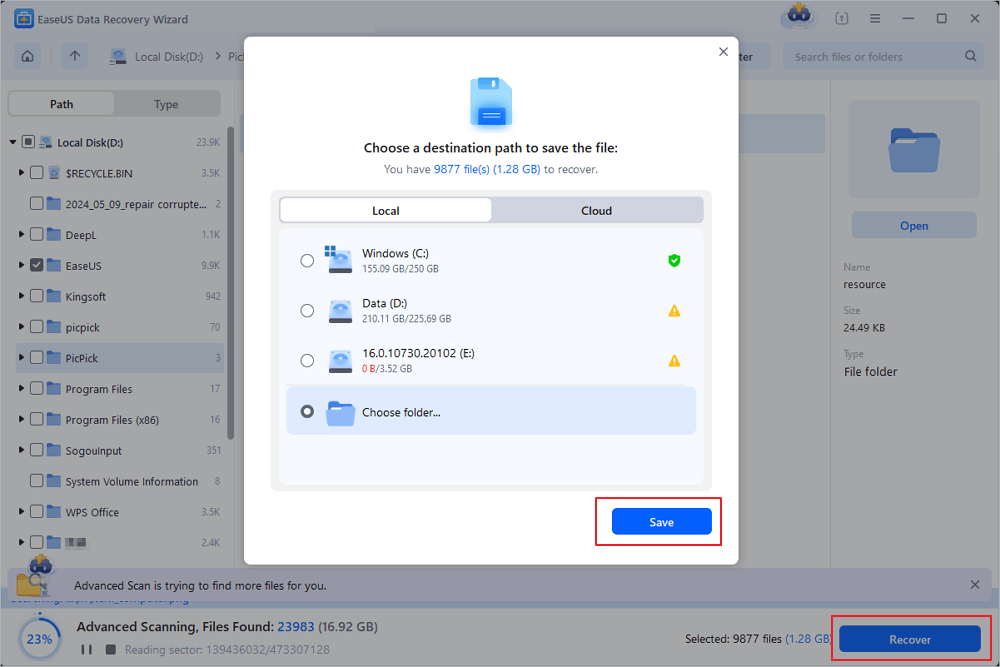
Select the desired folder and files, then click “Recover.” Choose a new, secure location on your PC or a cloud storage service like OneDrive, Google Drive, or Dropbox to save the recovered data.
Part 4. Keeping Your Subfolders Safe
After recovering your Outlook subfolders, being proactive to prevent future errors is crucial. Maintaining Outlook reduces mistakes and ensures your email data is always accessible.
While the EaseUS Data Recovery Wizard can help with difficulties, prevention is always better than cure. Best practices help prevent Outlook subfolder loss, corruption, and synchronization difficulties.
Take the following precautions to protect Outlook Subfolders actively:
Regular backups: Regularly backup Outlook PST/OST files to an external device or cloud storage. Backups let you recover subfolders if data is lost.
Regular Outlook updates: Always use the newest Outlook. Updates regularly fix issues and improve security, decreasing folder corruption and loss.
Optimize Folder Organization: Avoid overfilling email folders. Outlook damage and slowness might result from large folders. Keep old emails archived for performance.
Enable AutoArchive: AutoArchive in Outlook moves old emails to an archive file. This makes your primary inbox small and subfolders manageable.
Use Trustworthy Antivirus Software: Outlook data may be corrupted by malware. To safeguard your email subfolders, use powerful antivirus software.
Monitor Sync Settings: Check synchronization settings if you use Outlook on numerous devices. Misconfigured sync settings might duplicate or miss subfolders.
Conclusion
Protecting and recovering Outlook subfolders is essential for email organization. This guide will help you find and restore hidden, deleted, or archived folders. Advanced data recovery tools like EaseUS Data Recovery Wizard ensure no critical data is lost. Maintaining folder settings and backing up helps avoid future troubles. Share this article if it enables you to find your subfolders or improves your email management!
Part 5. FAQ: Missing Outlook Subfolders
Below are the top queries regarding the missing outlook subfolders issue:
Q: How do I check my Outlook view?
Click “Change View” on the ribbon’s “View” tab to check Outlook’s view. Select “Folder Pane” to see all folders and subfolders. Select “Reset View” to restore default visibility settings.
Q: What if the subfolders are in an archive or PST file?
Go to “File”> “Open & Export”> “Open Outlook Data File” for archived or PST subfolders. Select the PST file. The folder pane will display the archive and its subfolders.
Q: How do I create a new Outlook profile?
To create a new Outlook profile, open Control Panel > “Mail”> “Show Profiles.” Click “Add,” name your profile, and set your email. Set it as the default profile after creation to fix missing subfolders—Restart Outlook to apply changes.
Outlook Subfolders Missing: How to Recover Lost Folders (2025 Guide) was last modified: January 3rd, 2025 by Colleen Borator
Have you ever thought about how workplace benefits impact your team’s happiness? Employees nowadays seek more than just a paycheck—they crave fulfilment, security, and support. Offering meaningful benefits can transform how your team feels about work. This article shall explore how thoughtful perks can enhance employee satisfaction. Let’s dive into how benefits shape employee happiness and create a better workplace experience.
Supporting Work-Life Balance
Work-life balance is an important contributor to happiness. If there are paid time off, remote work, or family leave policies that contribute to employee experience management, the employees feel respected. Humans value time to recharge and spend with their loved ones, which benefits their well-being. Workplaces that offer balance tend to have a higher productivity rate and fewer rates of burnout. When they feel their personal lives are supported, they tend to perform better.
Aligning Benefits with Employee Needs
Workplace happiness can be improved by aligning benefits with what employees really need. For instance, flexible working options appeal to busy professionals who have to juggle personal responsibilities. Healthcare support, mental health programs, or financial assistance can make them feel valued and secure. By aligning benefits with these priorities, you enhance loyalty and engagement.
Encouraging Professional Growth
Employees love to grow in their careers. The ability to use learning platforms, certifications, or mentorships to grow motivates them and empowers them to advance. Developmental benefits also give them a sense of purpose and make them feel connected to the organization. Team members like being part of a company that will secure their future. They are less likely to leave if an organization invests in them.
Providing Financial Wellness Programs
Financial security is one of the greatest happiness factors. Employers can offer retirement plans, savings programs, or student loan repayment assistance. Such benefits relieve tension and enable employees to be focused on their roles. Companies providing financial wellness programs demonstrate a care for their teams’ futures. Their assistance toward the attainment of personal goals will positively impact the working environment. A secure workforce will always be a happier workforce that will eventually bring more loyalty and trust.
Health and Well-being
Physical and mental health is the core of employee satisfaction. Subsidized gym memberships, health insurance, and wellness programs are an expression of care for well-being. Counselling services, in particular, are effective mental health initiatives. Health-focused benefits minimize absenteeism and foster a lively work culture. Team members who feel cared for are energetic, focused, and motivated.
The policy makers over at Hummel Group Insurance suggest clients integrate comprehensive wellness incentives directly into their core benefit packages to mitigate long-term healthcare costs. By prioritizing preventative screenings and mental health support, organizations can significantly reduce high-stress burnout while improving overall retention rates. This proactive strategy transforms standard insurance into a dynamic tool for building a more resilient and engaged workforce.
Culture of Appreciation
The benefits alone cannot ensure happiness without an appreciation culture. Acknowledging employees’ efforts, either in the form of bonuses, awards, public recognition, or even just praise, will make a big difference. Team members feel appreciated, engaged, motivated, and satisfied when valued. Introducing regular recognition programs as part of your benefits strategy strengthens their bonds, builds loyalty, and raises overall morale.
Bonding among Teams through Special Perks
Team-building benefits can significantly enhance employee happiness and overall job satisfaction. Activities like retreats, team lunches, or wellness challenges create valuable opportunities for connection and bonding. These perks foster camaraderie and trust and build stronger relationships among team members. When they feel connected, workplace collaboration improves naturally, boosting productivity and creativity. A supportive and bonded team contributes to a positive work culture, improving retention and morale across the organization.
Meaningful benefits can greatly improve the happiness of an employee. They demonstrate care and support work-life balance while encouraging professional growth. By providing individualized perks through employee experience management, you can ensure your employees feel valued and appreciated. Happy employees are more productive and loyal, which ultimately drives business success.
The Role of Benefits in Improving Employee Happiness was last modified: March 7th, 2026 by Alison Lurie
In today’s fast-moving digital economy, businesses must balance operational efficiency with creative product presentation. All in all, seamlessly integrating business organization and creative product presentation is not a goal but an absolute necessity. Customers no longer want to see just the plain display of products; they want experiences that connect with their emotions and values. Meanwhile, businesses are supposed to maintain structure and coherence to meet market demands and reach profitability.
That means alignment between organizational practices and compelling creative presentations so that both sides of the equation work in harmony to better customer experiences and drive growth.
Leveraging Technology for Alignment
Technology acts as the missing link between business organization and the creative presentation of a product. With digital tools and platforms, processes can be streamlined while encouraging the coming together of ideas for creativity to flourish. Businesses could use project management software with which to coordinate between teams regarding meeting deadlines, staying within budgets, and realizing creative objectives.
Another powerful alignment tool is the DAM-or digital asset management-system. That’s a sort of centralized repository from which creative teams can pull the newest brand assets-logos, images, videos-all the while knowing that those materials reflect operational realities. With a DAM system, any inconsistencies in product presentation are eliminated, and brand integrity is duly maintained.
Funnel Your Viewers into Buyers
A key part of turning visitors into buyers is effective web design. A well-designed site helps users find what they need quickly. Clear menus, simple layouts, and strong calls to action can guide people through the sales journey. Good design also builds trust by making your brand look professional. More people stay, explore, and purchase when your website is easy to use and visually appealing.
Additionally, businesses can embrace platforms that integrate creative content with e-commerce functionality. For example, if a company decides to design a digital lookbook, it can create an immersive experience that showcases products in a visually engaging way while seamlessly linking to purchase options. These platforms blend creativity with practicality, embodying the alignment of organizational and creative goals.
The Importance of Cohesion in Modern Business
It requires the recognition of how business organization aligns with creative product presentation in light of the peculiar demands of commerce today. Businesses operate in contexts marked by rapid technological change, increased competition, and more discerning customers. While internal organization provides the backbone for operational success, creative product presentation is the face that the customers see. Mismatches between these two facets lead to inefficiencies, dissatisfied customers, and missed opportunities.
All these elements come in line with a common vision across departments. Marketing teams, product developers, and logistics managers all have to be in tune to ensure that the story told externally by a brand is indeed reflected in its internal processes. This alignment is not just aesthetic but one of delivery of promises, meeting expectations, and gaining trust.
Defining Your Brand Identity
Before digging deep into how to align organization and creativity, a business has to have a clearly defined brand identity. This is the basic foundation on which the direction of the company is determined, both operationally and in how it presents products. A clearly defined brand identity lets all in the organization understand what values, mission, and aesthetic principles lead the business.
For example, a luxury fashion brand would want to make its products stand and feel exclusive and sophisticated; therefore, the organizational processes would need to focus on small runs of production and an immaculate quality control. Conversely, a tech startup may have a more playful and innovative identity that demands bold and interactive product displays, calling for agile and collaborative internal systems.
Brand identity is how the internal organization meets creative output. It gives a clear structure to base decisions on, so every part of the business is congruent.
Collaboration Between Teams
Business organization in sync with creative product presentation involves collaboration across departments that may not naturally overlap. Where the creative team focuses on storytelling, aesthetics, and user experience, the operational teams manage inventory, supply chain logistics, and data analysis. Bridging this divide between functions can be challenging but is necessary for cohesive execution.
One is through cross-functional teams around projects, such as launching a new product. Teams should include members from design, marketing, and operations so that every aspect of the presentation of the product is supported by the business infrastructure. Regular communication and shared goals create alignment and prevent silos from forming.
Storytelling as a Unifying Force
The backbone of any creative presentation of products lies in its storytelling. This is usually the way customers fall in love with a product and/or the brand building a differential in the minds of your audience. The same provides the adhesive that bounces creatively inside and guides both the creative and operational functions inside an organization with a common goal.
A company introducing an eco-friendly product line, for example, can create a storyline of the process, which starts with sourcing green material right through to delivering the finished product to the end-customer. This not only appeals to environmentally conscious consumers but also helps internal teams be directed toward a common goal. Be it supply chain managers, marketing professionals, or designers-each becomes a storyteller to maintain consistency across all touchpoints.
Metrics and Feedback Loops
While creativity often thrives on intuition and inspiration, aligning it with business organization requires data-driven decision-making. Metrics provide the feedback loops necessary to evaluate the effectiveness of creative product presentations and refine strategies over time.
In this way, businesses can make sure that the presentation of their business idea reaches their audiences by monitoring some key performance indicators: the rate of engagement, conversion rates, and customer retention. On the other hand, metrics of operation involve inventory turnover and delivery timelines to ensure that internal processes complement creative vision.
These metrics shouldn’t exist in a vacuum. Sharing insights across departments can help businesses make informed decisions that balance creativity with practicality. For example, if the digital campaign of a new product has high interest that leads to inventory shortage, a business can adjust its supply chain processes for future launches.
Embracing Agility
Agility is the ability of business organization to align with creative product presentation in a rapidly changing marketplace. Businesses should be ready to change their strategies in response to shifting customer preferences, emerging trends, and unforeseen challenges. This calls for a culture of flexibility and innovation across the organization.
Agility starts with the teams by enabling them to try things out, have a go, and calculated risks. Creative teams would therefore have the confidence to go big, and operational teams would start on a dime in order to support this new activity. The methodology needs to flex around the pace of the curve so as to ensure inside/outside alignment.
The Bigger Picture: Building Lasting Connections
Ultimately, alignment in business organization and creative presentation of products targets the development of long-term customer relationships. If this is properly effected, it enhances the customer experience, strengthens brand loyalty, and provides growth on a sustainable basis. This means every touchpoint-social media posts, in-store displays, digital catalogs-reflections of the company and its values, and resonance with its audience.
In a world smitten by choices, businesses that could successfully align these elements have come out as genuine, trustworthy, and pioneering in their respective fields. For they know that behind every beautiful, well-presented product, there is a well-oiled machinery working, striving to turn the brand’s vision into reality.
As you continue in your design for a digital lookbook, or perhaps as you move into other areas of creative interest, remember that successful product presentation is from the bottom up-through organizational harmony. This is where your business finds the sweet spot between creativity and efficiency: through collaboration, technology, and shared story.
How to Align Business Organization with Creative Product Presentation was last modified: August 1st, 2025 by Colleen Borator