PowerPoint videos for employee updates are easier to maintain when stable explanations and changing instructions are separated before export. Record the source slide and owner for each scene, along with the employee task it explains.
This promotional guest article introduces Leadde for teams looking to turn staff presentations into video. Its public page describes converting presentation material into editable video scenes; the method here concentrates on keeping routine software and process updates understandable when the next revision arrives.

How should PowerPoint videos for employee updates be divided?
Divide the video into stable context, changing instructions and the next action. For example, “The request form has moved” needs a current navigation scene, while an explanation of the approval process can sit in a separate scene that is reviewed when the process changes.
For that update, open with the process explanation, show the current form location in the next scene and finish with a link to the maintained instructions.
Use the employee’s task to decide where a scene starts and ends. One slide may contain unrelated decisions that need separate scenes; a diagram across two slides may explain a single idea.
| Material | Typical role in the video | Update trigger |
|---|---|---|
| Why the process exists | Stable context | Process purpose changes |
| Who submits a request | Audience and scope | Responsibilities change |
| Where the form is located | Current instruction | Navigation or URL changes |
| What happens after submission | Expected next step | Approval route changes |
| Where to find help | Maintained destination | Support ownership changes |
Use this sample structure to identify which scene depends on which part of the written instruction.
Choose between a direct export and a rebuilt presentation
A direct PowerPoint export may be sufficient if the slides, narration and timing are already prepared. Microsoft’s presentation-to-video documentation describes export options, including how recorded timings and narration can be used.
Check the instructions for the version of PowerPoint available to your team. Desktop, browser and operating-system versions can differ.
A deck designed for a live presenter may need to be rebuilt as video scenes. Rewrite fragments and dense notes into an explanation that viewers can follow on their own, then reorder the visuals where the explanation calls for it.
Leadde also publishes a guide to turning PowerPoint slides into AI lecture videos. Its slide-to-lesson framing can provide additional context, while an employee update should stay focused on the immediate workplace action.
Prepare a deck that exposes the important change
Remove obsolete navigation paths and draft screenshots before import. Give the editor the approved deck, with its revision clearly identified.
For a hypothetical form move, the slide might show the old and new locations. The narration should explain the change directly: “Open the service portal and use the current request link shown on the instructions page.” If the old route no longer helps the employee, it may not need to appear at all.
Keep screenshots readable at the final viewing size. Crop to the relevant area without removing the label that identifies the application. Use actual authorised captures of the interface; an illustrative mockup cannot verify where a button is located.
Speaker notes can be a starting point for narration, but they often contain reminders rather than complete explanations. Read them aloud and fill in references such as “this step” or “the item on the right” when the visual context is not obvious.
Build and inspect the video scene by scene
Evaluate the current import and editing controls on Leadde’s public tool page and in the account being used. After importing approved material, compare the draft scenes against the source deck before adjusting the visual style.
Look for missing qualifiers, reordered instructions and labels that have become too small. For an interface demonstration, include the actual screen recording you prepared. Importing a document does not capture a software session.
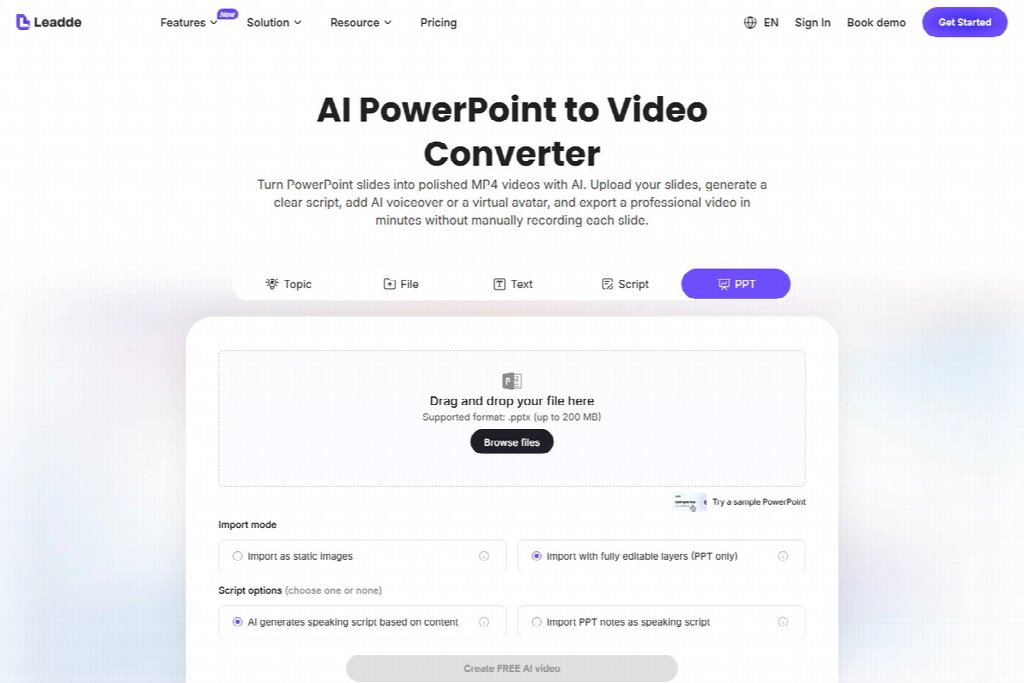
Public Leadde page for PowerPoint videos for employee updates, captured on September 9, 2026; not a hands-on test.
For the form-move example, finish the navigation scene at the point where the employee reaches the current instruction page. Keep any required explanation of eligibility or approval in its own scene. During review, ask someone to follow the route from the staff hub, using an account with the access employees actually have. A link that works for the producer may lead a colleague to an access request instead.
Have the process owner check the meaning and sequence, then ask someone unfamiliar with the change to explain the next action. Both should watch the exported file to catch viewing problems that may not appear in the editor preview.
Keep a small release record beside the source
For a short employee update, a shared table can connect the video to its source deck, approved instruction and distribution link.
| Record field | Why it helps |
|---|---|
| Source deck identifier | Shows which presentation was used |
| Instruction revision | Connects the explanation to the current process |
| Affected scenes | Narrows the next edit |
| Review owner | Identifies who checks meaning |
| Published destination | Shows where a replacement must appear |
If the deck is stored in OneDrive or SharePoint in Microsoft 365, Microsoft’s Office version-history guidance explains how to inspect earlier versions. Record the approved source revision alongside the export; file history alone does not identify which video employees should use.
When the source changes, review the dependency table before regenerating the whole video. A new help contact may affect only the final scene. A new approval route may require changes throughout the explanation.
Keep the previous release identifiable while directing employees to the current one. Avoid filenames such as “final-new-final” that reveal nothing about the underlying instruction.

Questions before distributing the update
Should the whole deck become a video?
Only if every part serves the employee’s task. Background slides prepared for a meeting may be better retained as reference material.
Can a video replace the maintained instruction page?
A video can explain a change and demonstrate a path. Keep the authoritative written instructions available, especially where employees need to copy a link or check a detail.
What should be checked after a revision?
Inspect the changed scenes, their transitions and every destination link. Then verify that the current file is the one employees can actually reach.
For the first update, choose an existing deck and agree who will review changes. Save the scene references and distribution link with it so the next editor can find what needs updating.