A working microphone is essential in today’s digital environment. Whether you’re attending online meetings, recording videos, gaming, or chatting with friends, your mic plays a crucial role. However, many Windows 11 users face frustrating microphone issues such as no sound, distorted audio, or the system not detecting the device at all.
The good news? Most microphone problems are fixable without professional help. They’re often caused by incorrect settings, outdated drivers, or minor hardware issues.
Today you’ll learn every possible way to fix microphone problems on Windows 11, including how to properly test your mic using online mic test tool.

1. Common Causes of Microphone Problems
Before fixing the issue, it’s important to understand why it happens. Here are the most common causes:
- Disabled microphone permissions
- Incorrect input device selection
- Low input volume or muted mic
- Outdated or corrupted drivers
- Faulty hardware or loose connections
- App-specific configuration issues
- Windows updates causing conflicts
Understanding the root cause helps you troubleshoot more efficiently.
2. Check Hardware Connections
Start with the basics—hardware.
🎧 Wired Microphones
Ensure your microphone is plugged into the correct port:
- Pink jack = microphone
- Green jack = headphones
A wrong connection can prevent detection.
🔌 USB Microphones
- Try different USB ports
- Avoid USB hubs
- Check if it appears in Device Manager
🔵 Bluetooth Microphones
- Ensure Bluetooth is turned on
- Re-pair the device
- Charge the battery
🔍 Inspect for Damage
Check cables and connectors for wear and tear. If possible, test the mic on another device.
3. Verify Microphone Permissions
Windows 11 blocks microphone access by default for privacy.
Steps:
- Open Settings
- Go to Privacy & Security > Microphone
- Enable:
- Microphone access
- Let apps access your microphone
Scroll down and ensure your specific apps have access.
4. Set the Correct Default Microphone
If multiple devices are connected, Windows may select the wrong one.
Fix:
- Right-click sound icon → Sound settings
- Under Input, choose your microphone
Speak and check if the input bar moves.
5. Adjust Microphone Levels and Boost
Low volume can make your mic seem broken.
Adjust:
- Go to Sound settings
- Select your microphone
- Increase input volume
Boost:
- Open Additional device properties
- Go to Levels tab
- Increase Microphone Boost
6. Run Windows Troubleshooter
Steps:
- Settings → System → Troubleshoot → Other troubleshooters
- Run Recording Audio
This tool can automatically fix common issues.
7. Update Audio Drivers
Steps:
- Open Device Manager
- Expand Audio inputs and outputs
- Right-click mic → Update driver
8. Reinstall Audio Drivers
- Uninstall device
- Restart PC
- Windows reinstalls drivers automatically
9. Check App-Specific Settings
Apps like Zoom, Discord, and Teams have their own mic settings.
Ensure:
- Correct mic selected
- Volume not muted
- Permissions granted
10. Disable Exclusive Mode
- Open mic properties
- Go to Advanced tab
- Uncheck exclusive mode options
11. Restart Audio Services
- Press Win + R → services.msc
- Restart:
- Windows Audio
- Windows Audio Endpoint Builder
12. Check for Windows Updates
- Go to Windows Update
- Install updates
13. Test Your Microphone Using Online Tools (MicTest.net Guide)
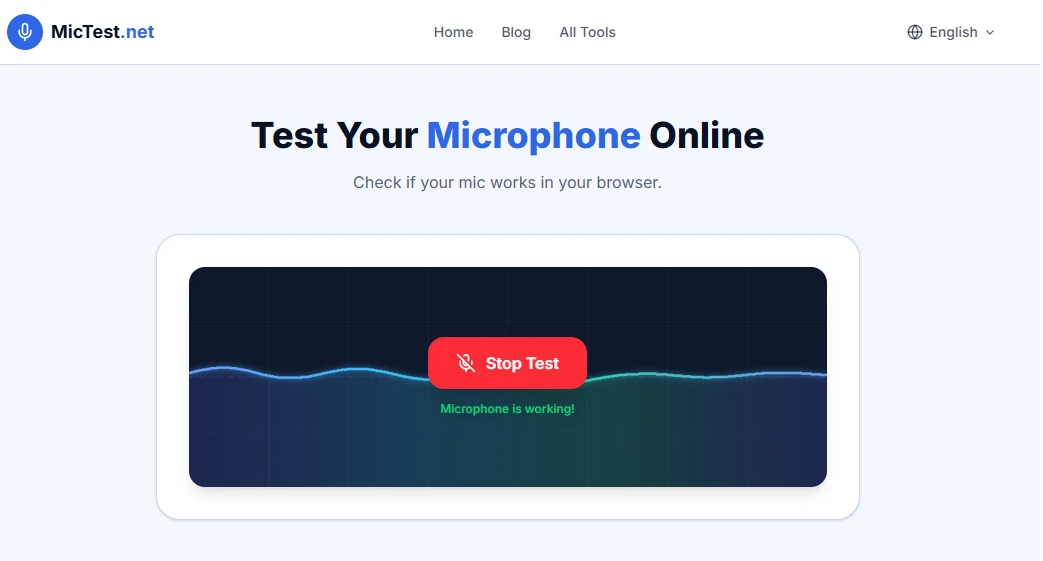
One of the most reliable ways to confirm whether your microphone is actually working is by using an online testing tool like MicTest.net.
This is especially useful when:
Your mic isn’t working in a specific app
You want to verify hardware functionality
You need a quick, no-install test
✅ How to Use MicTest.net
- Open your browser (Chrome, Edge, or Firefox)
- Visit MicTest.net
- Click the “Test Microphone” button
- Allow microphone access when prompted
- Speak into your microphone
If the audio bars move, your microphone is working
If there’s no movement, there may be a hardware or permission issue
A. Common Fixes Based on MicTest Results
❌ Mic Not Detected
1. Check connections
2. Enable permissions
3. Try another browser
Q: Why MicTest.net is Useful
- No installation required
- Works instantly in browser
- Helps isolate system vs app issues
If your mic works on MicTest.net but not in apps like Zoom or Discord, the problem is likely app-specific—not system-wide.
Quick Troubleshooting Checklist
- Check hardware
- Enable permissions
- Select correct mic
- Increase volume
- Run troubleshooter
- Update drivers
Conclusion
Microphone issues on Windows 11 can feel frustrating, but they’re usually easy to fix. Whether it’s a simple settings issue or a more complex driver problem, following a structured approach will save you time and effort.
Using built-in tools along with online platforms like MicTest.net gives you a complete troubleshooting system. You can quickly determine whether the problem lies in your hardware, Windows settings, or specific applications.
By following this guide step by step, you’ll not only fix your current microphone issue but also prevent future problems—ensuring smooth communication, recording, and productivity.