Locked out of your iPhone due to a forgotten passcode? What’s worse, after multiple failed attempts, the lock screen displays “Security Lockout” message. This situation can be stressful, especially you need to access your iPhone to handle urgent matters. So, what does Security Lockout mean and how to fix iPhone Security Lockout? In this post, we will walk you through all details, providing you proven solution.

What Does Security Lockout Mean on iPhone?
Apple introduced the Security Lockout message in iOS 15.2 and above (before iOS 16). When you enter incorrect passcodes many times in a row, the iPhone locks down and displays this message as a security measure to prevent unauthorized access and protect your data. In newer versions like iOS 16, iOS 17, iOS 18 or iOS 26, the message on lock screen may change to “iPhone Unavailable”, but the function is the same.
Method 1: Bypass Security Lockout on iPhone Lock Screen (iOS 15.2+)
For iPhones running iOS 15.2 or later, you may see an “Erase iPhone” option at the bottom of the Security Lockout screen after several failed attempts. This allows you to erase all content and settings from your device and remove Security Lockout.
Step 1: Tap “Erase iPhone” option on the right bottom of iPhone Security Lockout screen.
Step 2: Under Erase All Content & Setting screen, confirm “Erase iPhone” option.
Step 3: Now type in your Apple ID password to proceed.
Step 4: Your iPhone will be restored to factory defaults and you can access it without seeing Security Lockout screen.
Method 2: Unlock Security Lockout with iPhone Unlocker
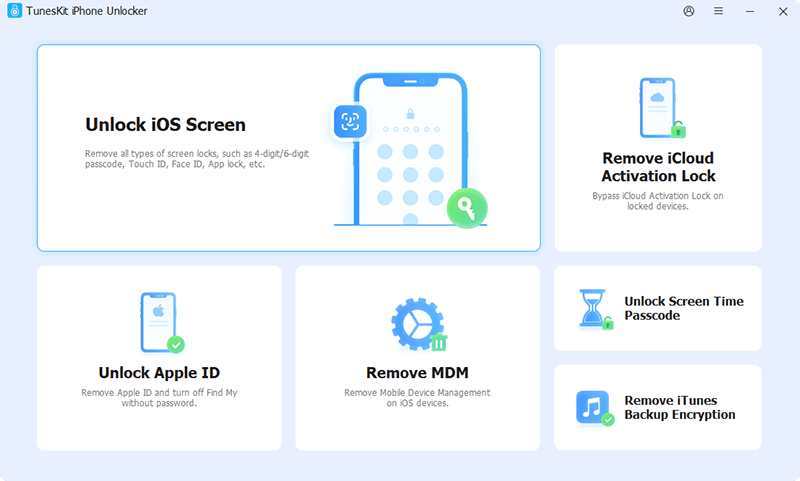
TunesKit iPhone Unlocker is an effective toolkit that can help iOS users bypass Security Lockout screen without passcode. It works well to remove any type of screen locks, including 4-digit/6-digit passcode, alphanumeric passcode, Face ID, and Touch ID. By using this professional iPhone unlocker, you don’t have to provide any credential information and the whole process is easy-to-operate.
Key Features:
- Unlock Security Lockout, disabled, or unavailable iPhones
- Support all iOS versions and iPhone/iPad/iPod touch models
- Remove 4-digit, 6-digit passcodes, Touch ID, Face ID, etc.
- Remove activation lock without Apple ID and password
- Unlock Apple ID, MDM, Screen Time passcode without data loss
Step 1: Launch TunesKit iPhone Unlocker on your computer. Go to “Unlock iOS Screen” section in its main interface, then connect your target iPhone, and click Start button.
Step 2: Put your connected iPhone into DFU or Recovery Mode by following the on-screen instructions in the program.
Step 3: TunesKit iPhone Unlocker will detect your device and display related device information. Check it and then click Download button to get the firmware package.
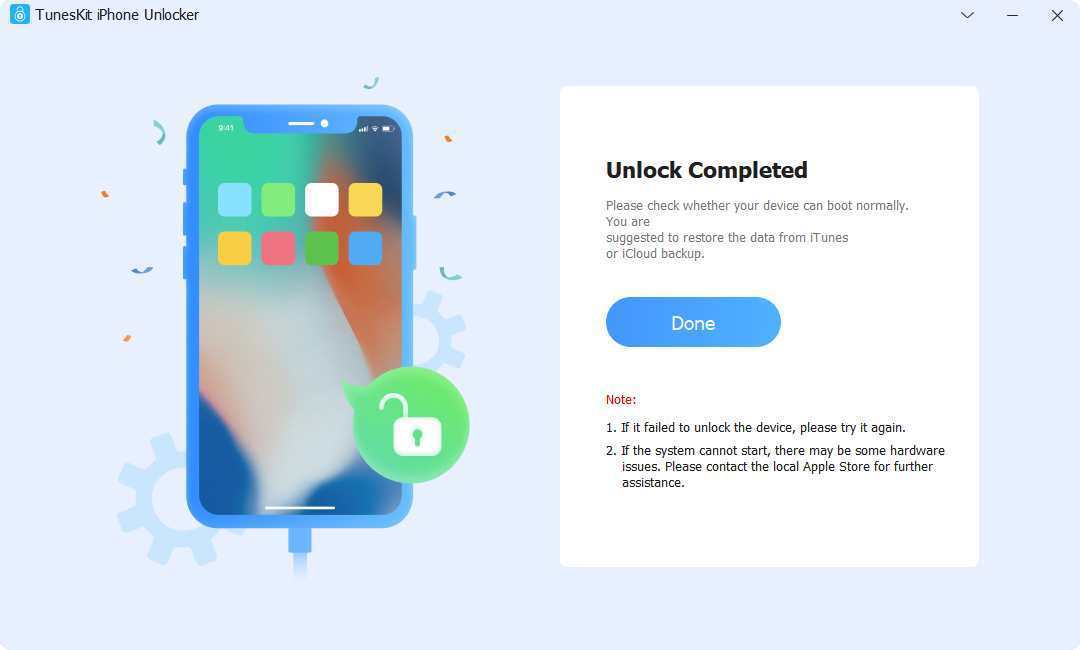
Step 4: After download firmware package, you can click Unlock button to remove Security Lockout screen and unlock iPhone without passcode handily.
Method 3: Unlock Security Lockout via iCloud (Find My iPhone)
If Find My iPhone is enabled and you can remember your iCloud account, you can remotely erase Security Lockout screen from iPhone using iCloud.
Step 1: Navigate to iCloud.com and sign in with your iCloud account.
Step 2: Click on “Find My” and then All Devices section.
Step 3: Select your locked iPhone from the device list.
Step 4: Click “Erase” option to get rid of Security Lockout from your iPhone.
Method 4: Fix Security Lockout with Finder or iTunes
iTunes or Finder can restore your locked iPhone to remove Security Lockout screen. However, you have to put your device into recovery mode. Now, follow the complete steps below:
Step 1: Plug your iPhone into a computer using a USB cable.
Step 2: Run Finder (macOS Catalina and later) or iTunes (Windows/macOS Mojave and earlier).
Step 3: Boot your connected iPhone into Recovery Mode:
- For iPhone 8 or later: Press and release Volume Up quickly, press and release Volume Down quickly, then press and hold the Side button until you see the recovery mode screen.
Step 4: In Finder or iTunes, choose and click Restore option in the pop-up window. Then, follow the instructions to bypass Security Lockout on your iPhone.
Final Thoughts
The iPhone Security Lockout feature is well designed by Apple to protect your data, but it can take you into troubles sometimes. Thankfully, Apple provides different official ways to unlock your device, including “Erase iPhone” option on the lock screen, iTunes, and iCloud. If you cannot meet the requirements or provide necessary credential information, such as Apple ID, password, or passcode, TunesKit iPhone Unlocker can be your savior. It unlocks Security Lockout for any iOS device without passcode.