We offer a choice: Use CompanionLink for Palm Desktop to sync direct to Google, Android or iPhone
or use DejaOffice PC CRM Standalone to replace Palm Desktop. Two solutions for the same price. You Decide!
Use Palm Desktop with Windows 10 or 11!
Use CompanionLink to sync directly to Google, Android and iOS devices
or use DejaOffice PC CRM Standalone to replace Palm Desktop.
Free telephone tech support 90-day money back guarantee! 14-day free trial

We now offer a choice:
- Keep Palm Desktop and sync directly to Google, iPhone or Android;
- or Replace Palm Desktop DejaOffice PC CRM Standalone
Get CompanionLink for Palm Desktop
Schedule an appointment for a CompanionLink expert to set up your synchronization system. Our technician will securely log in to your PC and get everything working.
RunStart costs $69. Add Runstart to my order
How to Install Palm Desktop on Windows 10 and 11
- Download Palm Desktop 6.2 from CNET
- Run install. Select Complete Install
- Enter a name for your Account
- Use CompanionLink for Palm Desktop to sync to Google, Android and iOS Phones and Tablets
Click here for a Full Setup Guide
CompanionLink will synchronize your Contacts, Calendar, Tasks and Memos
- Address Book, Date Book, Tasks and Notes
- Business, Personal, and All Your Categories
- Sync more than 10 years of calendar info
- Alarms and recurring dates
- USB, WiFi, Cloud and Google sync options
- Free US-based phone support for life
How to Sync Palm Desktop to iPhone and Android using DejaCloud
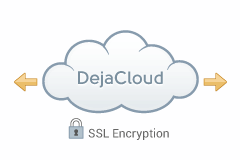
Advantages: DejaCloud is always available via Internet, Wi-Fi and Phone connection. Use DejaOffice as a landing pad for PC Outlook data on Android. Contacts, Calendar, Tasks, Notes. Supports multiple devices and multiple PC's easily. After the initial sync, sync time is instant and automatic.
Disadvantages: DejaCloud is a subscription service. Your purchase covers the first year, and after the first year it costs roughly $5 per month
Steps:
- Install CompanionLink on your PC
- Install DejaOffice on your device
- Set DejaCloud sync, Real Time sync
Setup Guides:
Palm Desktop to Android using DejaCloud
Palm Desktop to iPhone, iPad using DejaCloud
Information about DejaCloud
DejaOffice Classroom
How to Sync Palm Desktop to iPhone and Android using a USB Cable
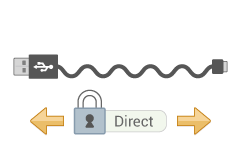
Advantages: USB Sync to DejaOffice on your Phone. DejaOffice is a landing pad for Palm Desktop data on Android. Contacts, Calendar, Tasks, Memos. Supports one device per profile. Use CompanionLink Express or CompanionLink Pro for multiple devices. You can use USB Sync on multiple computers (i.e. Home, Work, laptop). Completely secure; no data is stored in the cloud.
Disadvantages: Requires Phone USB driver on PC to work. Slower than DejaCloud.
Steps:
- Install CompanionLink on your PC
- Install DejaOffice on your devices
- Set USB Sync
Setup Guides:
Palm Desktop to Android using USB
Palm Desktop to iPhone using USB
DejaOffice Classroom
How to Sync Palm Desktop to iPhone and Android using Wi-Fi orBluetooth Sync
Advantages: Securely Sync via local Wifi or Bluetooth to your phone. Use DejaOffice as a landing pad for Palm Desktop data on Android. Contacts, Calendar, Tasks, Memos. Supports one device per profile. Use CompanionLink Express or CompanionLink Pro for multiple devices. You can use USB Sync on multiple computers (i.e. Home, Work, laptop). Completely secure; no data is stored in the cloud.
Disadvantages: Requires Phone USB driver on PC to work. Slower than DejaCloud.
Steps:
- Install CompanionLink on your PC
- Install DejaOffice on your devices
- Set up Wi-Fi or Bluetooth Sync
Setup Guide:
Wi-Fi Sync to Android
Wi-Fi Sync to iPhone
DejaOffice Classroom
How to Sync Palm Desktop to Google
Advantages: Your PC Syncs to Google, and Google Syncs to your phone. This is a great choice if you require your Palm Desktop data in Google Calendar and Contacts for other reasons. CompanionLink for Google sync can be set automatically and will run in background on your PC.
Disadvantages: Google has limited Task capabilities and no recurring tasks. No Notes Sync. Google Tasks do not go to many Android Phones, although Samsung is now supporting them.
Steps:
- Install CompanionLink on your PC
- Set Google Sync
- Set Auto-Sync, Timed or Manual Sync
Setup Guide:
Palm Desktop Sync to Google.
Supported versions of Palm Desktop
- Palm Desktop 4.x
- Palm Desktop 6.x
Palm Desktop data we sync with Android
- Address Book
- Names, Addresses, Phone Numbers, Email Addresses
- Contact notes
- Birthdays
- Contact photos
- Up to 9 custom fields
- Date Book
- All Calendar event Details
- Recurring and all-day events
- Alarms/Reminders
- Multiple Palm Desktop calendars (Requires CompanionLink Pro)
- Category colors
- Palm Desktop category colors sync to DejaOffice
- To Dos
- To Do priorities (1-5)
- Due dates
- Complete To Dos on Android
- Sort by Subject, Due Date, Status, Priority, or Alarm date
- Memos
- Sync all your Memos
- No character limit lets you store long memos
Last modified: