CompanionLink Syncs Outlook, Act!, GoldMine, DejaOffice and Palm Destop to all the latest smartphones and tablets
2021 Phones and Tablets
Android OS
Options to sync Samsung Galaxy S21 with Outlook
There are several ways to use Samsung Galaxy S21 with Outlook and Office 365.
1. Sync with Outlook App on the Phone
If your Outlook folder is an Exchange or Office 365 folder, click here for a detailed setup guide to sync with Samsung Galaxy S21.
2. Sync with Google
For IMAP and POP3 folders, you can sync Outlook Contacts and Calendar with Google. Then on the phone, use Android Contacts and Android Calendar. Click here for a detailed setup guide.
3. Direct USB Sync using CompanionLink
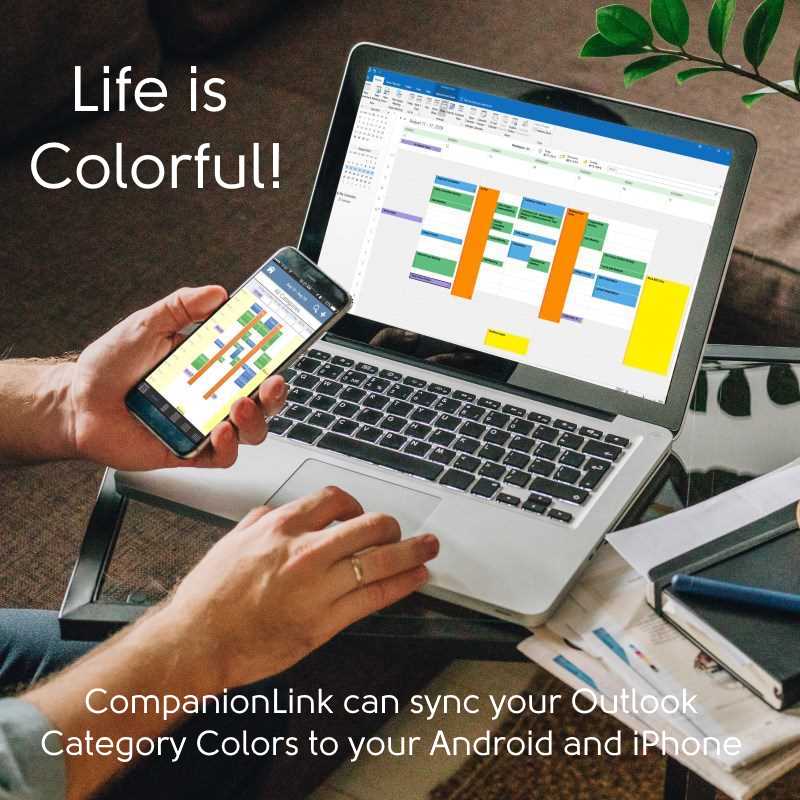
For any foldder type, CompanionLink can sync Outlook Contacts, Calendar, Tasks and Notes. This works with any version of Outlook.
Buy CompanionLink for Outlook
Buy One-time license$49.95 Buy 3-month subscription
$14.95 Do you have a question?
Click here to ask us anything!
CompanionLink for Outlook
Average User Rating:
Free 14 day trial. Price $14.95 3-Mo Subs - $69.95 One-time License.
Last modified: Oct 19, 2021 12:08 am