Claude Code is a hugely productive tool. Not just for code generation. Many tasks involve code-like analysis that we do not even think of as coding tasks. The facility to search or incorporate text from past articles. Here are a few uses I’ve found:
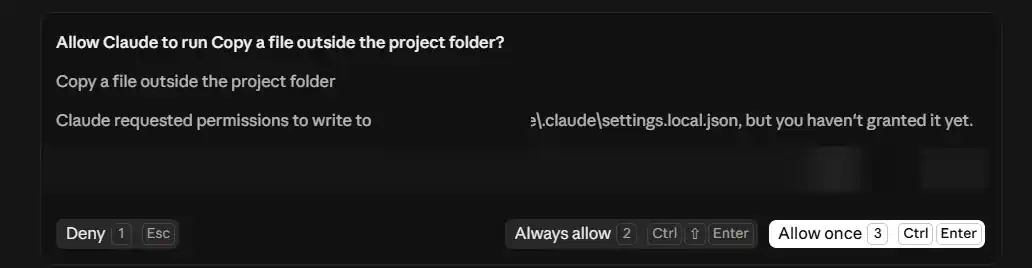
One key problem in Claude Code, particularly in the Windows UI version, is excessive prompting. Sometimes it seems that every query has a blocking popup requiring permission for some command or another.
| Action | Keys | Note |
|---|---|---|
| Deny | Esc or 1 | |
| Always allow | Ctrl ⇧ Enter or 2 | ⇧ means Shift |
| Allow once | Ctrl Enter or 3 | Highlighted in white as the default, but no key executes the default. |
Ask Google how to stop Claude Code asking permission, and you get one answer, repeated by every page on the first screen: run it with –dangerously-skip-permissions.
Skipping permissions is not a fix. It is surrender. And it is dangerous. Besides in the Windows UI there is no shell command for this flag. The flag is a command-line switch for a different version of Claude.
Claude Code asks permission before running a shell command or editing a file. Reasonable. But the prompts arrive constantly, and every time you click “yes, and don’t ask again,” a rule gets written to a settings file. The rules pile up. Mine reached five hundred entries.
After a time, you blithely click 2-2-2-2 always allow in hopes that nothing really bad will happen. Anthropic created the gate with good intention, but for those of us who use it – it becomes useless because of the repetition.
This guide is how to turn off the excessive prompting without taking risks. Anthropic staff probably do this out of hand because they can talk to the developers and solve the problems. But they forget that the unwashed masses out in the real world have to handle Claude as a black box. We love it, but we don’t know its internals, and we can’t have lunch with the developer who tells us how to handle our PC.
Anthropic intends to preserve integrity on your PC. And my intent is privacy. There is an easy method to solve both of these quickly:
Set up dedicated Claude work folders
For me, I had an existing folder structure already for all my website editing. These files are backed up elsewhere. So I made that entire folder tree a Claude Work area.
In addition, I had a similar area for my handy on-PC tools. For this, I made a second Claude Work area.
These folders contain many subfolders. By designating these as Claude Code paths, I can approve blanket permissions without sacrificing privacy or security for my other files and projects. So think of your PC as two separate zones – Claude Zones and Non-Claude zones.
With this set, you can now tell Claude that it has permission to execute certain commands within the Claude zones. Here are a few suggestions:
If you use Projects within Claude, your folders may follow your project names, but it does not have to. But with the projects, keep the names distinctive.
Claude Sessions have a bubble on the top. But it shows only the lowest folder name. So to use this best, make sure your folders have unique names so you can always be sure you are in the right spot.
What this actually buys you
Why Does Claude Use Bash Commands on Windows?
The Code tab in the Windows app will not open until you install Git for Windows. That is not optional. Install it, restart the app, and only then does Claude Code run.
Git for Windows includes Git Bash. So every Windows machine running Claude Code has a Linux shell, and that is the shell Claude uses.
There is a native PowerShell option. It is switched off by default, and there is no setting for it in the app. You turn it on with an environment variable, which means you already have to know it exists. Anthropic has an open issue about Claude defaulting to Unix syntax on Windows.
The permission safety system works only if you read the command and judge it. Using Bash instead of Windows is a bit like getting MS Word writing warnings in Chinese.
Bash Commands are not Windows-compliant. Bash commands do not use Recycle Bin or any other Windows convention. When Bash deletes a file – it is gone completely. No Undo, no Recycle Bin.
Safe commands
These Bash commands are safe to run at any time. They do not change data:
| Command | What it does | Windows equivalent |
|---|---|---|
| ls | list files in a folder | dir |
| cat | show a file | type |
| head, tail | show the start or end of a file | more |
| grep | search inside files | findstr |
| find | locate files | dir /s |
| wc | count lines or words | – |
| diff | compare two files | fc |
| stat | file details | – |
| du | folder size | – |
| which | locate a program | where |
| pwd | show current folder | cd |
| echo | print text | echo |
Dangerous Commands – Commands that can damage or replace data
| Command | What it does | Windows equivalent |
|---|---|---|
| rm | deletes a file, no Recycle Bin | del |
| rm -rf | deletes an entire folder tree, no warning | rd /s /q |
| mv | moves a file, silently overwrites the target | move |
| cp | copies a file, silently overwrites the target | copy |
| sed -i | rewrites a file in place, permanently | – |
| > file | empties the file before writing to it | > file |
| curl … | sh | downloads code and runs it unseen | – |
| git reset –hard | throws away uncommitted work | – |
The > symbol looks like punctuation. It is not. It empties a file before anything is written to it.
The && symbol combines two commands and can seriously interfere with readability. The first command runs, and if it succeeds, the second runs. Using && is completely optional; you can also use two separate command lines.
The Claude Permission System
Claude has a two-part system: modes and rules.
Modes
A mode decides when Claude needs to ask. Change it with the selector next to the send button. Or press Ctrl+Shift+M. Numbers 1 to 5 pick from the list.
| Mode | What happens |
|---|---|
| Auto | An internal subsystem checks each action. Safe ones run. Risky ones stop. |
| Manual | Claude asks before running a command. |
| Accept edits | File edits go through. Commands still ask. |
| Plan | Claude explores and proposes. No changes allowed. |
| Bypass permissions | Do not do this. It is dangerous and unnecessary. |
Rules
Rules are saved when you click Allow. When you click “always allow,” then Claude Code writes a single-line rule into a settings file somewhere. That line is a rule. It says: this command is fine. Do not ask again.
The files live in two places.
Anthropic’s documentation doesn’t tell you that you can plan and instruct Claude to record the rules for you.
Three kinds of rules are worth setting.
With these three rules set, you can safely eliminate nearly all popup gates.
Things to tell Claude:
"Treat D:\clwork\claudecodearea as my work area. Create and edit files there without asking."
"Add D:\claudecommands\shared as a second folder for this project."
"Save this as a project rule, not a user rule."
It keeps the permission inside that project. Start a session somewhere else, and it does not follow you.
Rules for Everywhere Else
Claude cannot see the rest of your PC by default. But it can ask to. These rules make sure it always asks, and always tells you exactly where.
"Never read or write anything outside the project folder without asking first. Name the full path when you ask."
"Never touch anything in my user profile."
"Never delete, move or overwrite a file unless asked for it."
Write these as user rules, not project rules. You want them everywhere, in every session, including projects you have not started yet.
Set one by hand and never remove it. A block on anything you truly cannot lose. Claude has a rule type that refuses outright rather than asking. Point it at your most important folder, and it will never be touched, in any mode.
Rules That Swap Risky Bash Commands for Safer Ones
Do not approve a dangerous command twenty times a day. Tell Claude to stop reaching for it.
Things to tell Claude:
"Use your Edit tool for file changes. Never use sed."Sed rewrites a file in place. No backup. No preview. The Edit tool shows you the change first and lets you say no. Same result, and you get to look at it.
"One command per line. Never join commands with && or a semicolon. Never write a loop."This one sounds fussy. Joined commands cannot match any saved rule. Plain single commands mostly do not.
"Copy a file before overwriting it. Tell me the backup name."Where these go
Ask Claude to write them, and it will put them in the right file.
Rules for your work areas belong in the project. Rules for everywhere else belong at the user level. The command habits go in a file called CLAUDE.md, which Claude reads at the start of every session.
Start Your Popup-Free Life Today
Anthropic is very well-meaning in adding the gatekeeping action. Their design fits a slower, more limited version of Claude. In current use, gating is too primitive to be useful, and the need is too complex to handle well through a settings UI.
The key is to design a system where gating is limited and useful.
None of that turns the safety off. It just stops the gate from asking you the same question forty times a day. Do it once. The prompts that remain will be the ones worth reading.
An API can open up a lot of useful functionality, but plugging it into your…
When buying Bitcoin on a regular basis, the amount of the transaction is limited by…
Running a music-and-visual posting schedule without a shoot day TL;DR · I post music-and-visual content…
Key takeaways: Roto-Rooter ranks first among Baltimore plumbers: 91 years in business nationally, a 9-county-plus-DC…
Blockages in household drains are a common frustration for homeowners. They can lead to unpleasant…
Plumbing issues can arise unexpectedly, leaving homeowners in a bind. Whether it's a burst pipe…