The latest Zoom update features an AI ad with no setting to remove it. This is spammy corporate nonsense. Here's a guide to try to banish it forever Continue reading
The latest Zoom update features an AI ad with no setting to remove it. This is spammy corporate nonsense. Here’s a guide to try to banish it forever.
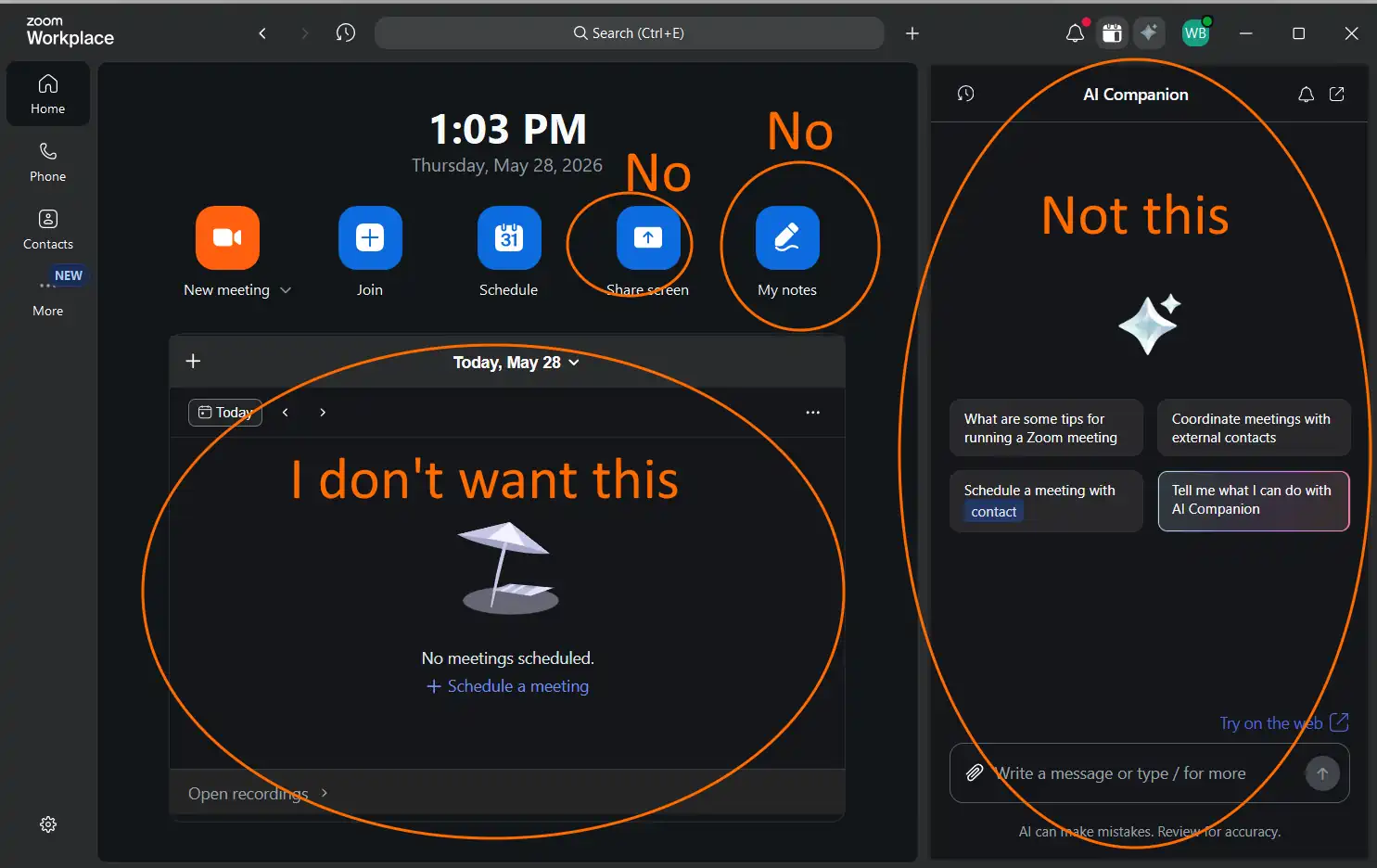
Zoom in 2019 was simple. You joined a meeting. That was it. Since then Zoom has added a calendar nobody asked for, a notes panel, a phone tab, and now an AI Companion ad that takes up a full sidebar. Two months ago the Notes button showed up and pushed the useful buttons off screen. None of this comes with a straightforward off switch.
The AI Companion panel is the worst offender so far. The panel parks itself on your home screen. The same panel fills your daily view. Zoom even hard-coded a tooltip in some versions that reads “AI Companion always shows on the home screen.”
Paying customers have no obvious way to remove the panel from inside the app. The off switch hides in the web portal, buried under account settings most users never touch.
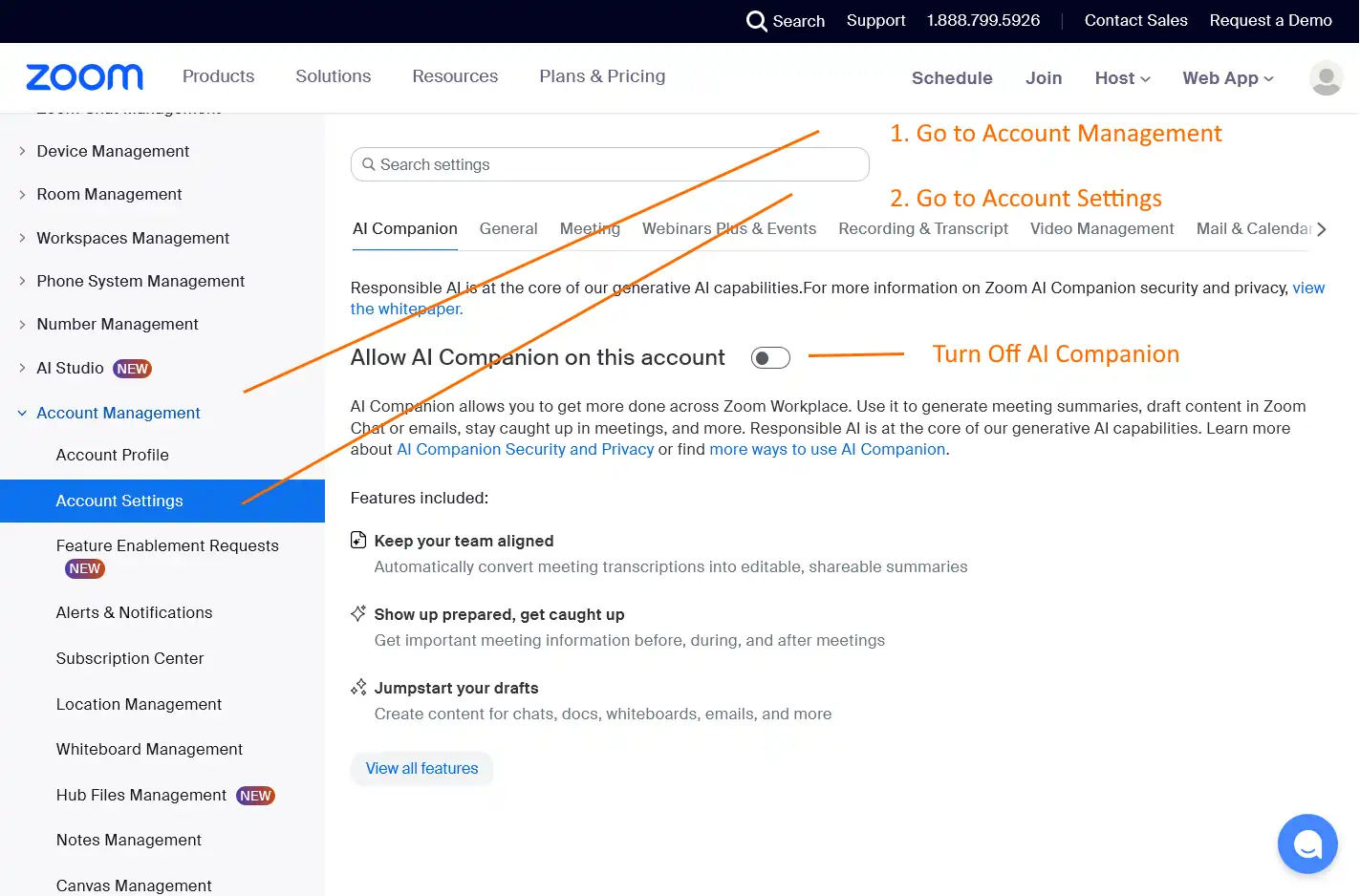
Here is how to find it.
The desktop app will not save you here. The setting lives on the Zoom website. Open a browser and follow these steps.
Two toggles wait on that page. The first toggle disables AI Companion as a feature. The second toggle removes the AI Companion panel from the Zoom Workplace sidebar. Switch both off. Save the changes. Quit Zoom and relaunch the app.
The panel should be gone from your home screen and daily view.
Zoom opens a browser and drops you into the web portal. From there follow Step 1 and Step 2 above.
A note for free account users: Some free users report that the AI Companion toggles do not appear inside the desktop app. Skip the app entirely. Go straight to zoom.us in a browser and run both steps from there. Reports are mixed on whether free accounts can remove the panel at all. The web portal gives you the best shot.
You can disable the AI Companion for a specific meeting before the call starts. Go into your meeting settings and switch the feature off for that session. During a live meeting, a small icon sits in the top right corner. Participants can tap that icon to ask the host to turn the AI Companion off. The host holds all the power here. Guests cannot force the switch themselves.
If you manage a company Zoom account, the panel may be enabled at the account level. Personal settings cannot override account-level settings. Users under your account cannot fix this themselves. You need to go in and kill the panel for everyone.
Follow this path in the web portal:
Zoom’s universal AI Companion toggle handles all AI features in one sweep if you want a faster option.
For full details on the panel setting specifically, Zoom documents it at Enabling or disabling the AI Companion Panel in Zoom Workplace.
A few things cause a stubborn panel.
Your admin locked the setting on. No personal fix exists for this. Contact your Zoom administrator and ask for the panel to be disabled at the account level.
Zoom re-enabled it after an update. Many users report this happening silently. Go back through the web portal steps and toggle the panel off again. Admins should lock the setting after every change.
It may not be Zoom’s panel at all. Third-party tools like Otter and read.ai join meetings through Zoom’s SDK and show up as AI companions. If the panel looks slightly different, or keeps appearing even after your Zoom settings are off, a third-party app may be the real culprit. Check here:
Also go to Account Settings, open Meetings, and switch off “Auto-join all meetings.” That stops outside bots from crashing your calls uninvited.
You are still seeing a pop-up to enable AI Companion. Make sure you toggled the feature off in both the desktop app and the web portal. One alone may not be enough. Some users also report that a newer Zoom build quietly fixed the home screen ad without any settings change. Updating Zoom is worth trying if nothing else works.
The AI Companion panel is fixable for most users. The calendar and the Notes clutter are a harder fight. Zoom has not provided a way to hide the daily calendar view from the home screen. The Notes button landed a couple of months ago and Zoom offers no toggle to remove it. These features shrink the space available for the buttons people actually use.
The Zoom community has raised these complaints in several threads, including a long discussion at AI Companion advertisement in home screen and another at How do I remove the AI Companion icon from the options bar. Zoom has not committed to a clean solution. Voting up those threads may help push the issue.
For now the web portal fix handles the worst offender. The AI Companion ad can go away. The rest of the clutter is still a work in progress.
Yes, but the switch is not in the desktop app. You need to log into zoom.us, go to Settings, and find the AI Companion tab. Two toggles sit there. Turn both off. Restart Zoom.
Log into zoom.us. Go to Settings, then the AI Companion tab. All controls live there. The desktop app does not show the full settings.
Zoom Notetaker is a separate feature from AI Companion. To kill it, log into zoom.us, go to Settings, and look for the Notetaker section. Toggle it off there.
If a bot is joining your meetings uninvited, it may be a third-party tool like Otter or read.ai, not Zoom’s own AI Companion. Go to Account Settings, open Apps, and remove anything you did not install. Also go to Meetings settings and turn off “Auto-join all meetings.”
There is no single reset button. The AI Companion panel, the calendar, and the Notes clutter all have separate settings buried in the web portal. This article covers the AI Companion ad. Zoom has not provided a way to hide the calendar or the Notes button yet.
Zoom wants to sell AI features. The AI Companion panel is advertising for a paid add-on. Zoom makes it hard to remove because the company wants you to use it.
A consistent routine can make the setup easier to maintain. The goal is not to…
If you want a luxury SUV that feels exciting but still gives you room to…
Three weeks into a job search, a recruiter calls and says, pleasantly, “Your resume says…
Every six months, even when you’re not looking. Continue reading →
You want to achieve balance in your sales and service teams? Explore top strategies that…
The dryer was still ticking as it cooled when I sat sideways in the driver's…