Android does a great job of keeping your contacts in sync between Google and your phone, but many users find that CompanionLink USB offers a more complete sync solution. However, users switching to CompanionLink USB run the risk of duplicating contacts upon the initial sync. To ensure a seamless migration to direct USB sync, follow these steps:
1. On your Android phone, disable Google contacts sync: https://www.companionlink.com/support/howto/disable-google-contacts-sync.html
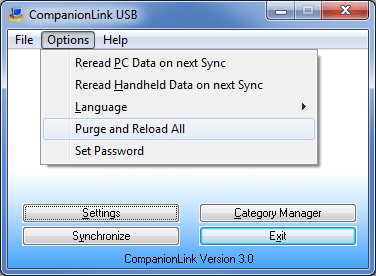
2. On your PC, configure CompanionLink USB to Purge and Reload (Options -> Purge and Reload All).
3. Sync your Android phone using CL USB Sync.
This will clear your phone of all existing contacts, so make sure all your contacts are on your PC before performing the above steps. If you don’t have your contacts on your PC, you can first use CompanionLink USB to sync all your contacts on from your phone into Outlook. CompanionLink will then wipe the phone and do a fresh reload to ensure there are no duplicates. Once CompanionLink has synced contacts via USB, be careful about turning Google contacts sync back on unless you have also wiped all contacts from Google.
More info about CompanionLink sync solutions for Android, and a 14-day free trial, can be found at www.companionlink.com/android.
Live database synchronization is one of the most challenging engineering problems of current IT architecture.…
Taking family road trips or navigating daily city commutes requires frequent pit stops along busy…
As professionals take on new responsibilities, their current tools and setup may no longer be…
Managing an engineering team is a job. You have to balance a lot of things.…
Most small businesses leak customers between first contact and the sale. Here is where the…
A designer in New York opens the same project that a developer in another country…