Use Zoho CRM without the Zoho Outlook Plugin or Zoho Sync App
Works from your PC. CompanionLink will sync to Outlook, Google, Android and iOS devices.
If you use Zoho CRM, CompanionLink Professional is the prefect solution to synchronize to Outlook, Google, Android and iPhone. We also support Windows Phone, BlackBerry 10 and Original Blackberry!
Works with all Zoho CRM accounts.
*For CompanionLink to sync with Zoho, you must obtain a Zoho API key.
Note: Zoho's sync API has a limit on number of requests per day, depending on your Zoho account type. The limit equates to about 50,000 records/day, so for most users there will be no problems. If you reach the limit, you will not be able to sync using CompanionLink for one day. This is a limitation imposed by Zoho, not CompanionLink.
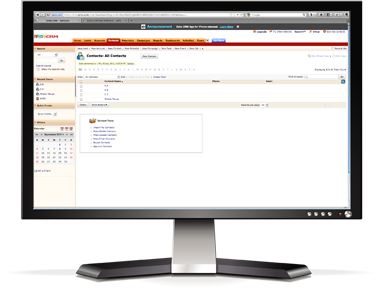
CompanionLink will synchronize your Contacts, Calendar, and Tasks
- Contacts, Calendar, Tasks
- Alarms
- USB, WiFi, Cloud and Google sync options
- Free US-based phone support for life
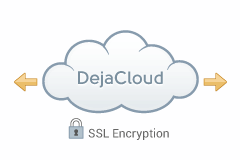
Advantages: DejaCloud is always available via Internet, Wi-Fi and Phone connection. Use DejaOffice as a landing pad for PC Outlook data on Android. Contacts, Calendar, Tasks, Notes. Supports multiple devices and multiple PC's easily. After the initial sync, sync time is instant and automatic.
Disadvantages: DejaCloud is a subscription service. Your purchase covers the first year, and after the first year it costs roughly $5 per month
Steps:
- Install CompanionLink on your PC
- Install DejaOffice on your device
- Set DejaCloud sync, Real Time sync
Setup Guides:
Zoho CRM to Android using DejaCloud
Zoho CRM to iPhone, iPad using DejaCloud
Zoho CRM to Windows Phone using DejaCloud
Zoho CRM to BlackBerry 10 using DejaCloud
Information about DejaCloud
DejaOffice Classroom
Advantages: Your PC Syncs to Google, and Google Syncs to your phone. This is a great choice if you require your Zoho CRM data in Google Calendar and Contacts for other reasons. CompanionLink for Google sync can be set automatically and will run in background on your PC.
Disadvantages: Google has limited Task capabilities and no recurring tasks. No Notes Sync. Google Tasks do not go to many Android Phones, although Samsung is now supporting them.
Steps:
- Install CompanionLink on your PC
- Set Google Sync
- Set Auto-Sync, Timed or Manual Sync
Setup Guide:
Zoho CRM Sync to Google.

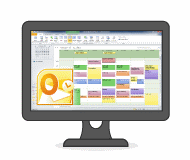
Advantages: Your PC Syncs to Outlook. Instant and automatic. DoubleLook Mode gives you instant compatibility without thinking about it. The data is just there.
Steps:
- Install CompanionLink on your PC
- Set Outlook Sync
Setup Guide:
Configuring Zoho.
Get CompanionLink Professional for Zoho CRM
Buy One-time license$149.95 Buy 3-month subscription
$28.95 Try it free for 14 days!
Zoho CRM data we sync with Android
- Contacts
- Names, addresses, phone numbers, email addresses
- Contact notes
- Calendar
- All calendar event details
- all-day events
- Alarms/reminders
- Tasks
- Due dates
- Sort by subject, due date, status, priority, or alarm date
What is "Outlook" in 2025?
Outlook is Microsoft's email and calendar app. In 2025, there are three apps that Microsoft calls "Outlook". You can compare them here. CompanionLink supports all versions of Outlook.
Classic Outlook
The PC version of Outlook that you have been using for 25 years is now called "Classic Outlook". It runs on your computer and works without the internet. Nearly all Outlook users still prefer it for privacy and speed.
New Outlook
New Outlook is is cloud-based. Your data is not stored on your PC. This means it is slower and will not work if your internet is down. Most PCs now have New Outlook installed because Microsoft forces them to. Nearly all users prefer Outlook Classic apps because cloud-based solutions are unreliable.
Outlook for Windows
Outlook for Windows is the free app that replaces Windows Mail and Calendar. Microsoft shares your data with more than 801 advertisers. Many users worry about privacy with this version.
Which Outlook Should You Use?
We strongly recommend Outlook (classic) because it is fast and secure. If you have a Microsoft Office license, then you own a license to Outlook (classic). Use this guide to switch to Outlook Classic Now.
Supported versions of Outlook
- Microsoft Teams
- Microsoft 365 Outlook
- Office 365 Outlook
- Office 2024 Outlook
- Office 2021 Outlook
- Outlook 2019
- Outlook 2016
- Outlook 2013
- Outlook 2010
- Outlook 2007
- Outlook Business Contact Manager 2013
- Outlook Business Contact Manager 2010
- Outlook Business Contact Manager 2007
- 32 and 64-bit versions
- Supports MS Exchange Public Folders visible in Outlook
- Supports IMAP Accounts
- Supports POP3 Accounts
- Supports iCloud Accounts visible in Outlook
- Supports Outlook.com and Microsoft accounts
(formerly Windows Live Hotmail)
Cut the Cord!
Click here to find out How to use Office 365 without a subscription
Supported versions of Windows OS
- Windows 11 (64-bit)
- Windows 10 (32-bit and 64-bit)
- Windows 8.x (32-bit and 64-bit)
- Windows 7.x (32-bit and 64-bit)
- Windows Vista (32-bit and 64-bit)
- Windows XP / 2000 - (Requires CompanionLink 7 download)
Thanks for magnificent information I was looking for this info for my mission.
Last modified: Sep 22, 2022 2:22 pm