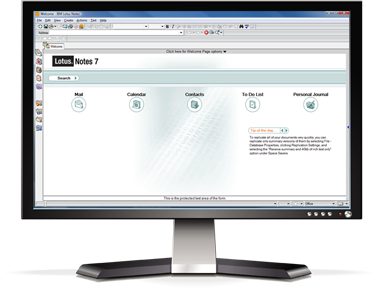
Sync iPhone with Lotus Notes

Sync Lotus Notes contacts, calendar and to dos with iPhone

You need CompanionLink Express!

Try it free for 14 days! Buy it for $79.95

Looking to sync multiple devices or databases? Upgrade to CompanionLink Pro.
Learn More

Sync with Lotus NotesSync iPhone with your PC

Choose your sync method:

Local Wi-Fi Sync

iPhone Wi-Fi Sync iPhone Sync via Google iPhone Secure Wireless Sync iPhone USB Sync

How It Works - Wi-Fi Sync

CompanionLink will sync Lotus Notes with your iPhone. And we'll do it over-the-air using your local Wi-Fi network (like a home or office network). You get the benefits of over-the-air sync within the security of your Wi-Fi network.

CompanionLink installs on your PC and works together with a free CRM app for iPhone. The app is called DejaOffice and is available free from the App Store. In addition to sync functionality, DejaOffice gives you business-class contacts, calendar, tasks and memos on your iPhone.

Learn more about DejaOffice at www.dejaoffice.com

IMPORTANT: sync only works within your local Wi-Fi network. You cannot sync over the internet, using your phone's data plan, or when you are outside the range of your Wi-Fi network. Your device and PC running CompanionLink must be on the same local network. Learn how to validate your Wi-Fi connection.

Data We Sync

  • Contacts
    • Syncs all common contact fields, including (but not limited to):
    • Name
    • Addresses
    • Phone numbers
    • Email addresses
    • Birthdays
    • Contact notes
    • Categories (for devices that support the category field)
  • Calendar
    • Meetings and Appointments
    • Notifications
    • Recurring events
    • Custom recurring events (Android only, one way only from Lotus Notes to the phone)
    • Event attendeeds, location and room number
    • Categories (for devices that support the category field)
  • To Do List
    • To do list items sync to the tasks list on the phone
    • Priorities
    • Due dates
    • Categories (for devices that support the category field)

What You Need

  • CompanionLink Express on your PC.
  • IBM Lotus Notes.
  • DejaOffice on your iPhone. Download DejaOffice from the App Store.
  • DejaOffice requires one of the following devices:
    • iPhone 3GS
    • iPhone 4
    • iPhone 4S
    • iPod Touch (generations 3 and 4)

Supported versions of Lotus Notes

  • Lotus Notes versions 4.6.7 and higher

Getting Started

  1. Install CompanionLink on your PC and configure it to sync to an Apple device, then choose Wi-Fi as your sync method.
  2. Install DejaOffice on your iPhone and configure for Wi-Fi sync. Take note of the IP address given (e.g. 192.168.1.101).
  3. Configure CompanionLink with the IP address of your iPhone (as shown in DejaOffice).
  4. Select and configure your contact manager, then hit sync!

How It Works - Sync via Google

CompanionLink will sync Lotus Notes contacts, calendar, and tasks* with your Google, Gmail, or Google Apps account. This data will then sync automatically and over-the-air with your iPhone courtesy of Google's free sync service. With our two-way sync, you have the freedom to edit information on your device, in your Google account, or in Lotus Notes.

*Google currently does not sync Google Tasks to the iPhone. More info .

Data We Sync

  • Contacts
    • Syncs all common contact fields, including (but not limited to):
    • Name
    • Addresses
    • Phone numbers
    • Email addresses
    • Birthdays
    • Contact notes
    • Categories
  • Calendar
    • Meetings and Appointments
    • Notifications
    • Recurring events
    • Custom recurring events (One way only from Lotus Notes to Google)
    • Event attendeeds, location and room number
    • Categories
  • To Do List (sync to Google Calendar as untimed events)
    • NOTE: CompanionLink provides the option to sync Lotus Notes to dos with Google Tasks or Google Calendar. More info
    • Priorities
    • Due dates
    • Categories

What You Need

  • CompanionLink Express on your PC.
  • IBM Lotus Notes.
  • A Google, Gmail, or Google Apps account.
  • An iPhone with a wireless data connection (2G/3G/4G or Wi-Fi)

Supported versions of Lotus Notes

  • Lotus Notes versions 4.6.7 and higher

Getting Started

  1. Install CompanionLink on your PC and configure it with your Google username and password.
  2. Once configured, hit "Synchronize" and your data will sync between Google and your PC.
  3. Configure your iPhone to sync with your Google account. Once configured, your iPhone will continuously stay in sync with your Google account.

How It Works - Secure Hosted Sync

Our most robust sync solution, period. CompanionLink will sync Lotus Notes with your iPhone over-the-air for just $9.95/month (More info ). It works anywhere you have an internet connection on your device.

We use AES-256 bit encryption. CompanionLink does not host your data online; we simply sync information between Lotus Notes and your iPhone.

CompanionLink installs on your PC and works together with a free CRM app for iPhone. The app is called DejaOffice and is available free from the App Store. In addition to sync functionality, DejaOffice gives you business-class contacts, calendar, tasks and memos on your iPhone.

Learn more about DejaOffice at www.dejaoffice.com

Data We Sync

  • Contacts
    • Syncs all common contact fields, including (but not limited to):
    • Name
    • Addresses
    • Phone numbers
    • Email addresses
    • Birthdays
    • Contact notes
    • Categories (for devices that support the category field)
  • Calendar
    • Meetings and Appointments
    • Notifications
    • Recurring events
    • Custom recurring events (Android only, one way only from Lotus Notes to the phone)
    • Event attendeeds, location and room number
    • Categories (for devices that support the category field)
  • To Do List
    • To do list items sync to the tasks list on the phone
    • Priorities
    • Due dates
    • Categories (for devices that support the category field)

What You Need

  • CompanionLink Express on your PC.
  • IBM Lotus Notes on your PC.
  • DejaOffice on your iPhone. Download DejaOffice from the App Store.
  • DejaOffice requires one of the following devices:
    • iPhone 3GS
    • iPhone 4
    • iPhone 4S
    • iPod Touch (generations 3 and 4)
  • CL Secure Hosted Wireless service - $9.95/month More info. Activate service during initial CompanionLink Setup

Supported versions of Lotus Notes

  • Lotus Notes versions 4.6.7 and higher

Getting Started

  1. In the CompanionLink setup, create a new wireless account and enter your payment information.
  2. Open DejaOffice on the iPhone, tap Settings, then Sync Settings. Enter your username and password here.
  3. On the PC, hit Synchronize. Once the PC has finished synchronizing, you can tap the Sync button within DejaOffice to pull the fresh sync data down to the phone.

How It Works - Sync via iTunes/Outlook

Apple does not allow CompanionLink to sync directly to the iPhone using a USB cable. Instead, CompanionLink will sync Lotus Notes contacts and calendar to Microsoft Outlook. Then, iTunes will sync this data to the iPhone from Outlook.

However, CompanionLink does not recommend this approach. It requires moving data through Microsoft Outlook and Apple iTunes, which can limit the data fields that sync from Lotus Notes. To sync data directly between Lotus Notes and iPhone, select another Sync Method option.

Data We Sync

CompanionLink will sync contact, calendar, and notes/memos into Microsoft Outlook, so that iTunes can sync this data with your iPhone. However, crucial data fields such as categories will not sync through iTunes. For optimal data integrity, we recommend selecting a different Sync Method option, such as local Wi-Fi sync.

What You Need

  • CompanionLink Express on your PC.
  • IBM Lotus Notes.
  • Microsoft Outlook 2003 or higher on your PC.
  • iTunes 7.3 or higher on your PC.

Supported versions of Lotus Notes

  • Lotus Notes versions 4.6.7 and higher

Getting Started

  1. Install CompanionLink on your PC and configure it to sync Apple iPhone Thru Outlook.
  2. Configure iTunes to automatically sync when the iPhone is connected.
  3. Run the sync to Outlook from CompanionLink. When finished, connect your iPhone and iTunes will sync Outlook data to the iPhone.

Screenshots

The CompanionLink home screen makes it easy to see an overview of your sync configuration.

Select the applications you wish to sync - CompanionLink gives you full control over your data.

Select different folders to sync with for each data type - CompanionLink works with your data structure.

"The only solution I could find that would link GroupWise, Gmail and iPhone. Now, all my calendars and contacts are linked, synced and accessible."

Ric S
Customer

"...working flawlessly and I am very pleased with it."

Joe S
Customer

"...allows me to sync years of invaluable data between my PC and phone."

Peter R
Customer

CompanionLink Professional
$129.95

CompanionLink Professional gives you advanced configuration options for working with multiple mobile devices and CRM databases.

We recommend Pro if you want to:

  • Sync multiple PC databases
  • Sync multiple devices
  • Advanced sync options for ACT!
  • Realtime sync between two PC databases

Buy now | More info

Secure Hosted Wireless Sync

Sync your database directly to your mobile device - without hosting your data in the cloud.

CompanionLink offers secure and automatic wireless sync of contacts, calendar, tasks and memos for $9.95 per month. We use government-standard 256-bit AES encryption so your data is completely secure. Plus, your data is never hosted in the cloud.

More info on CompanionLink Hosted Wireless Sync

Sync your PC tasks with Google Tasks

CompanionLink offers two options to sync tasks with Google:

  1. Tasks sync to Google Tasks. Your PC tasks sync to Google's native task list, however, Google currently does not sync tasks with any device.
  2. Tasks sync to Google Calendar. Your PC tasks sync to Google Calendar as untimed events. This allows your tasks to sync with your device via the calendar.

Both options are available in CompanionLink 5. If you rely heavily on tasks, we recommend using one of our other sync methods that syncs tasks directly with your device.

CompanionLink Wi-Fi sync works when communication is mediated through a local Wi-Fi hub. If either your PC or your Device is not connected to the same hub, then the software will not be able to Sync.

Steps to validate the connection:

1. Be sure your PC and your iPhone/iPad are connected to the Wi-Fi Router. (i.e. Wi-Fi is ON for the phone, and the PC is connected via Wi-Fi or cable to the same local router).

2. Open DejaOffice on the iPhone/iPad. Tap Settings, Sync, select CL Wi-Fi Sync. It will show a check mark. Hit DejaOffice "Home" to go to the main menu.

3. In DejaOffice, click on the "Sync" Icon. It will display a box with an IP Address. Write this down.

4. On your PC, open your web browser. Type in the IP Address in the search window followed by a colon ":" and the number 8090, then press Enter. For instance, for 192.168.0.48 you would type in: http://192.168.0.48:8090

5. On your PC Browser, you should see "DejaOffice Server is running".

This indicates that your PC and iPhone/iPad will be able to successfully connect via CL Wi-Fi Sync.

If you do not see "DejaOffice Server is running", run through the Tech Tips Guide then rerun the test above. Until that test is successful, CompanionLink Wi-Fi Sync will not be able to connect to your iPhone/iPad.